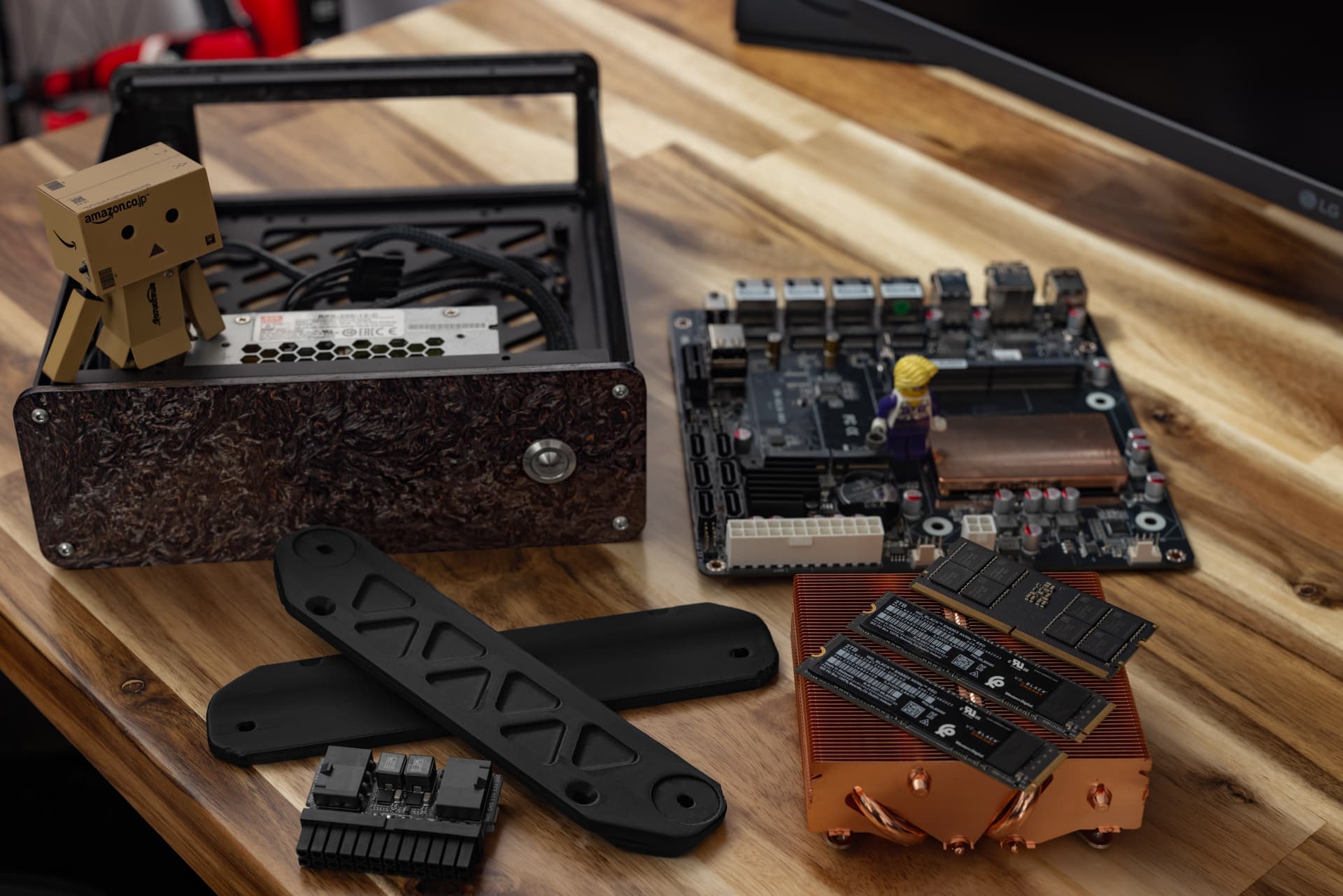
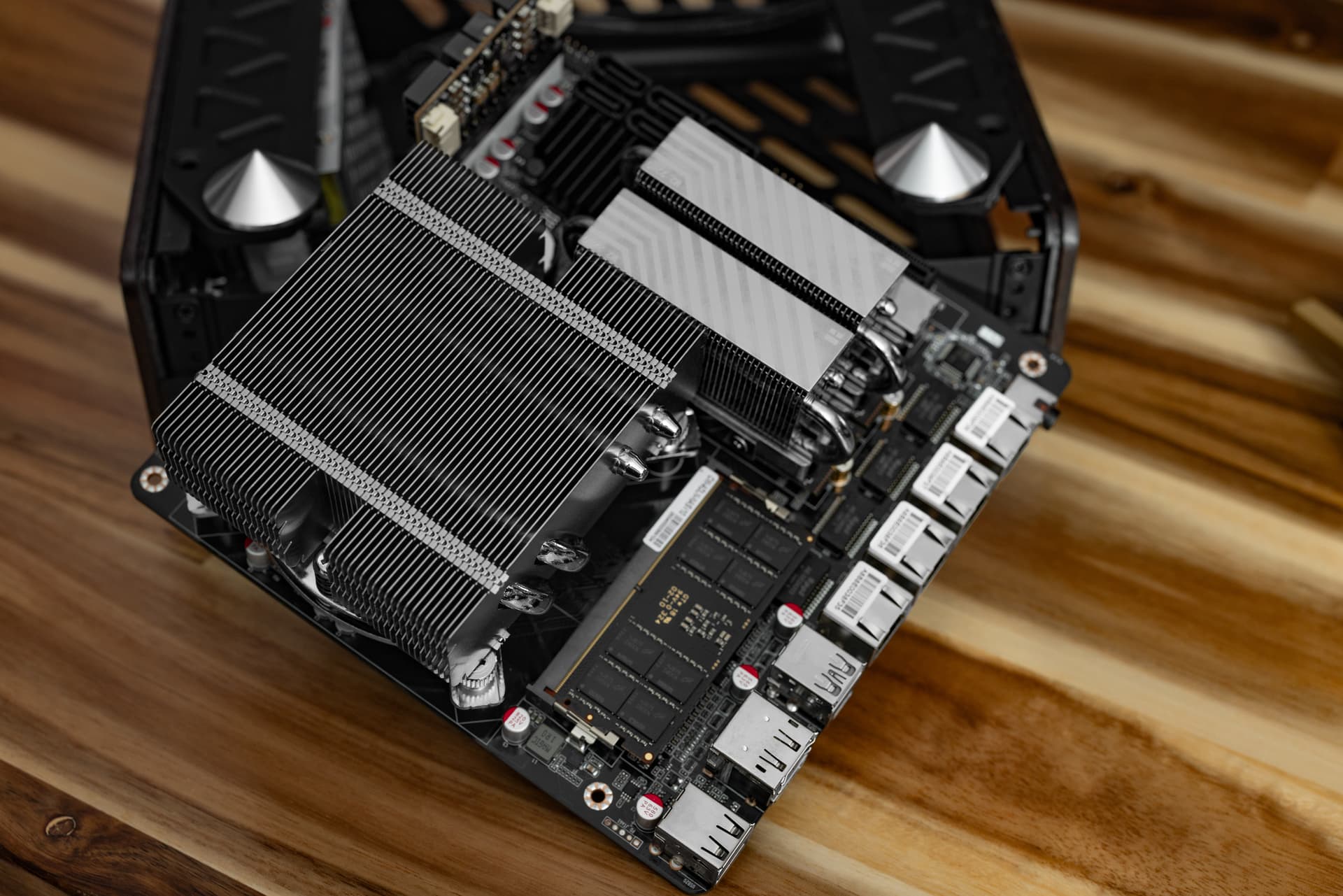
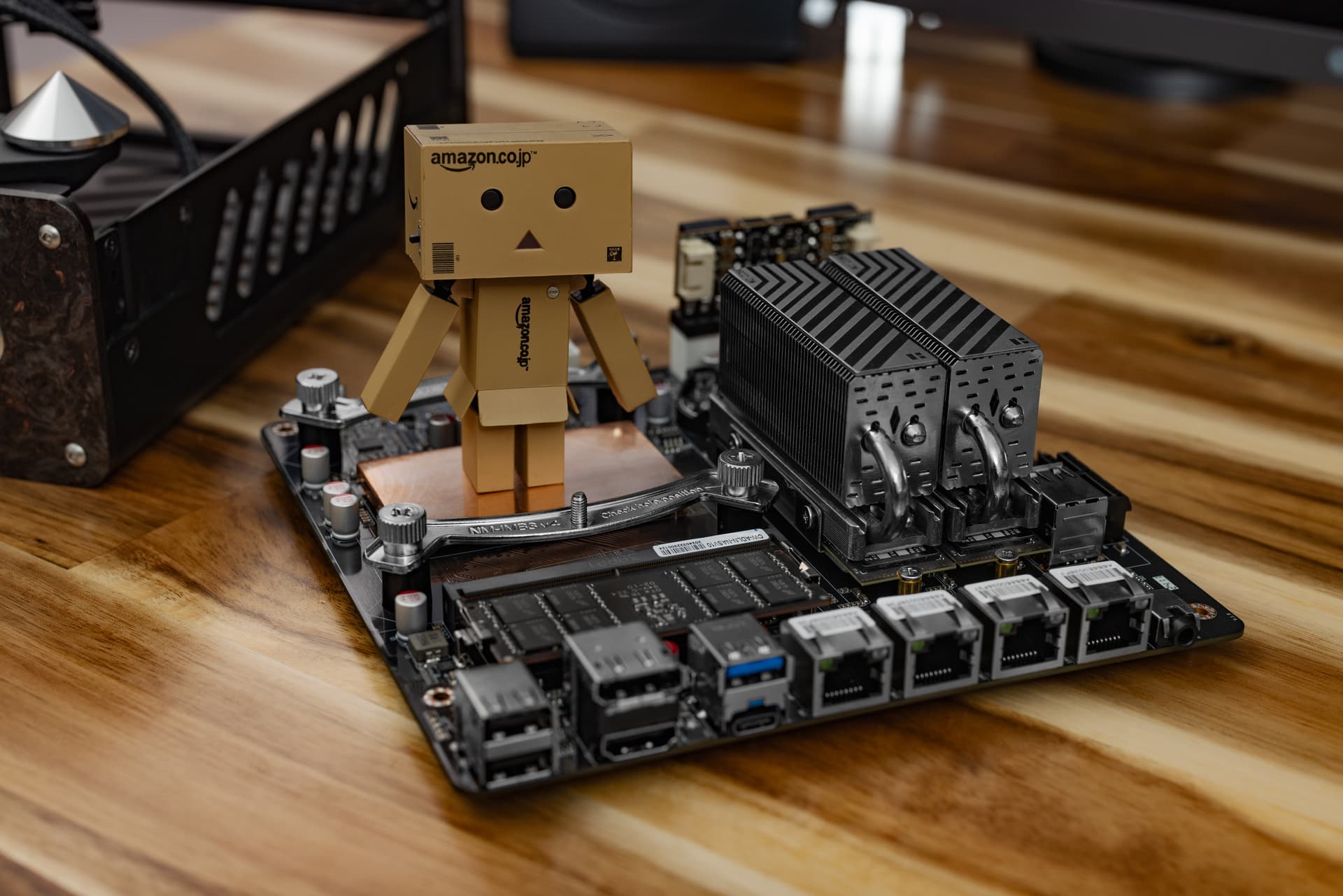
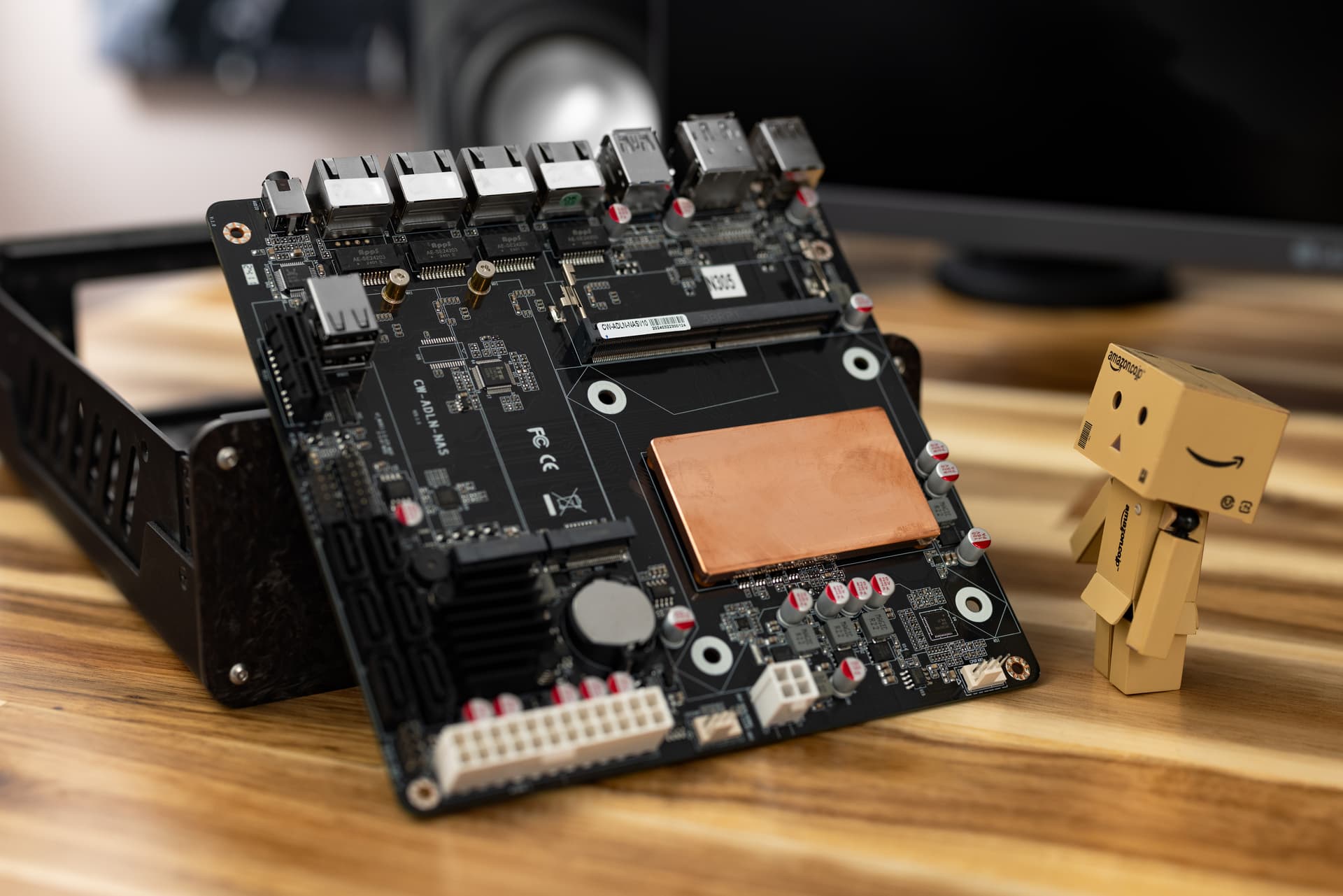
It’s still great from a hardware standpoint, but I’ve grown used to the joys of ZFS. Initially QNAP was going to make QuTS Hero available to older NASes, but they walked that back. It’s a shame.
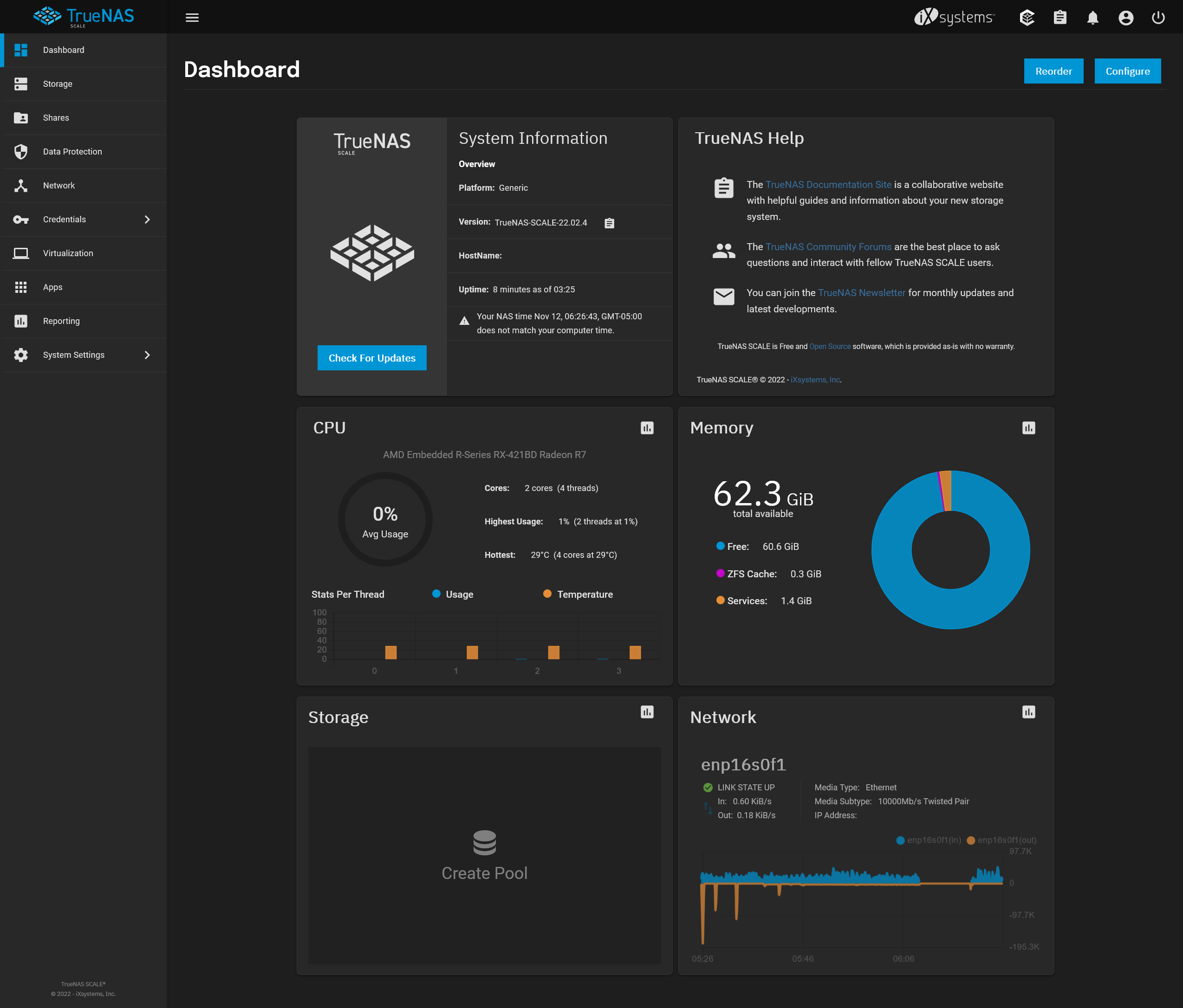
I tried following a few guides at first, but things weren’t in the same spots due to using Scale vs Core, so I abandoned all that and went about it how I usually do. Just playing around wit the interfaces.
QNAPs are very hand-holdy, so having to explicitly define everything was a departure from pre-built land. Pre-built NASes feel more like an appliance and I absolutely see why people use them. TrueNAS does a good job of organizing everything, so it’s a lot friendlier than completely scratch built storage solutions I’ve worked with in the past. It’s a great blend of ease of use and control. Some wizards for setting up common configs would be nice to see, but if you’ve come this far, it’s likely you don’t need them. Having a checklist so you setup permissions correctly and remember to configure snapshots is just as effective. If I were doing this more regularly, I would just document it in my personal knowledge base container.
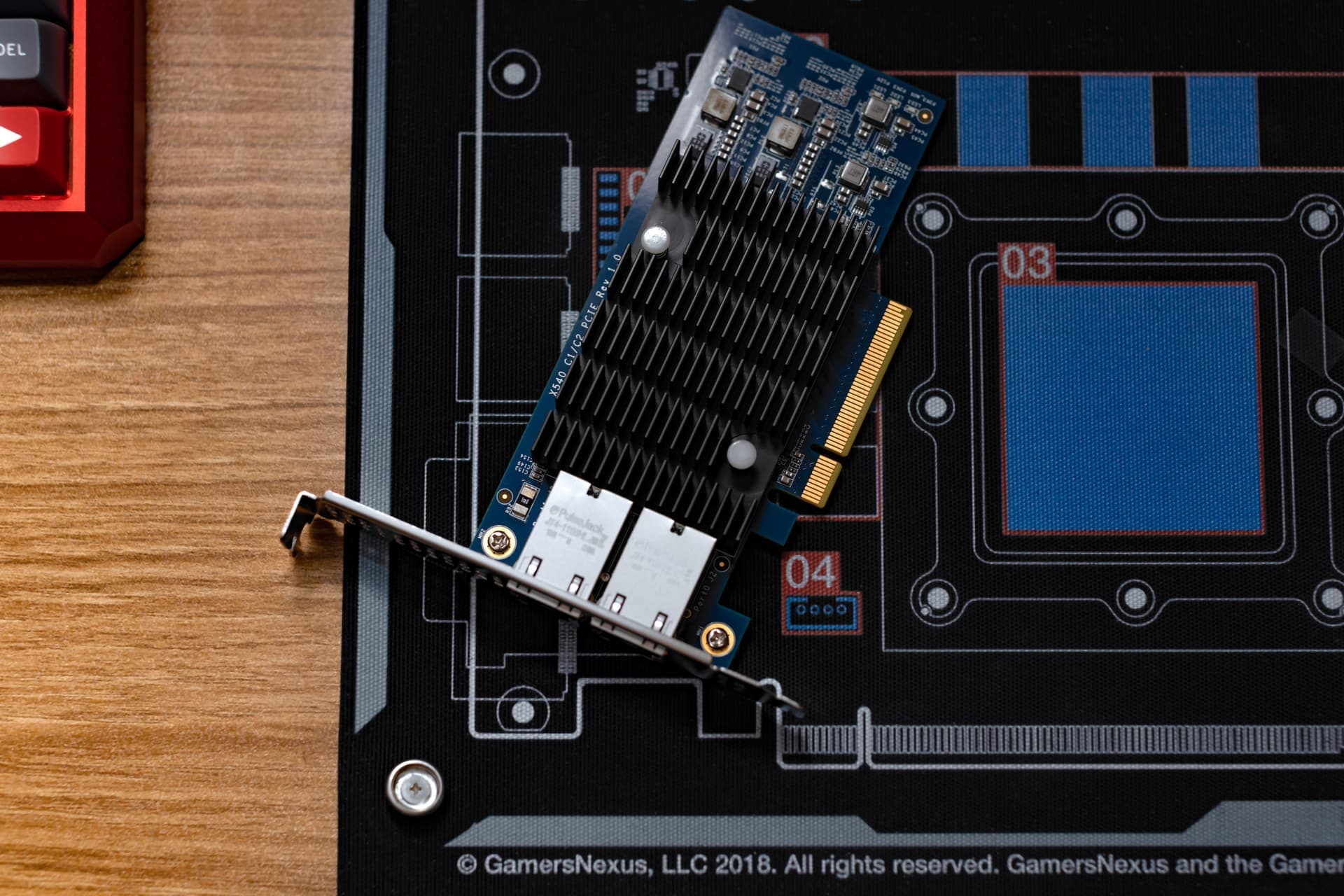
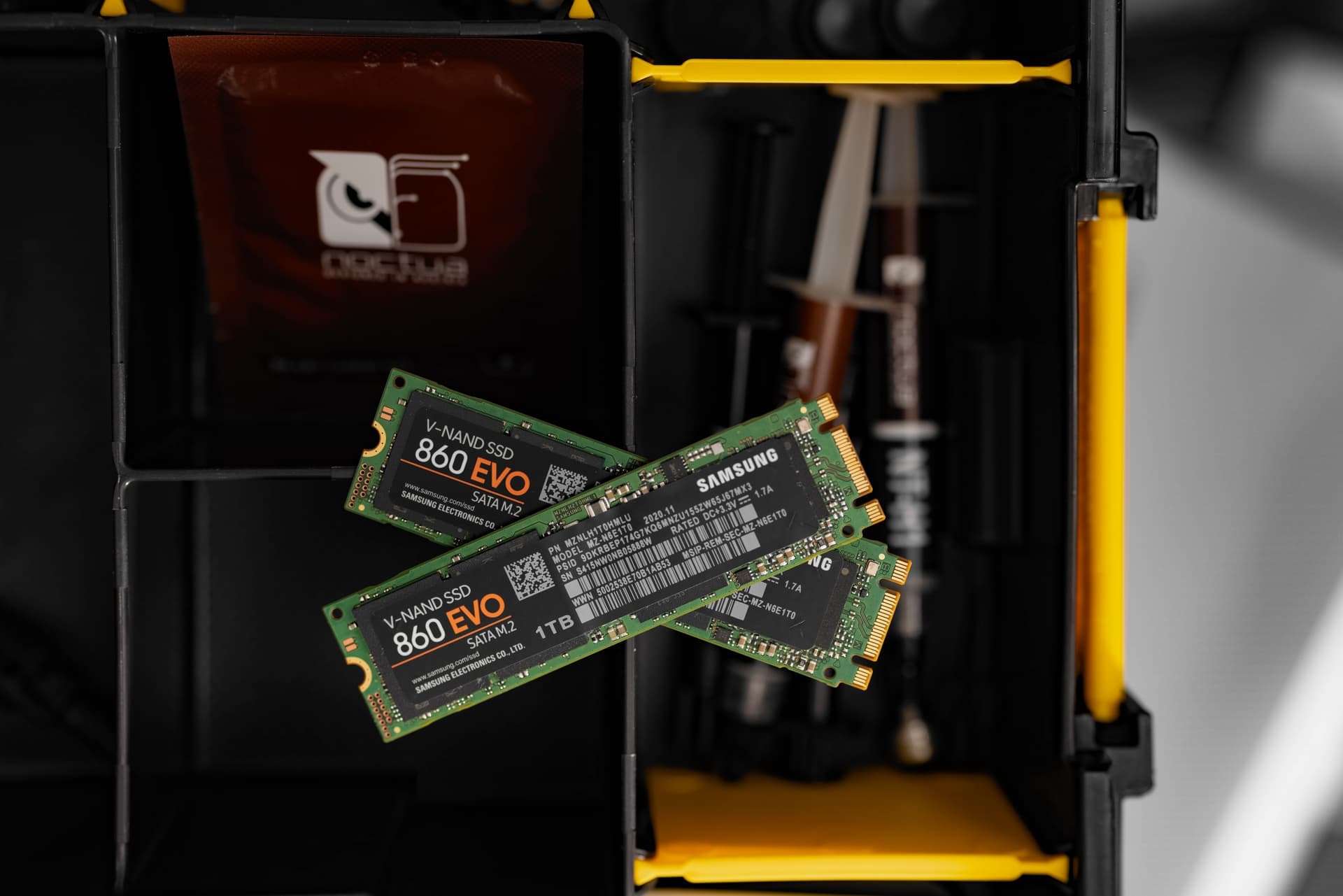
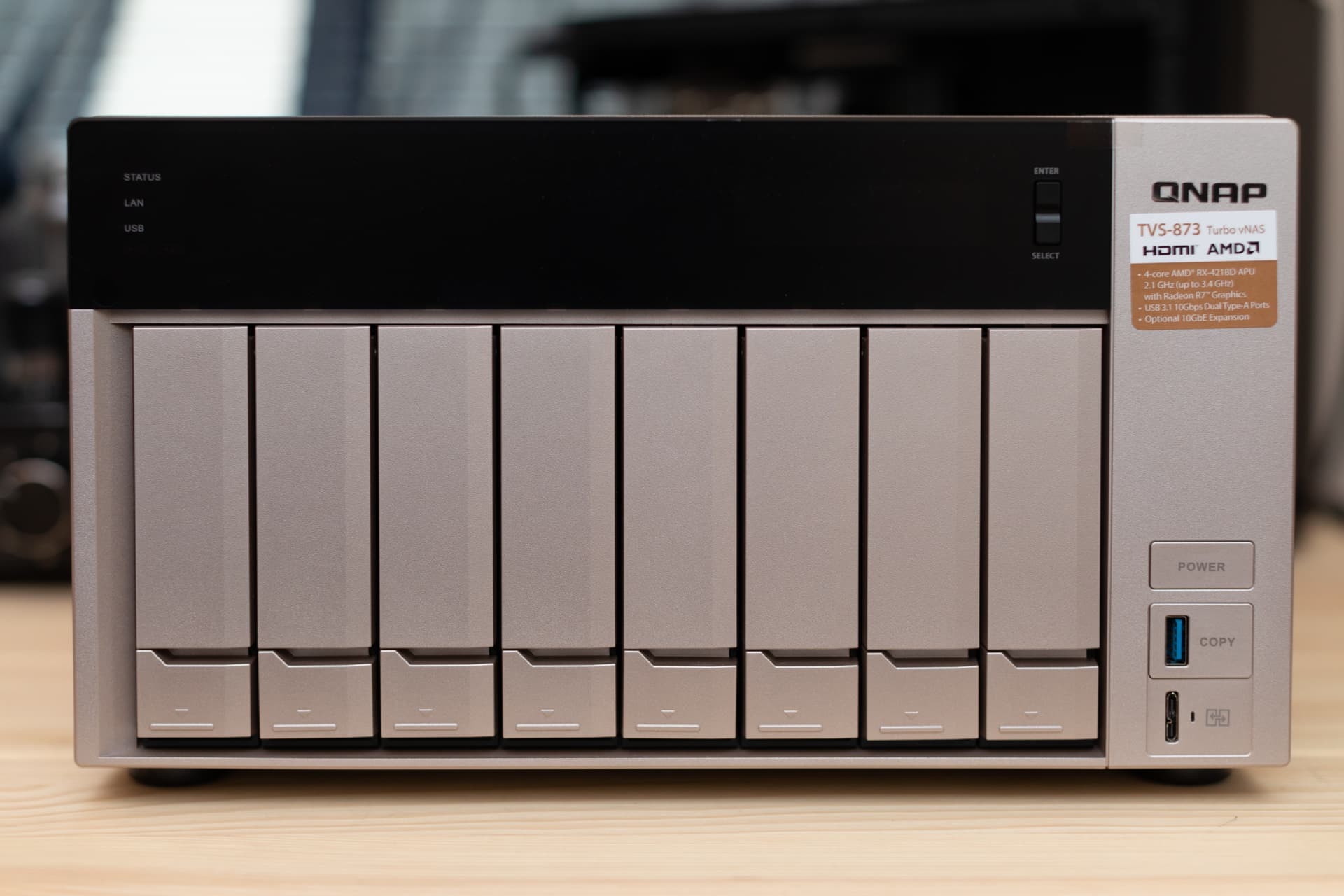
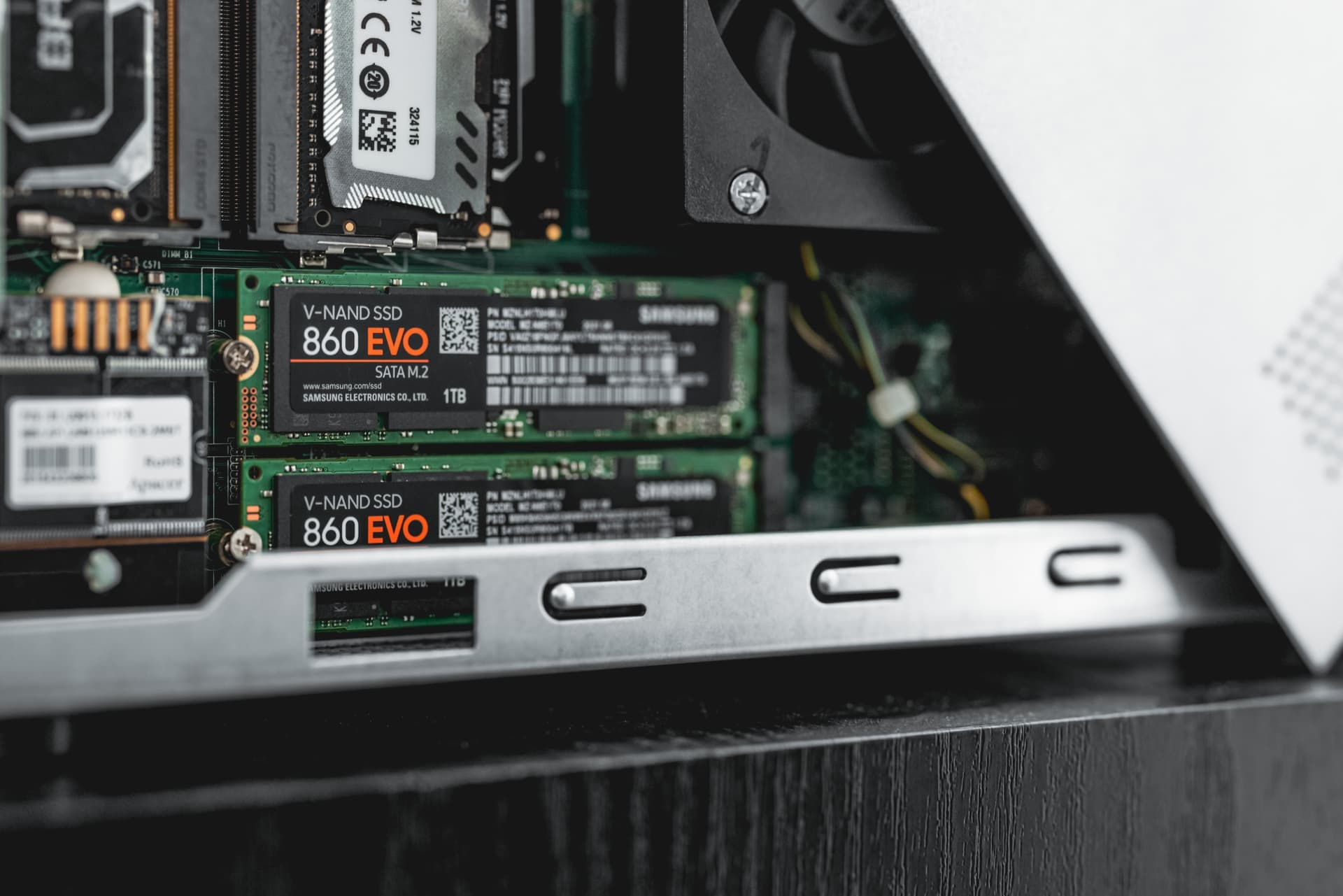
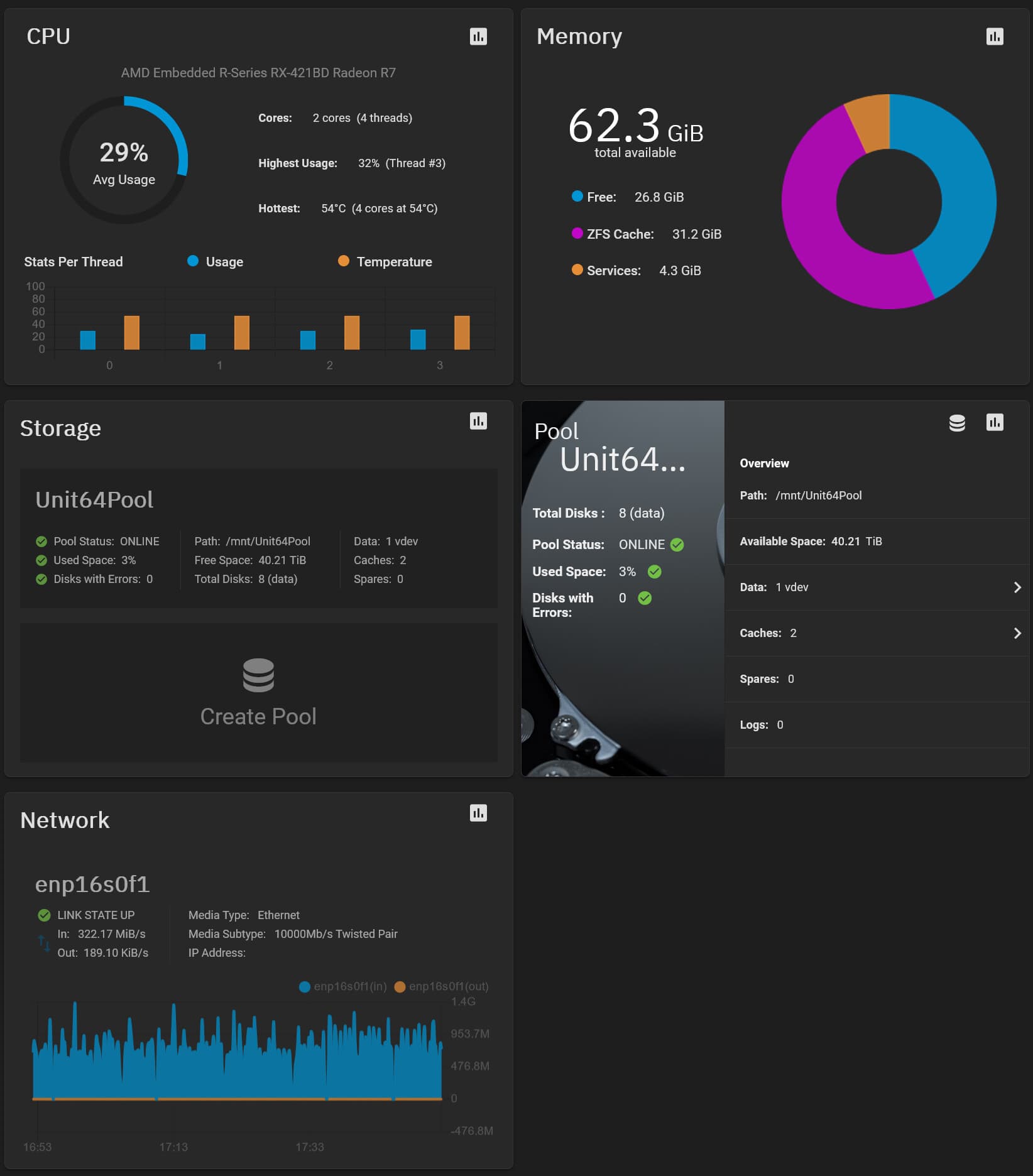
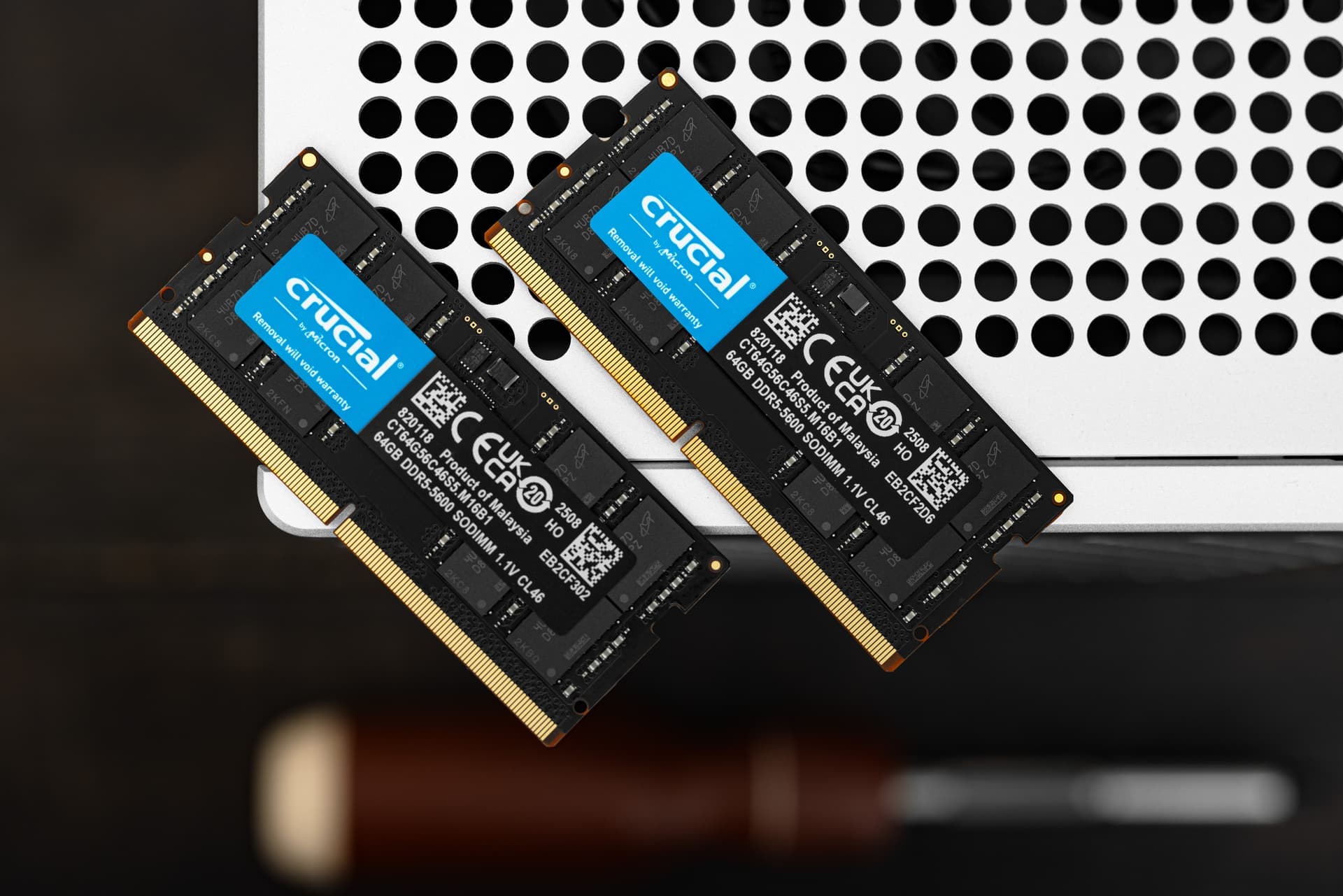
My QNAP TVS-873 is a equipped with an AMD Embedded R-Series RX-421BD Radeon R7. It’s billed as quad core, but TrueNAS sees it as 2 core, 4 thread. Not too sure what that’s all about unless it’s the same deal as Bulldozer. The SoC doesn’t support ECC, so I’m just using 4x 16GB SODIMM DDR4 2666. For the network card I’m using an “Intel X540-T2” from 10Gtek. For storage I have 8x Seagate Iron Wolf drives and 2x 1TB Samsung 860 EVOs (SATA). I was using the EVOs for tiered storage under QNAP QTS, but TrueNAS/ZFS doesn’t offer that kind of caching, so I don’t know what I’ll do with them yet. I already have a “fast” NAS, so I don’t need an SSD pool.
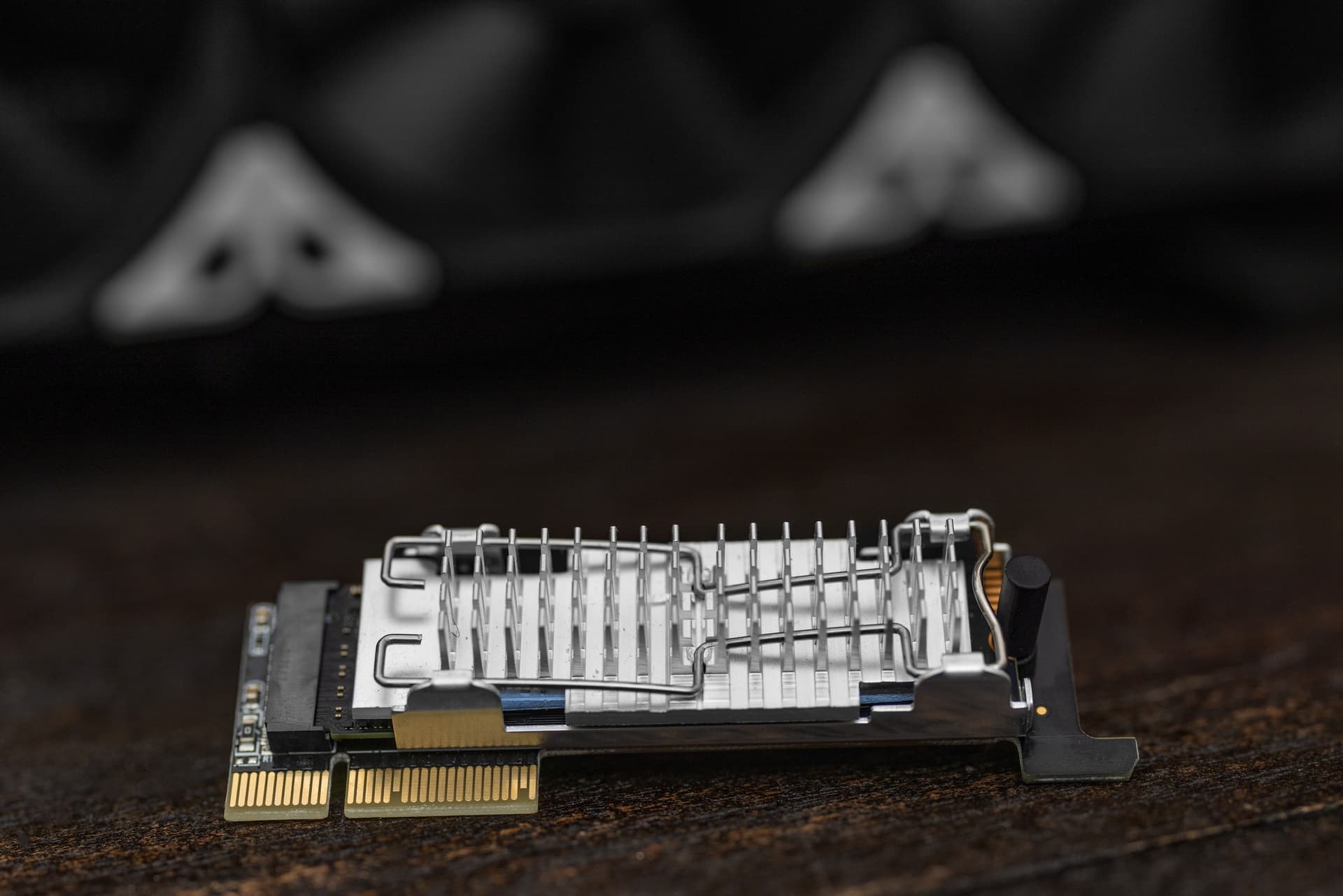
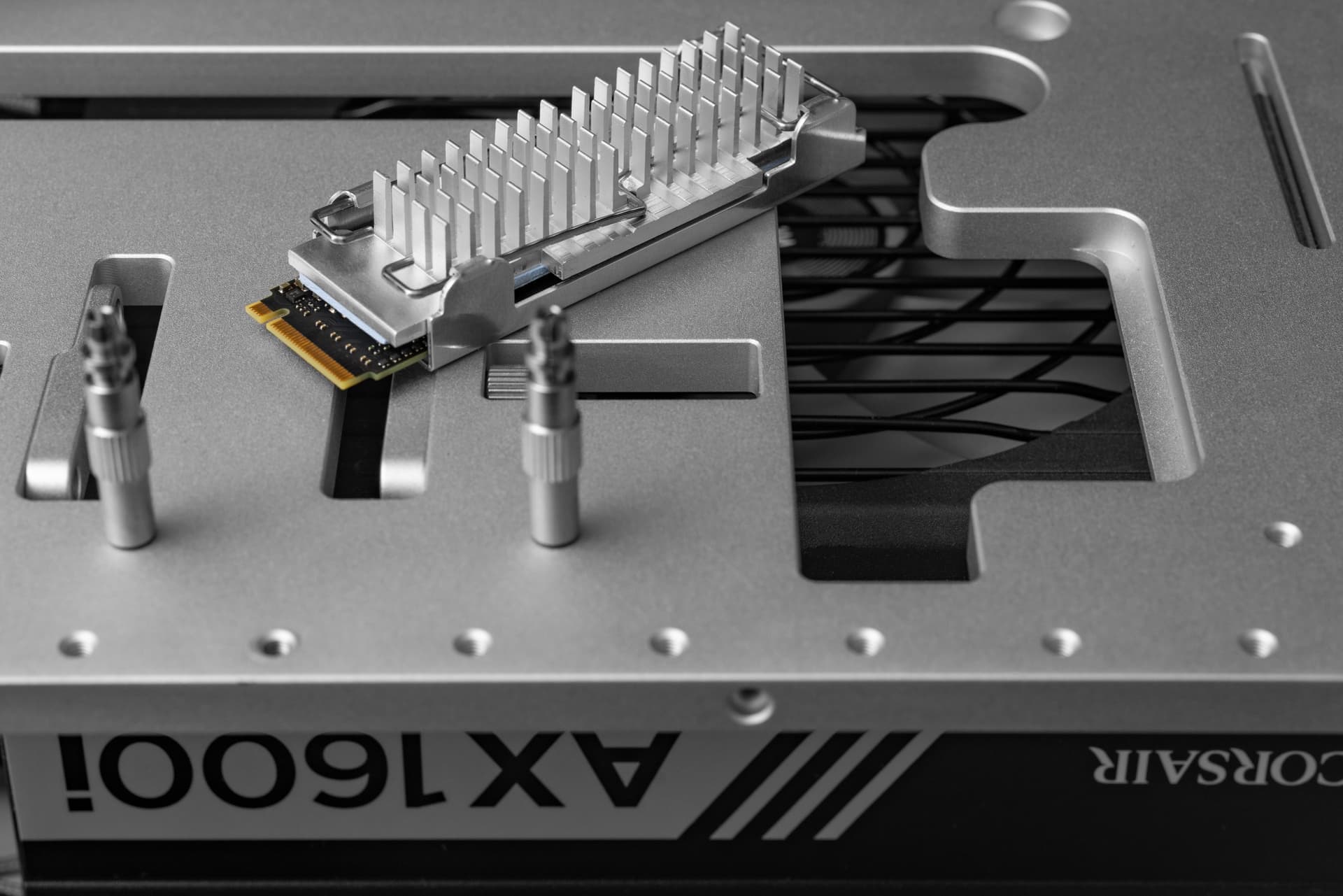
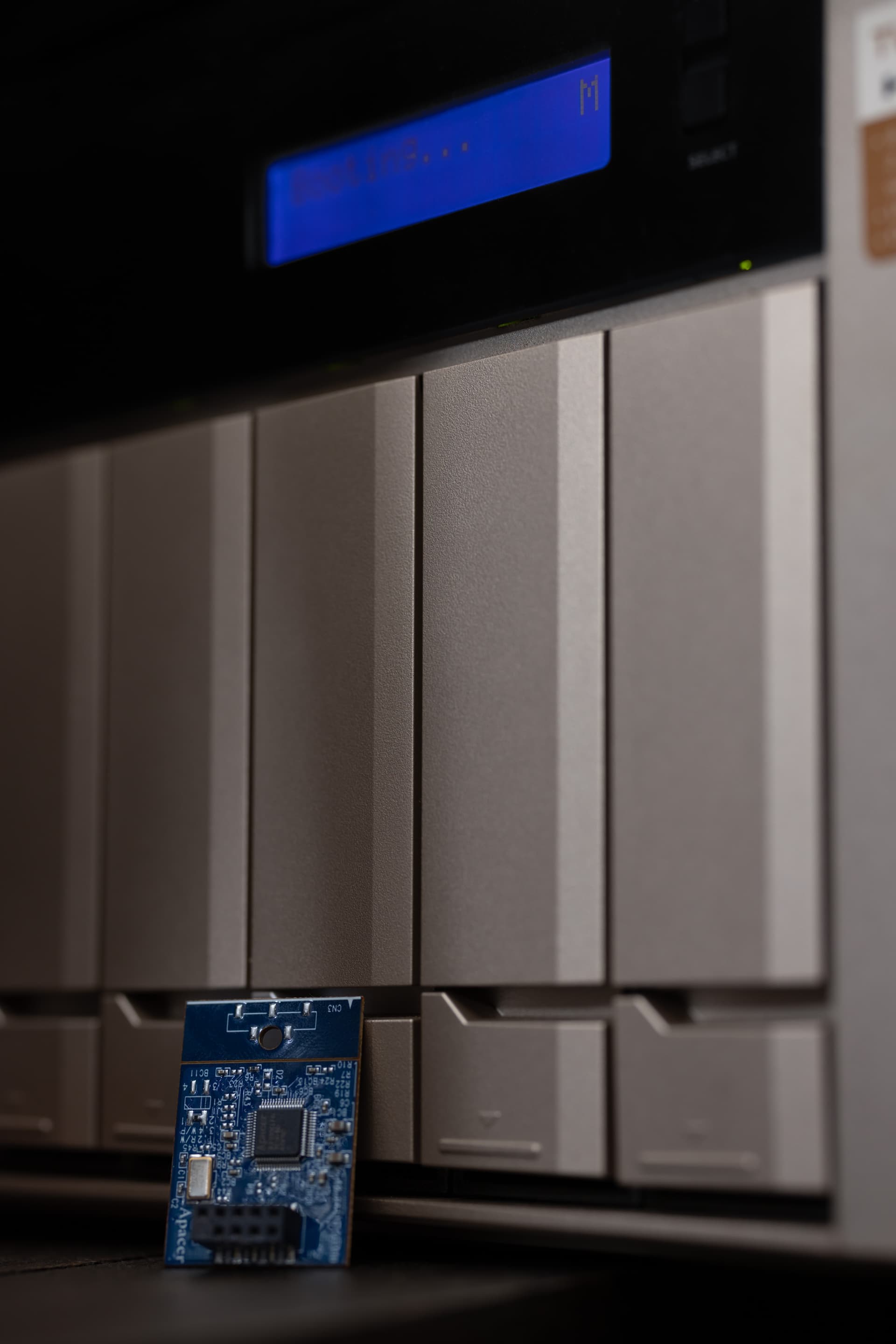
I removed the 512MB Apacer DOM that was hot glued to the board so that I could safely reverse this operation if needed. In its place, I’m using a 512GB Intel NVMe I pulled from something at some point. It’s overkill, but I have a few of those drives lying around.
Overall, I made this move out of curiosity. I could have lived with QTS and been happy, but taking this and converting it to TrueNAS saved me the expense of building another NAS to scratch the itch. QTS did offer snapshots, but I never fully trusted them. Scrubbing took around 26 hours under QTS via ETX4, as did the RAID initialization. Provisioning pools and different levels of storage was also messy. The annoyingly broken notifications, warnings, and constant installations of apps I’ll never use will not be missed lol.
My other 4 NASes use QuTS Hero (the ZFS fueled version), so I won’t be touching those, but I feel better about this particular NAS now knowing that it’s got a filesystem I have faith in. This NAS handles Veeam storage and non-essential multimedia, so I’ve kept it simple. I may run some non-essential VMs and containers (installing iperf3 now), but it will never be much more than storage and learning.
The forum now sits on this thing.
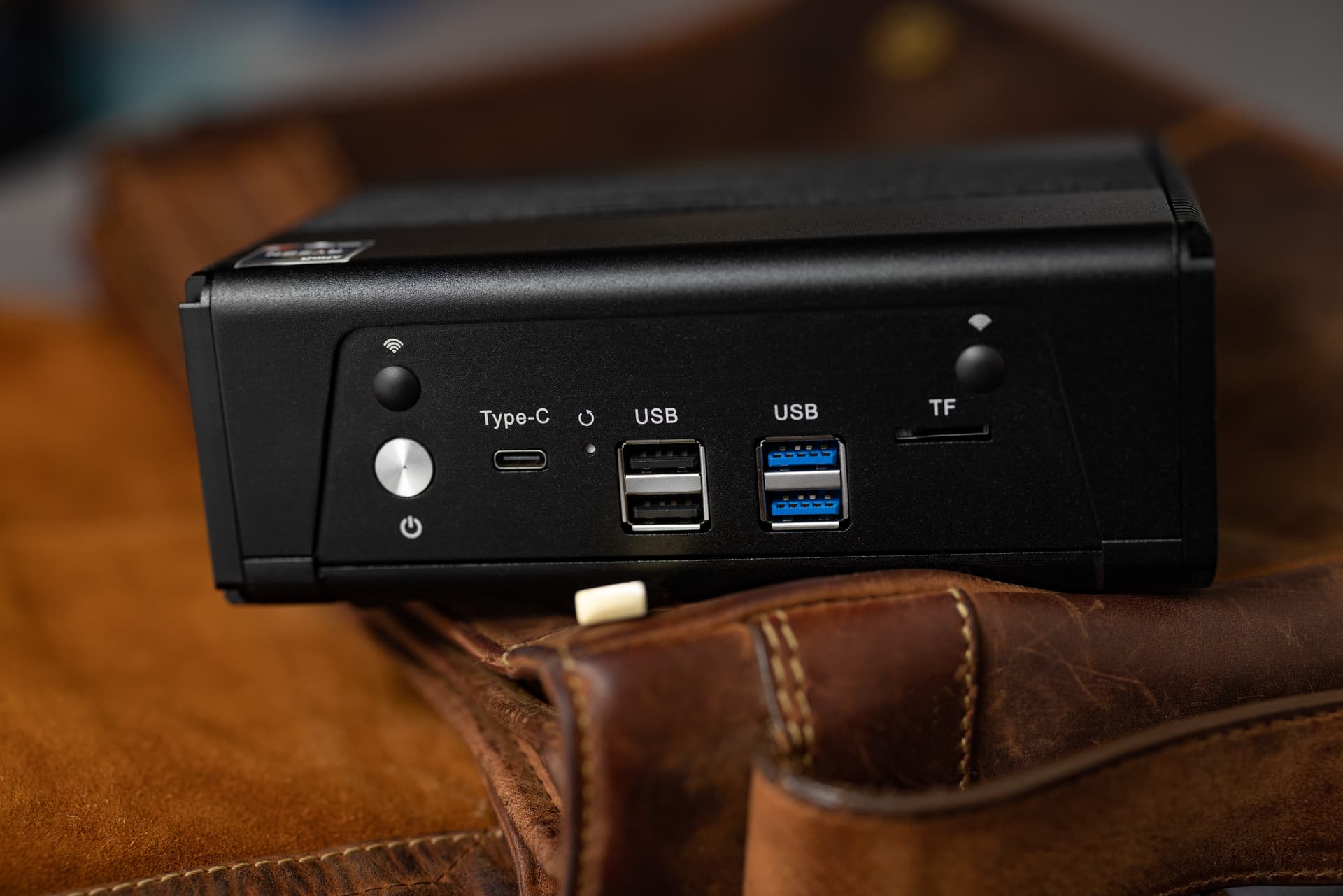
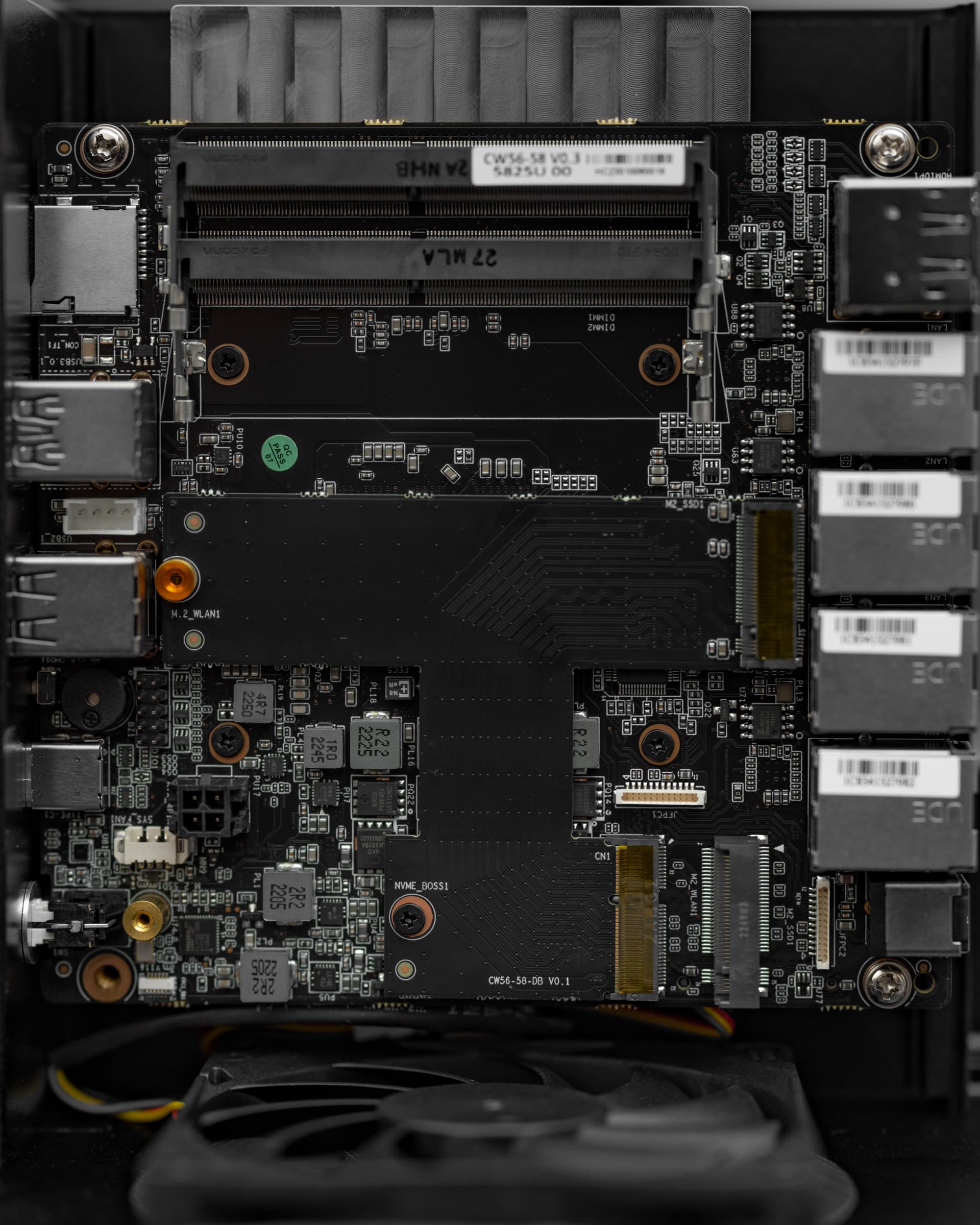
The ChangWang 58. No I did not just make up that name.
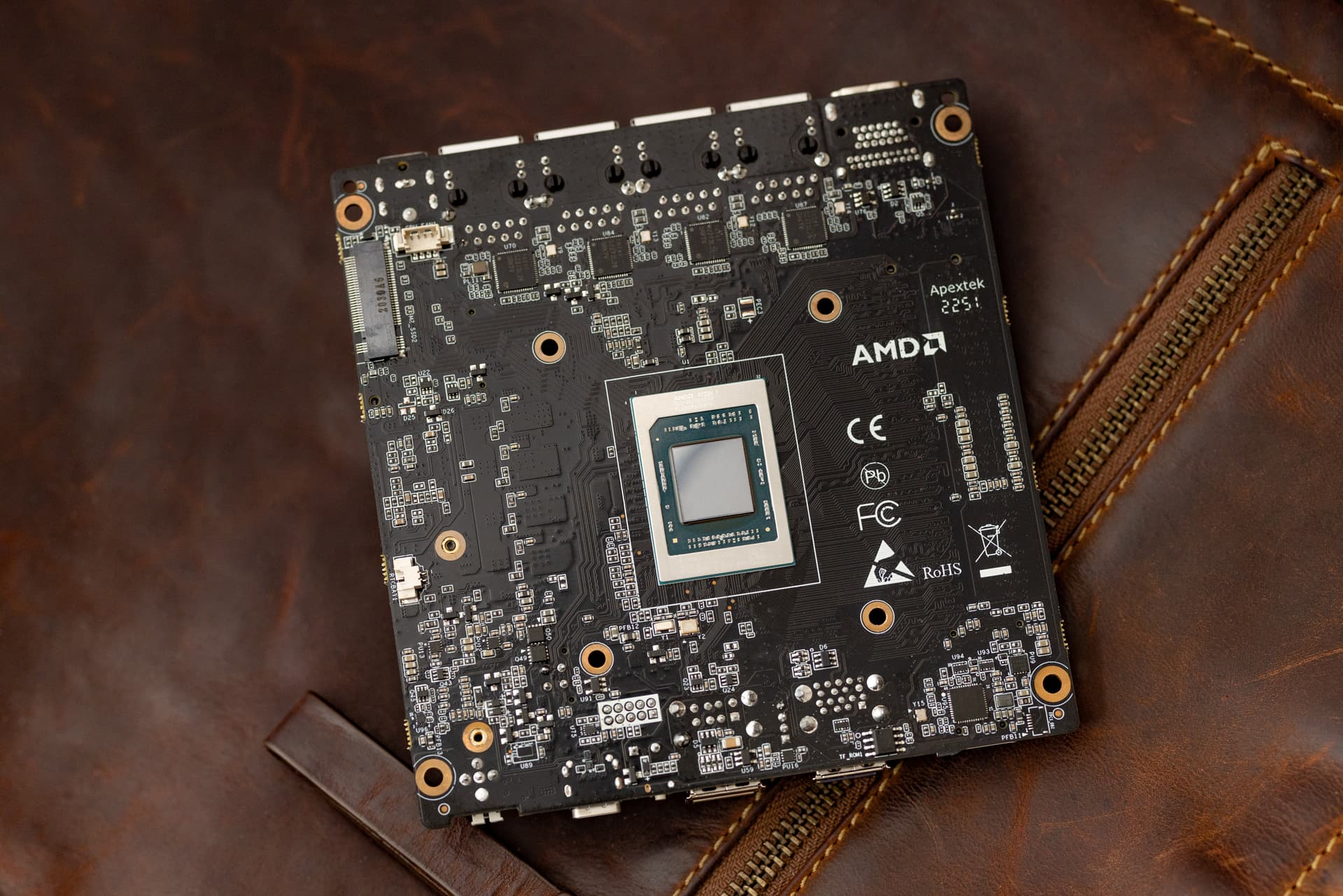
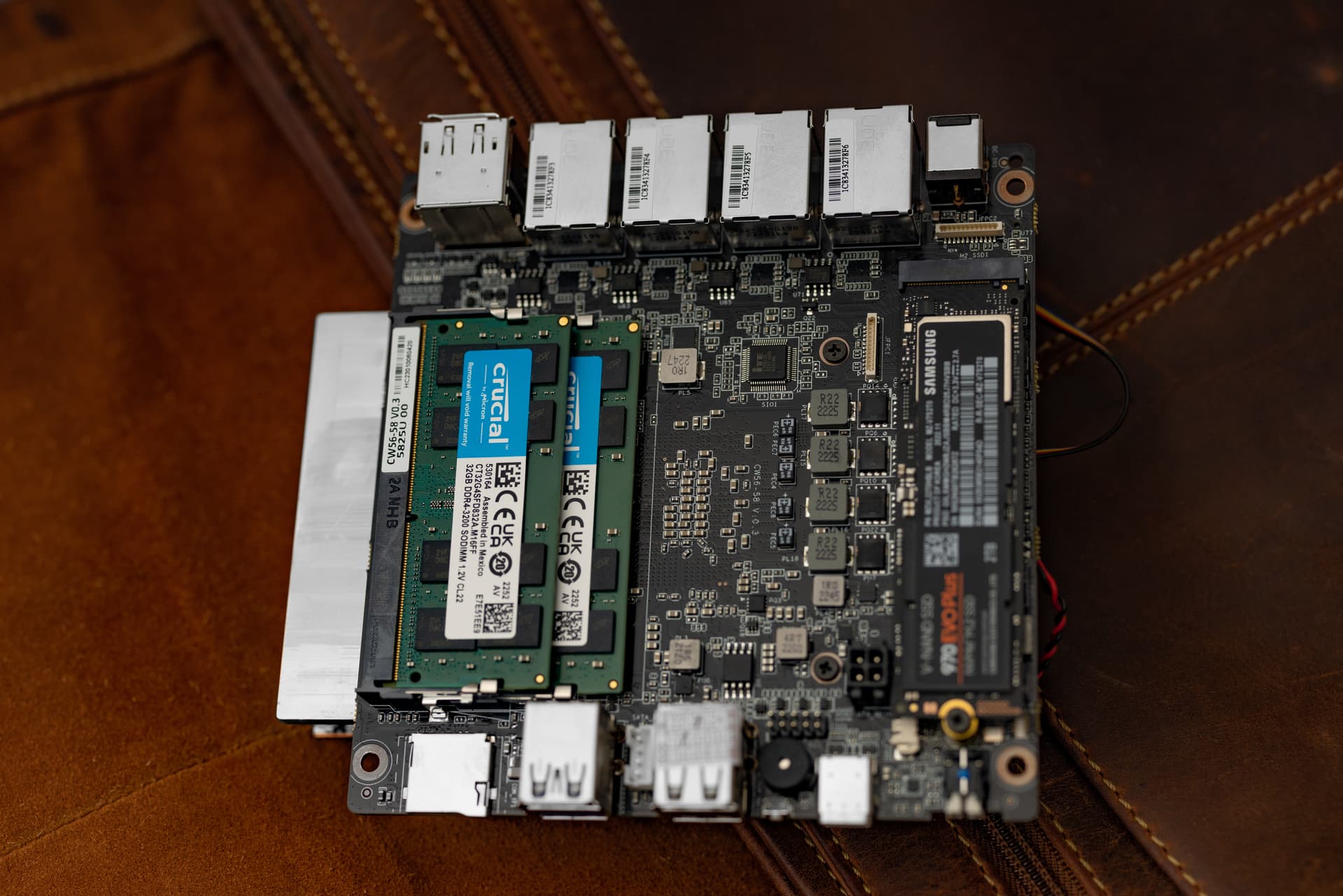
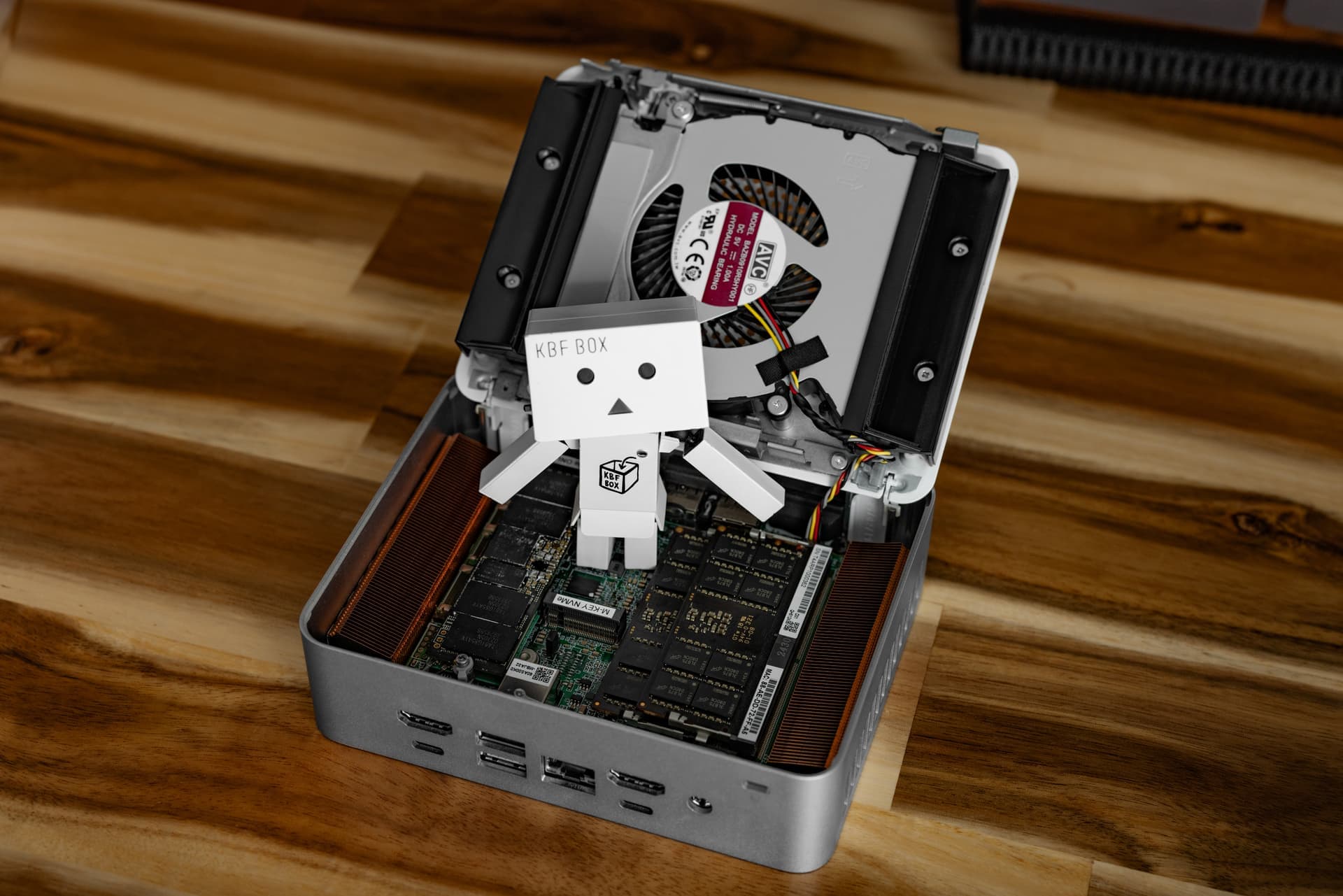
It’s got a Ryzen 7 5825U mobile chip that runs @ 25W (it can run from 15-35 via BIOS toggle).
It also packs 64GB of RAM, 2x 2TB NVMe drives, and 4x Intel I226-V NICs.
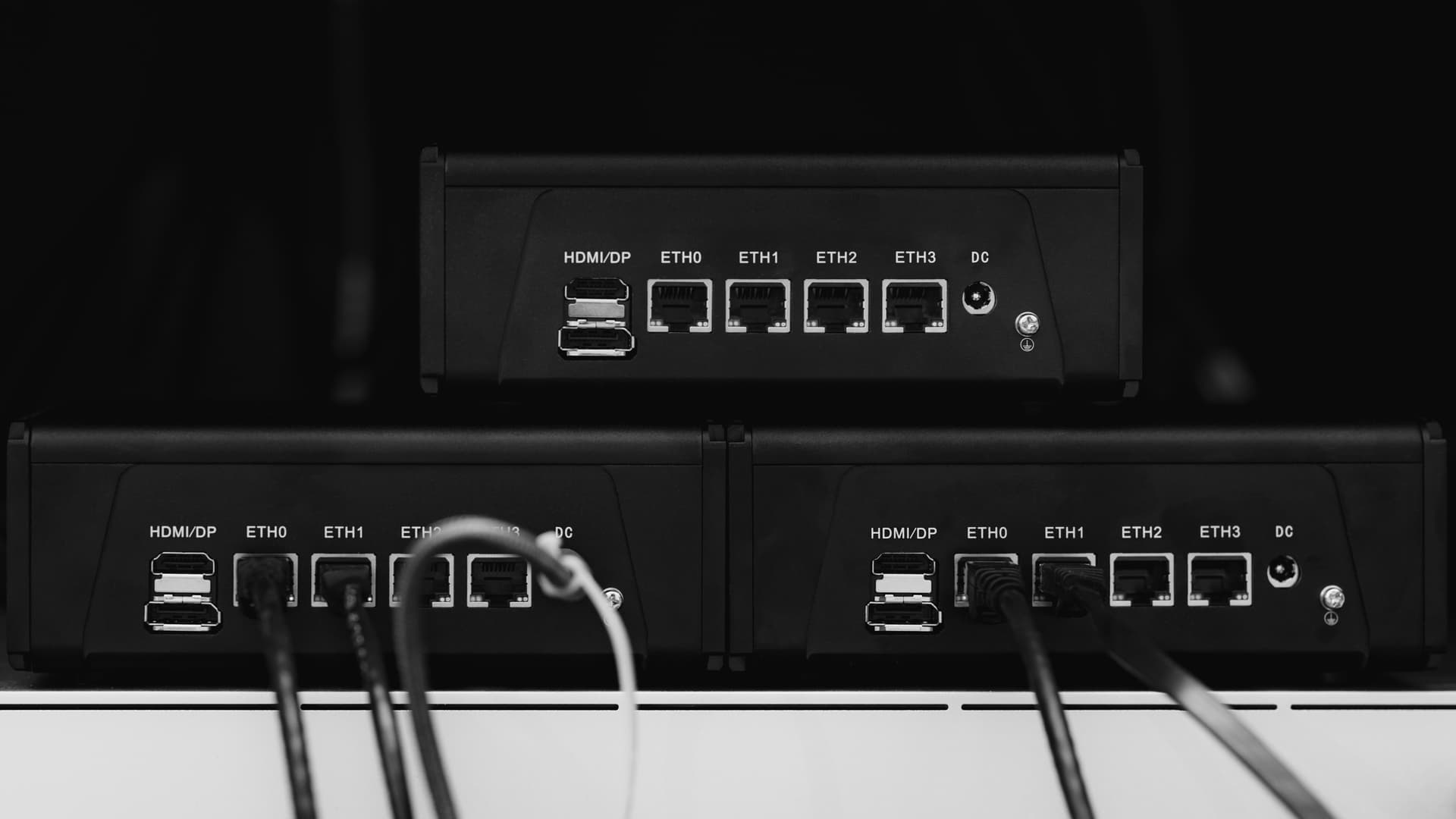
This is SUPER useful for VMWare ESXi 8. I use 1 port for management, 1 port for VM traffic, 1 for VM traffic failover, and the final port for vMotion.
I plan to use two of these, 1 for my linux VMs and the 2nd for my Windows VMs.
40 watts total (on average) is so much better than what its predecessor was pulling. Selling the mobo and CPU from that build funded both of the CW58s. Hooray for no new money spent.
They grew.
Another one for my Windows VMs, and the 3rd one is for… reasons?
The cool thing is they run on Type-C, so I only need 1 power brick.
This makes managing the cables in the rack SUPER simple.
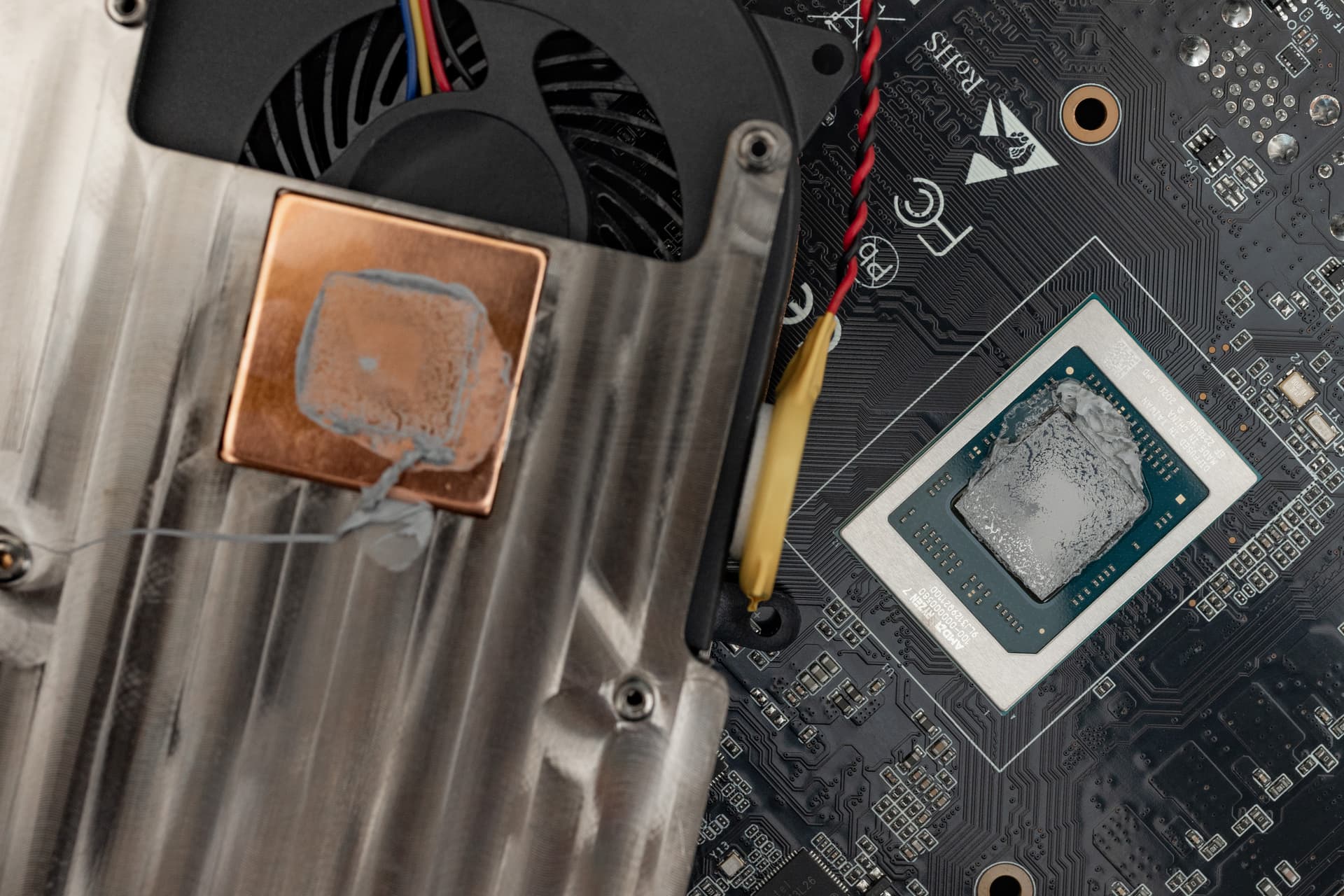
I re-applied the thermal paste on all 3.
The factory application and TIM left a lot to be desired.
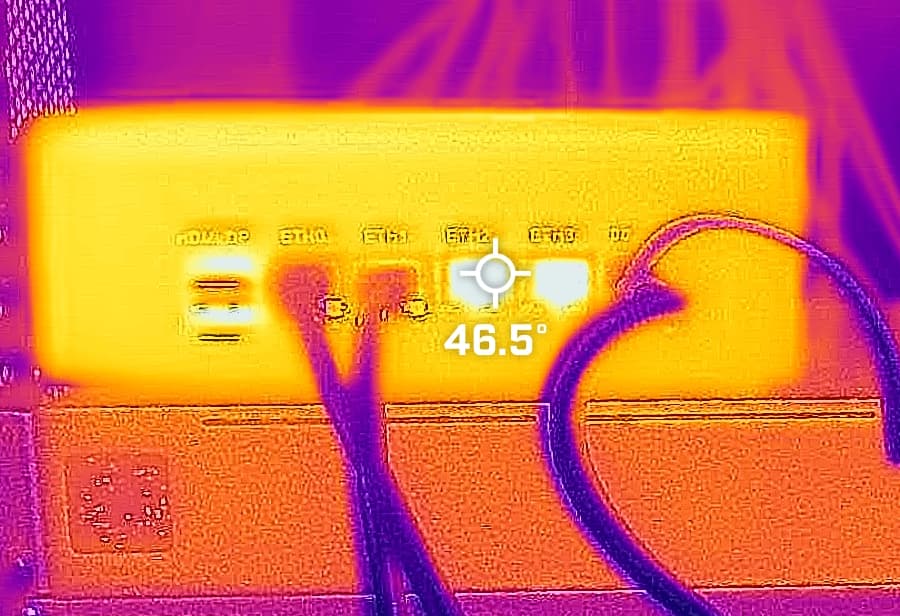
Using NT-H1 dropped temps by 20C.
That’s quite a number… lol
I didn’t have the riser pictured in the first post, but it has a mini PCIe to M.2 riser for the second slot.
There is a third one, but it’s on the very side of the mobo, so kind of useless.
I may experiment with an M.2 riser cable if one exists.
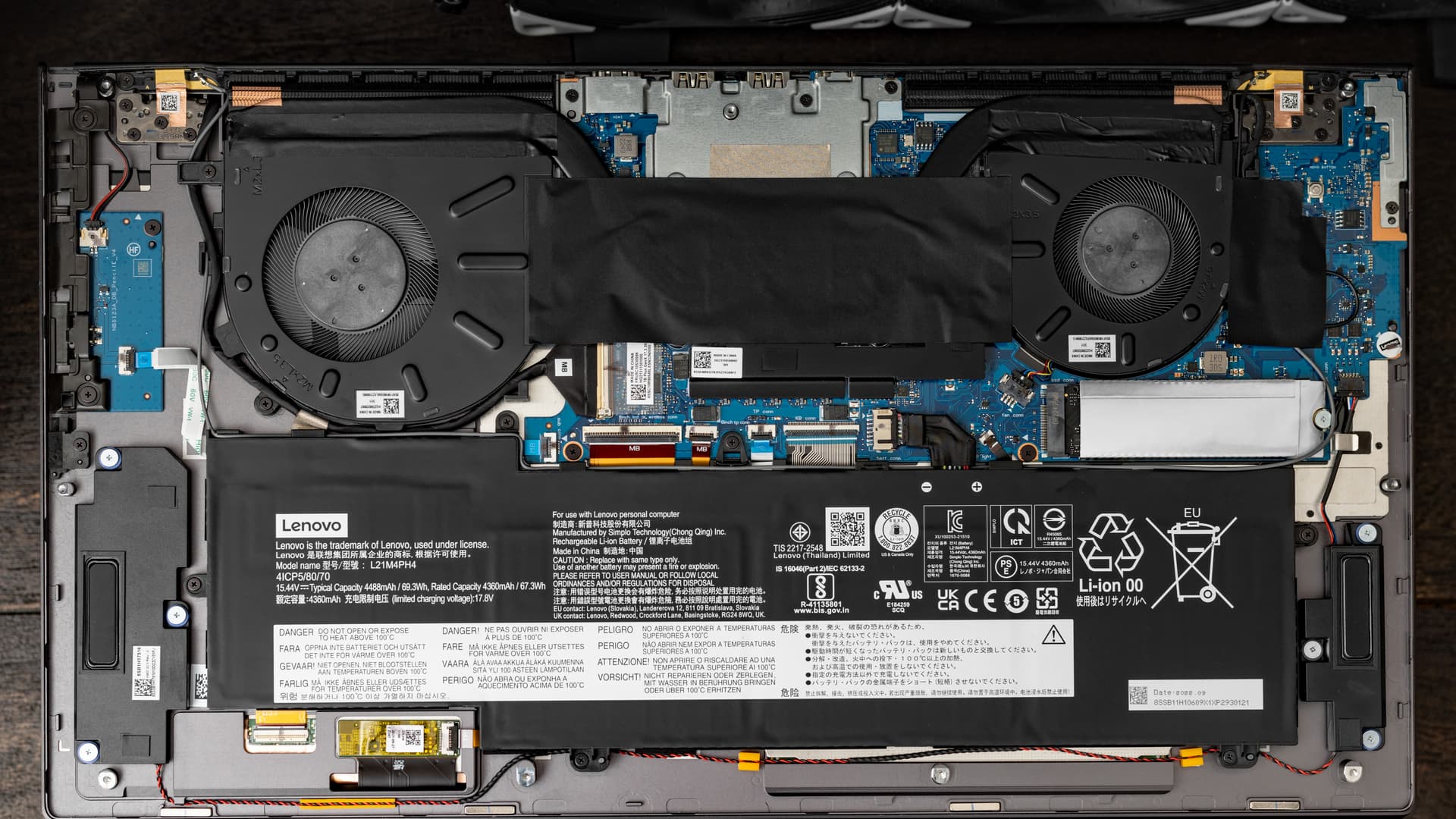
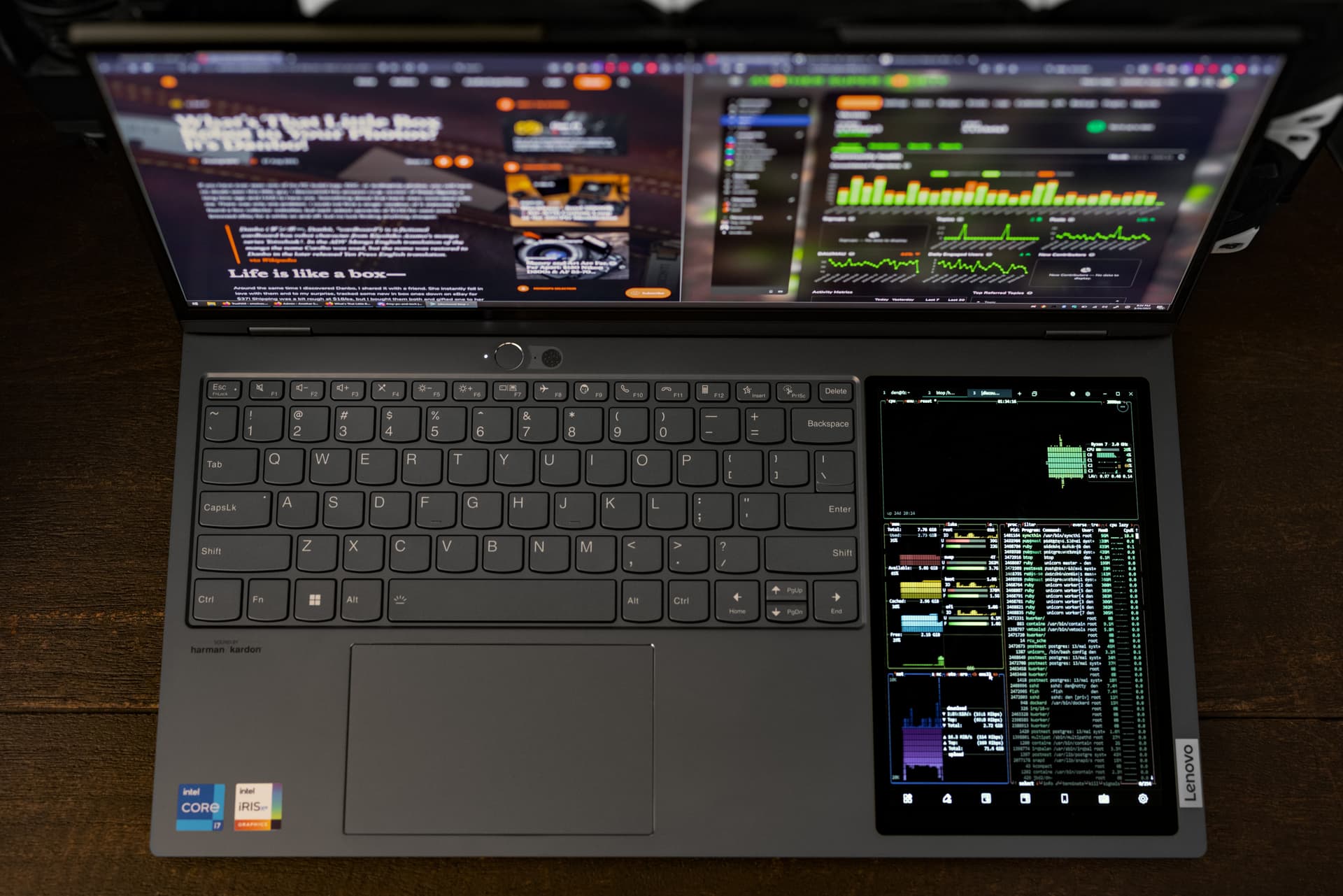
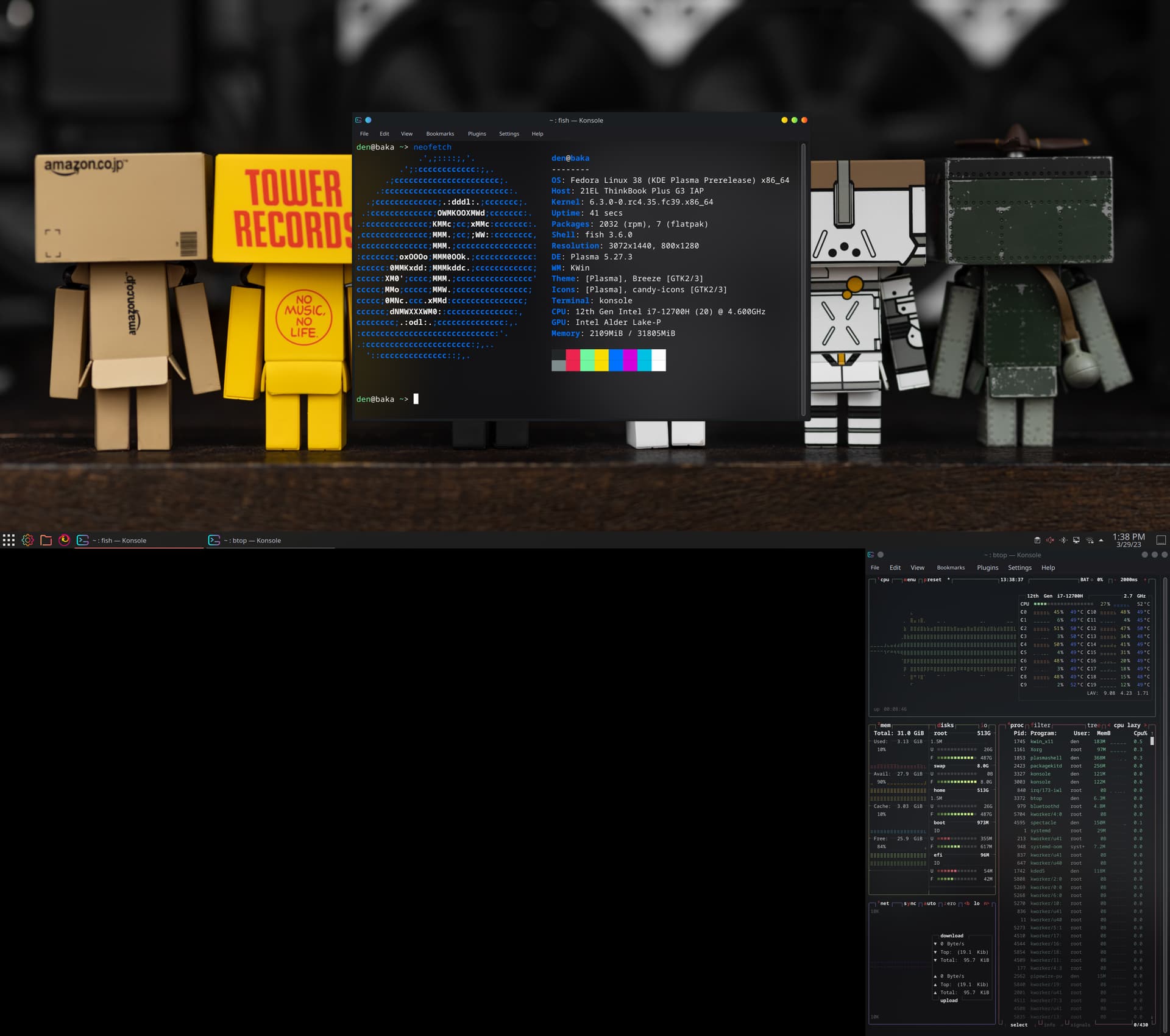
Alight, my Lenovo ThinkBook Plus Gen 3 Intel (17”) 21ELCTO1WWUS1 is slowly growing on me. The secondary screen has been pretty neat for Discord and/or monitoring things with btop.
Figured out what was causing the 2nd screen to not work in Linux. Turns out it was a bug in the Intel i915 driver. Using the Rawhide repos, I now have the patch that fixes that implemented.
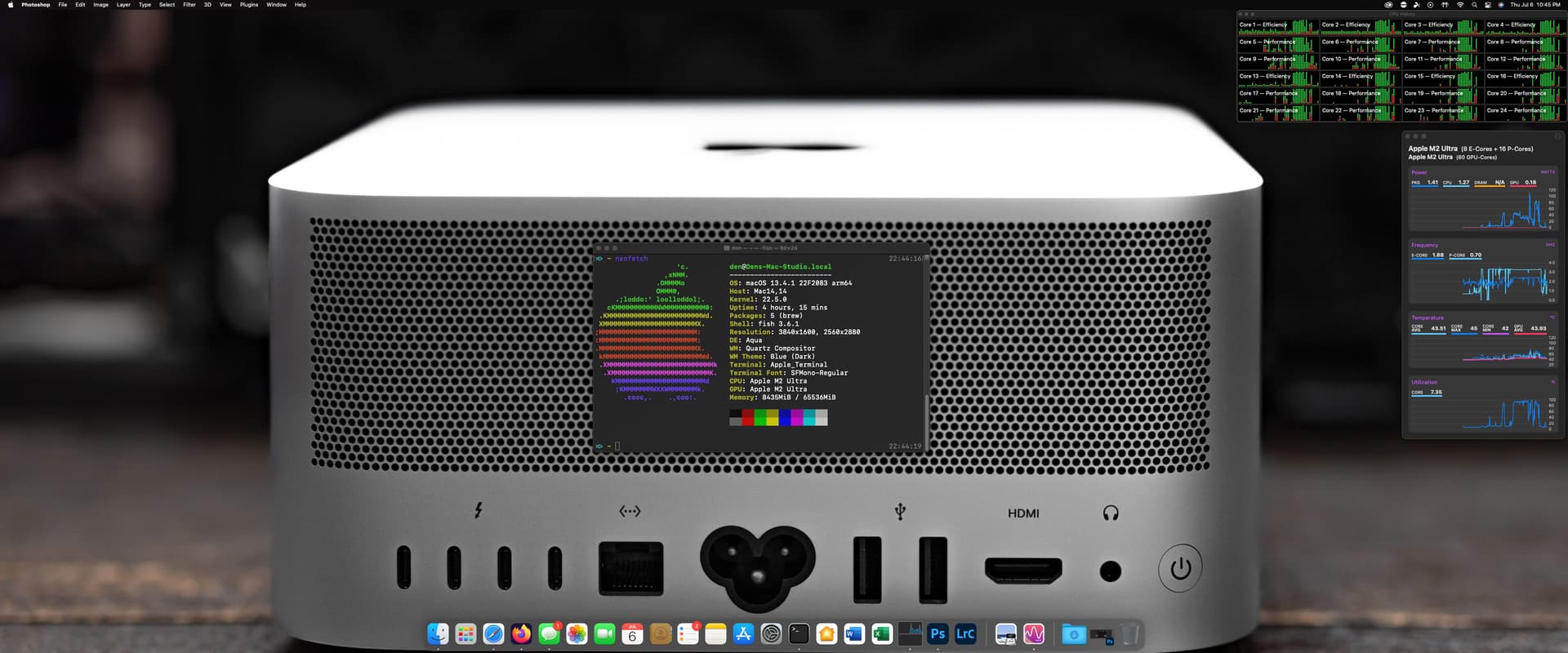
Well… I got an offer I couldn’t refuse on an M2 Ultra Mac Studio. Here are some notes on my daily driving experience over a few weeks. I will not be speaking on performance other than “it’s fast” because there are SO MANY good articles and videos on them. This is purely how it is to daily drive. It doesn’t matter how fast something is if I can’t stand using it, right?
I’ve had Macs for years, but they’ve always been laptops (including my current M1 Max 14in. I’ve had a Mac Mini or three as a media center or for brief periods during projects. Those have all been regular experiences. My daily driver OSes have been Windows for desktop and Linux for server (and laptop).
There is something VERY different about having a Mac at my main desk as my main PC (for this experiment) with multiple monitors. There are SOOOOOO many annoying things that I don’t run into when not daily driving or using it on the go. SO… MANY.
The Daily Driver Deal-Breakers
The very first thing that made me want to pull my hair out is having to click into a window to make it active before you can interact with it. Sounds like a nitpick, right? Wrong. It is workflow annihilating. When I’m on my MacBook/other single monitor setups, I generally do one thing at a time, so I never even noticed this. On main… I’m doing like 5 or 6 things, then usually have something playing whether it be Plex or YouTube. Having to click twice to pause, skip an intro, or play something else… then click twice back into the window I was in before… or trying to interact with multiple programs in my usual workflow. Nope. I almost ended this experiment right away. I thought surely there is a setting I can change? There isn’t. I managed to find AutoRaise. It’s not perfect, and the stock settings are rage inducing, but the experimental focus mode is likely the closest I am going to get to not throwing this thing out the window.
Window management in general seems to be non-existent in Mac OS. It’s baffling. I think it’s important to mention that it isn’t a matter of not being used to it. It’s just overall not very good. The most impactful window management gap in my workflow is window snapping. This was “fixed” with Magnet. I already owned this for my mobile usage, so not having to buy it again was nice. There are alternatives, but I cannot speak to them. This was simply the first one I tried.
Finder is a mess, icon management is a mess… even Spotlight’s default settings had me questioning if this was reality. If I’m in a folder and I go to the top-right and search for something inside this folder the default behavior IS TO SEARCH THE WHOLE COMPUTER. It’s even worse when you’re in a network share because it will literally search everywhere BUT the mounted share you’re in. This is a toggle and relatively easy to fix, but it’s maddening that it is default functionality to begin with.
Dealing with minimized apps is a mixed bag. Some apps will show you minimized windows via mission control, others will not. Firefox seems to be on the not list. Right clicking the app tile in the dock does give you a list, but I installed Dock Expose to give me that Windows-like (and GNU/Linux) visual representation by hovering. I highly recommend adding a half-second delay to avoid the whiplash of windows rearranging themselves for the preview when you accidentally hover.
Something else I do regularly is enabling power-on after power loss. The typical options are returning to the previous power state, or powering on regardless of the previous power state. Apple only allows you to power the computer on if it was on before power loss. If it was off, it stays off. It’s utterly bewildering why you’d allow one and not the other. For me this is important because I like having the ability to fire up my systems remotely via smart plug. I consider it basic functionality since you’ve been able to do this on most PCs since the beginning of PCs. I seriously cannot remember a system that was not equipped with this. Sigh. Wake on LAN is not a suitably reliable replacement for this either as many have suggested when I did some research on workarounds. I’ve come to learn that Apple’s vertical, tight-knit integration means there are simply things you cannot do. I accept this on my iPhone because it is an appliance to me more than anything else, but my main desktop should be capable of service every function I need it to.
Another strike against not being a viable daily driver for me is remote access. For all its performance problems and jankiness, Microsoft RDP remains truly undefeated (through a VPN, please never port forward it). When you RDP into a Windows machine it creates a session and the computer is locked on the other end. You can span it to however many screens you have (with the right core OS version) and it turns off your screens and keeps things private on the other end.
I have yet to find something that matches this for a Linux desktop (non-SSH) session or for Mac OS. There are plenty of solutions out there (VNC based or otherwise), but the compromises are vast. I have tried 90% of what’s available (and no longer available) with nothing coming close to feature-parity with the way Windows handles RDP sessions. The thing that makes it mind numbing on the Mac OS side is that you cannot disable additional monitors. You can mirror your screen so it’s less annoying, but powering multiple monitors when I’m not in front of them is a terrible waste of energy. Granted these are non-Apple screens and there may be a better way to do it with Apple based screens, but Apple doesn’t make monitors in formats that I prefer.
Splashtop and Parsec have been the most usable for remote access. For now I’m getting around the multiple displays issue by having a smart plug on my LG DualUp that enables me to shut it off remotely. Splashtop and Parsec are on par with each other, but Parsec looks and feels better. Splashtop can buffer very hard, making text fuzzy/unreadable, and occasionally has a double mouse cursor problem. Neither of them pass through my forward and back buttons even though the Logitech proprietary buttons work fine on the MX Master 3S. Parsec doesn’t like to start up with the system, so I like having Splashtop as a backup in case I can’t get in. Luckily, my Splashtop account is a grandfathered personal account from its launch year at a flat fee of $10. Truly the best $10 I have ever spent on an app.
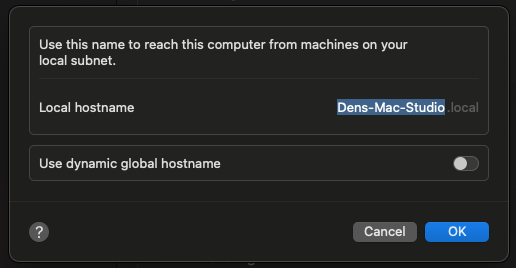
I don’t use .local, I use .empire. Does this matter much? No… but I have OCD and looking at .local drives me insane. I can solve the problem with a few well-placed DNS records in my pi-hole, but I still see it on the Mac and I hate it.
This thing’s intense desire to sleep also drives me nuts. It doesn’t always matter what the settings are, sometimes it’s simply unreachable and I have to use WoL to get back in. I can fix this with third-party software again, but why?! It is such a basic thing. The fact that there are over a dozen programs in the app store to accomplish this… well, there’s a trend here. That trend brings up yet another issue.
PERMISSIONS FOR EVERYTHING.
The various levels of security permissions, notifications, and requests are overwhelming. Security is great, but at a certain point all a user does is agree to everything without looking, like a terms of service agreement. It’s not a case of ticking one box in one place. You have to open up accessibility and security and hit radio buttons in many areas. For every program. It wouldn’t be so bad if it was a panel of switches per program, but in some cases you have to go hunting and a program can only guide you so far. Especially if there was an update that moves things around or creates new permissions that break old ones. Not even GNU/Linux distros are this explicit with permissions.
AdGuard had a hilarious amount of explicit settings, but in this case a lot of them were in the same place. This is a rare occurrence, but prevents me from having to paste a bunch of different screenshots to get my point across. There has to be some kind of middle ground between asking for everything and not asking at all.
Ecosystem pettiness is more prevalent in Mac OS than it is in iOS. If you have Apple audio devices, you may be familiar with spatial audio. You can use it in just about everything on iOS, but this isn’t the case in Mac OS. If you’re not using a first-party app, it’s grayed out in most instances. I’m sure there are technical reasons for this, but I’m also sure the workarounds aren’t difficult to implement if they wanted to. Oh wait… I suddenly realized the difference. A 30% cut. Well that makes sense.
Ctrl + Zoom is missing… I do this a lot for the purpose of enlarging text in screenshots. Logitech has zoom gestures, but it zooms the page instead of increasing the text size. GNU/Linux also uses Ctrl + Zoom. What a strange thing to omit on an OS level.
Other than this, I have fairly generic gripes. They’re major, but everyone else has the same ones. No BIOS/UEFI level access, no upgrades, no expansion, no self-repairs, no other operating systems can run natively on something I supposedly own… finicky implementations of specs like USB, DisplayPort, HDMI (no Atmos at all), etc… I’m not a tech reviewer, so I’m not going to go blue in the face repeating the same things in depth. I REALLY hate the storage thing though. Their pricing is silly. Adding a single NVMe slot would have been easy, but yeah… I can feel my blood boiling, so I will leave it at that.
Well Den… did you like anything?!
Yep! iMessage continues to be undefeated and using it on desktop with my lovely custom keyboards is my favorite thing. My house is very HomeKit integrated because it is clean and simple to implement. Having this at the tip of a mouse click is nice. Yes, HomeAssistant is great. You can do a lot more… but I’m ultimately a simple convoluted man. HomeKit is just… I like it.
My Apple Watch gains the same authentication powers as I love on my MacBook. Sign-ins and permission elevations are so smooth. One of my hopes is that in the future, you’ll be able to use the watch as a Yubikey-style two-factor device, requiring only wearing it to get you logged into things. That would be so wonderful.
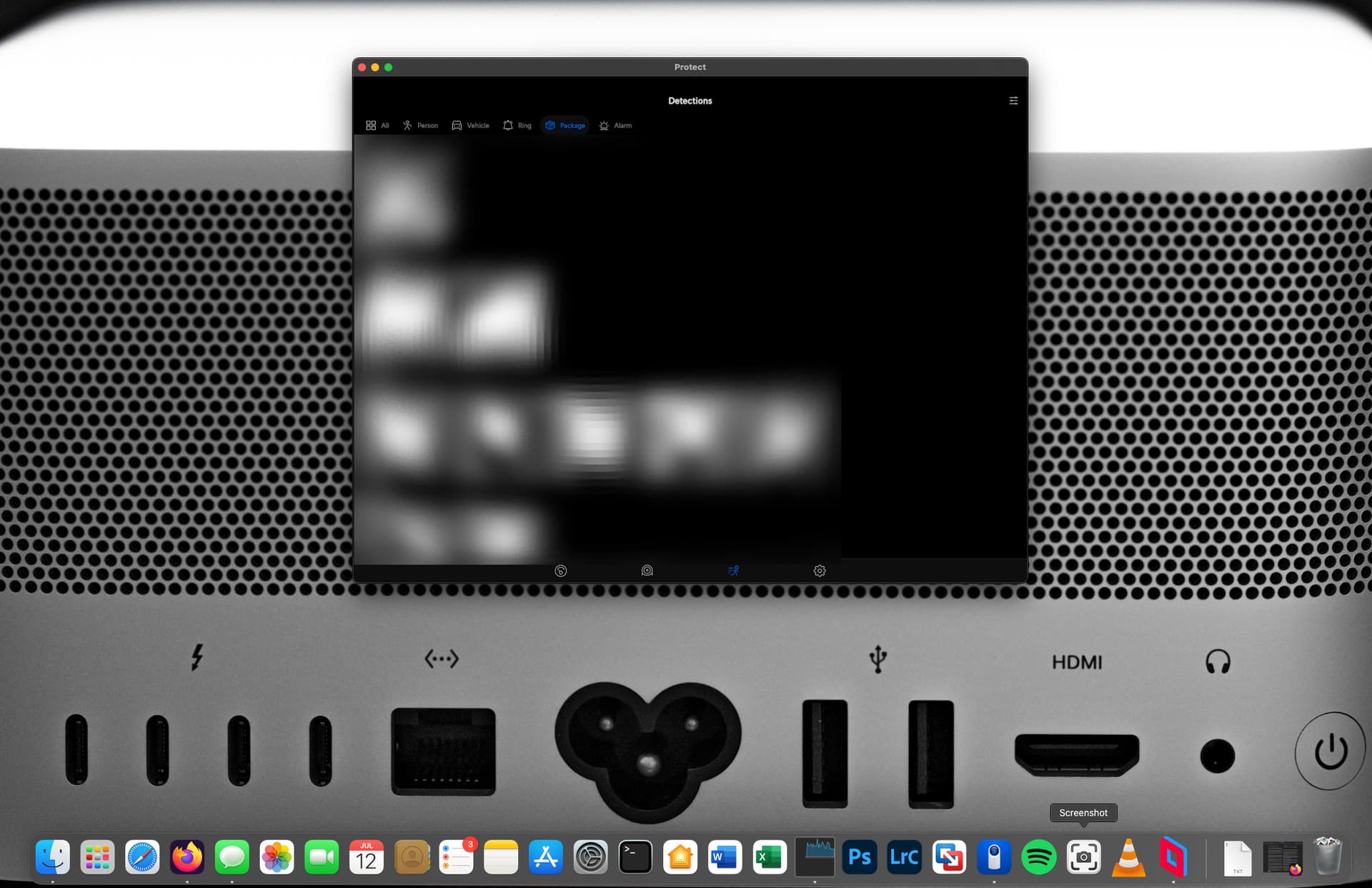
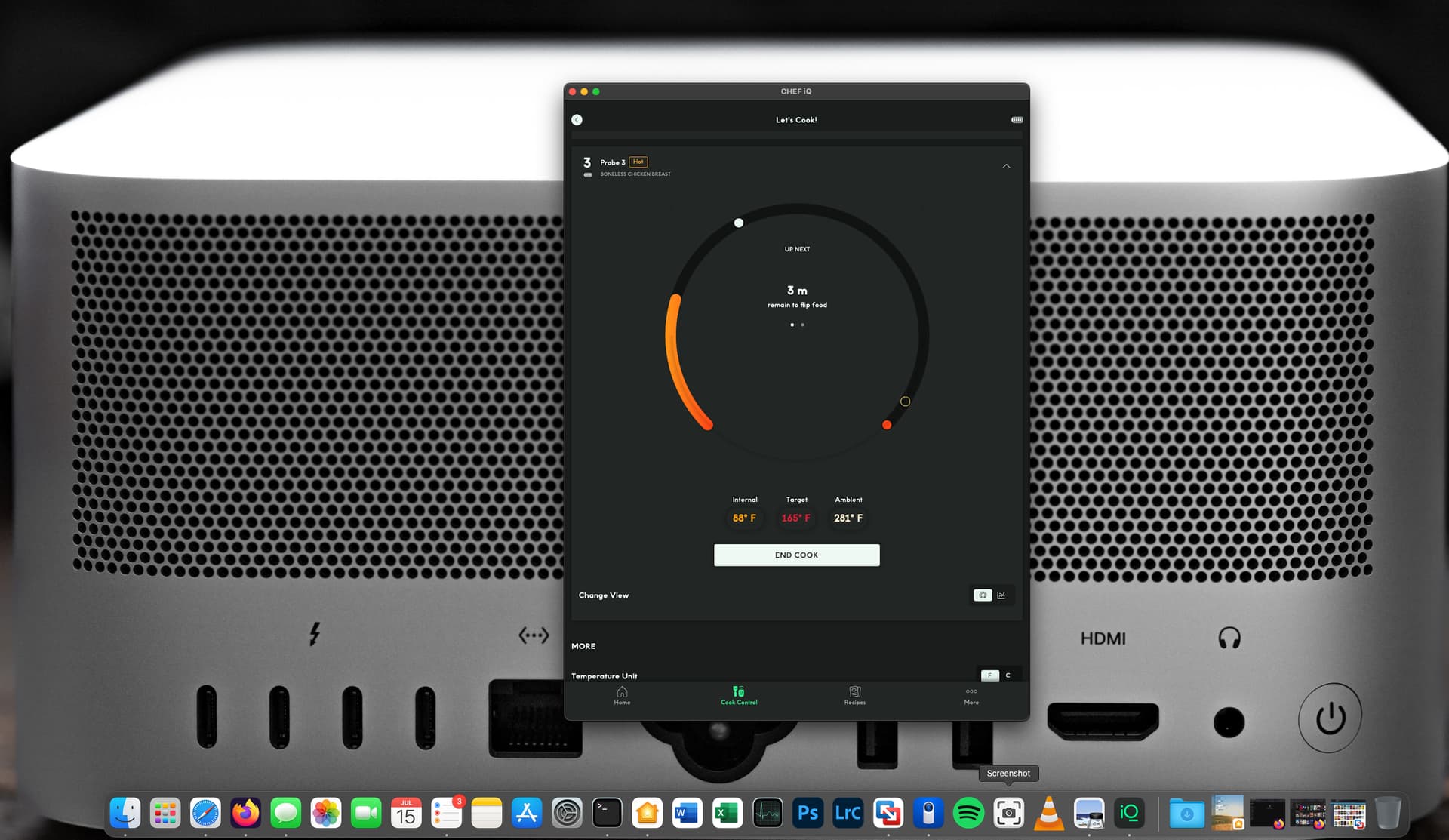
Running universal apps and iPhone/iPad apps is more useful than I thought it would be. The notifications for my Unifi Doorbell, as well as the package camera toggles are much better handled in the iOS app vs. doing it inside of a browser. I use ChefIQ wireless thermometers, a sous vide cooker, and other non-HomeKit items that are a lot easier to keep an eye on when I don’t have to do it from my phone. I could live without any one of these things, but they are sure nice to have at my fingertips on a larger screen.
Apple audio device integration is as good as it is bad. My AirPods (of various models) have a tough time deciding when to automatically switch and when to manually switch. My HomePods sometimes timeout when trying to use them as speakers for the Mac Studio. So yeah. That’s meh… but setting up the devices once and having them available to every device on my Apple ID is wonderful. I hate signing into things… really, I do. Especially across devices and apps, but my Apple ID is an exception. The experience is worth it. Google and Microsoft will never get me to do that.
The hardware itself is visually impressive. I was underwhelmed with the design in photos and videos, but this boils down to listening to reviewers and tech journalists. You keep hearing and reading how boring something is and you start to believe it with enough echoes. When you have the device in hand, it is exquisitely machined, tasteful in presence, and it’s a good looking box.
Workflow
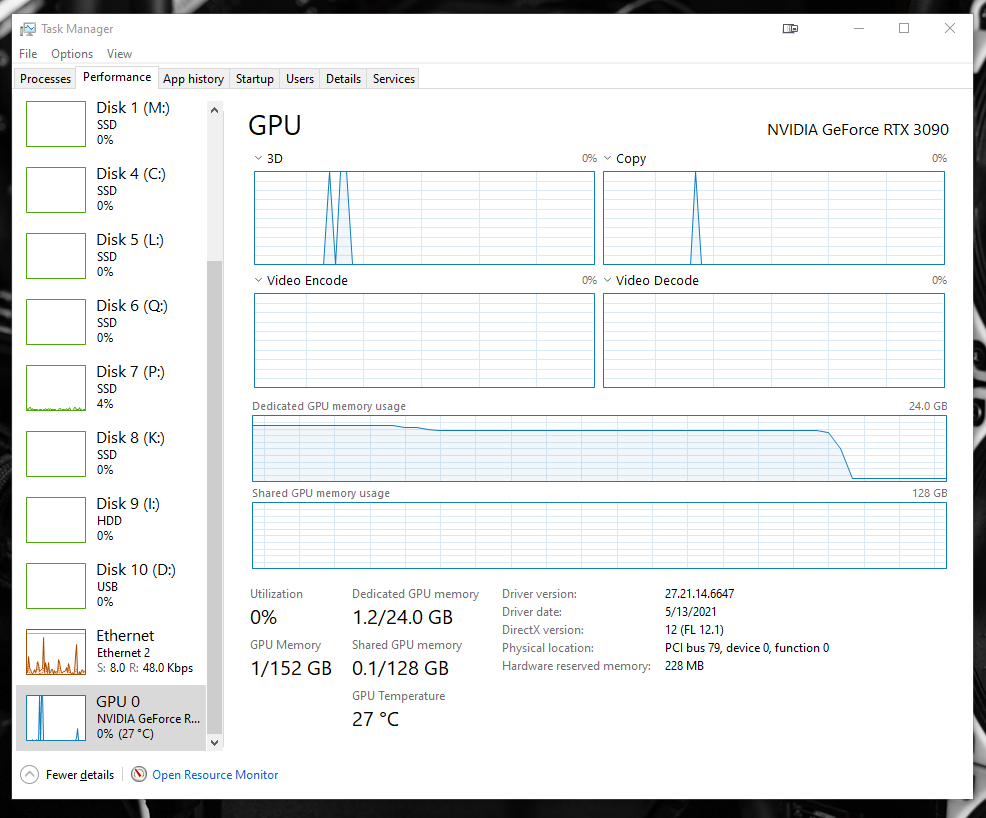
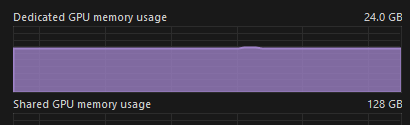
I won’t go in-depth on performance, but I will go into workflow. My main editing tools are Adobe Photoshop and Adobe Lightroom Classic. I’m not fond of closing either one. I leave them open in the background for as long as I can stand. Doing this in Windows results in a GPU memory leak which would completely eat into all 24GB of my 3090. When it gets like this, you can’t even watch a YouTube video. I thought it was an Nvidia thing, but my A770 16GB has the same problem in Windows.
Early reports show it waspresent early on in Mac OS, but I have not had a leak issue since I got the M2 Ultra Mac Studio. A lot of the computationally heavy tasks like the new(ish) object selection features have an ever-so-slight lag in Windows. It’s much worse on my 3970X than my 13900K, so I assume it’s a single-thread reliant thing. On the M2 Ultra, this lag I once thought part of the deal doesn’t happen. I should note that the new Photoshop Beta narrows the gap between the 13900K and M2 Ultra, but it is beta software and I don’t use it for paid work.
App responsiveness in Mac OS on the M2 Ultra is rapid. It may be unfair to compare my 3970X and 13900K OSes because this is essentially a clean install, but the awkward window management in Mac OS makes things cumbersome, so it evens out into a tie.
Apple likely has as many first-party apps as Windows, but I feel less bullied into using them. Sure Apple will tell you why Safari is better, but it doesn’t actively deter you from setting a different default. That and violently switching you back to their default apps with random updates. Microsoft Edge makes me feel like a product. At every turn, I’m asked if I want to share my data, or opted into doing so and only finding out when self-auditing the options. Every time I open Edge, some new gaudy thing is bolted onto it, making it stray further and further from its Chromium base. It always wants to be the WORST PDF reader on the planet. The simple photo viewer in Windows was replaced by the Photos App. I can’t use it without feeling like it’s sending that data somewhere. It’s only after using Mac OS for the last few weeks that I see how “for sale” I feel in Windows.
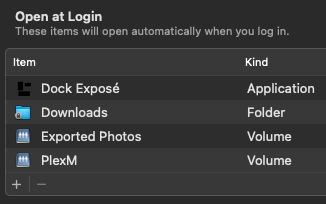
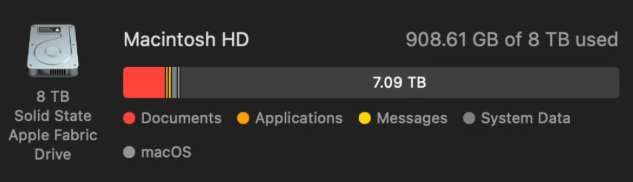
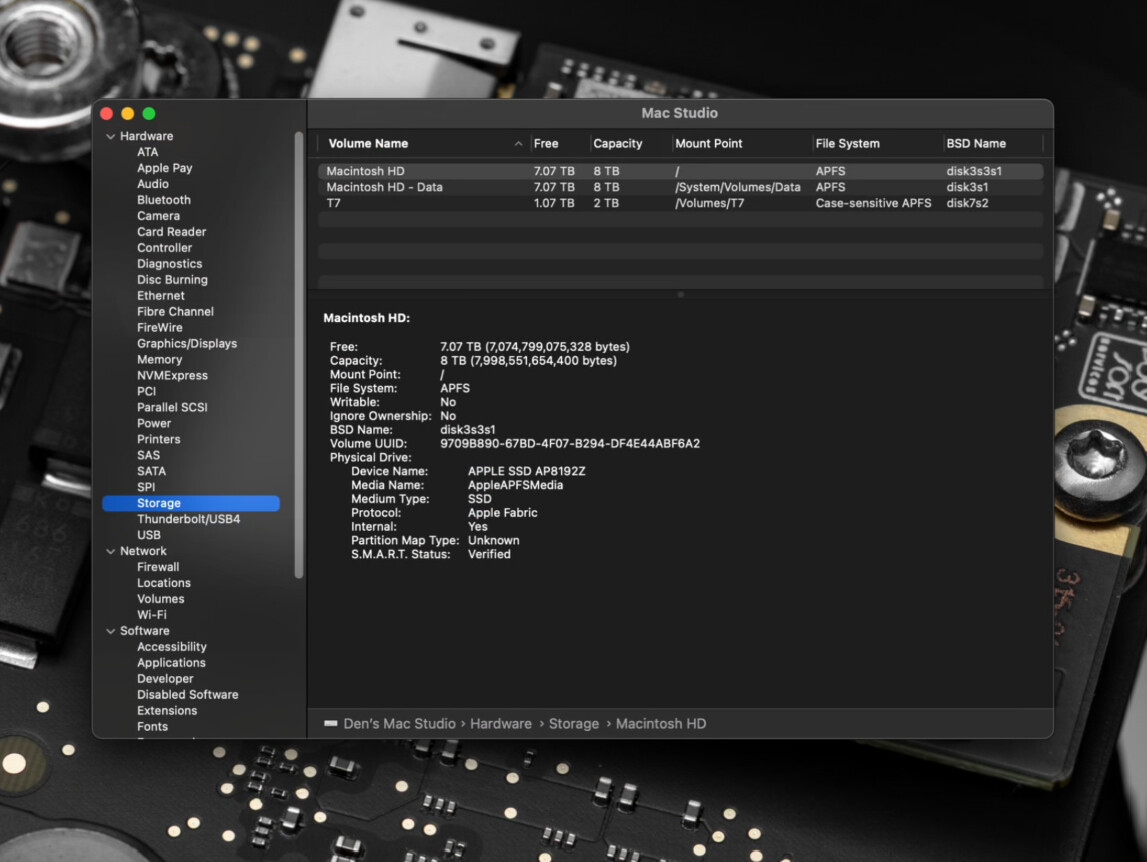
Most of my storage is NAS based, so I had no real problems being limited to 1TB of storage. I struggled at first with getting SMB shares to stay mounted on reboot, but adding them as login items fixed this.
The only thing I truly miss from Windows is Media Player Classic. There isn’t a real replacement for it. As many media players as there are, I cannot find one that will play the next item in the folder without having to make a playlist. MOST of my personal content consumption is done via Plex, but there are series I watch in bulk like The Ultimate Fighter. I skim shows like this because there’s a lot of drama and nonsense and I’m only there for the training and matches lol.
So why not use GNU/Linux? Well… I do. Every day, all day. I have so many Linux servers, hypervisors, NASes, VMs, and containers that Linux is in use for me more than any other OS. The forum that hosts this rambling is run in a linux-based Docker container. That said, I have too many things reliant on either Windows or Mac OS to be able to switch. If it was up to me, I’d daily drive openSUSE Tumbleweed (KDE) and live happily ever after. Sadly, the things that make me money are closed source and not able to be emulated or replaced. I also run GNU/Linux on my laptop, and from there I remotely access my desktop when I need to do something it can’t.
So… will you keep using it as a daily driver?
Yes. I will unless something greatly offends me down the line. iMessage and other ecosystem integrations are too good. That and I need a break from Windows, while still being able to do things that generate income.
For now, I’ve managed to find workarounds for the most annoying things. I upgraded Parsec to Warp so that the screen blanks, then locks when I disconnect. It’s not perfect, but it works. The bolt-on UI improvements from various annoyed devs taking matters into their own hands has been nice. The only thing that concerns me is the looming Sonoma upgrade breaking any of that.
Now that Broadcom killed off VMWare’s viability for homelab use, I’ve fully migrated to Proxmox. I’ve used proxmox on and off over the years, maintaining a small instance of it just to keep myself familiar. I guess I always knew this day could come.
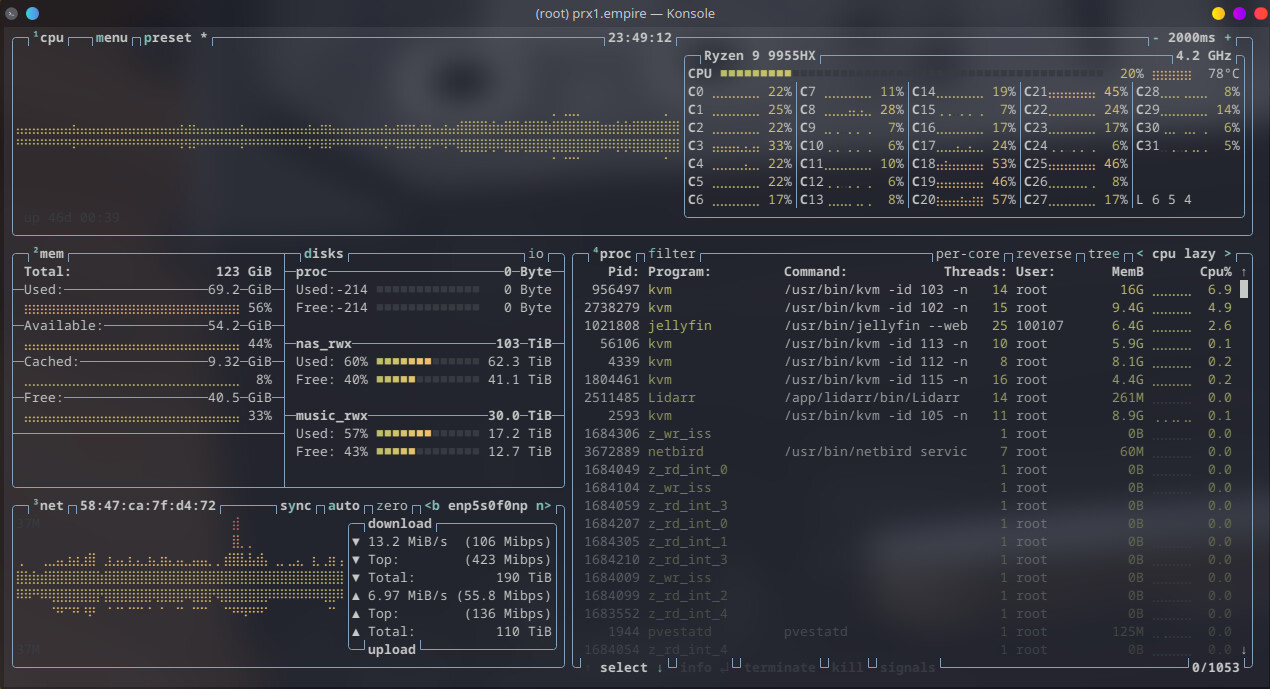
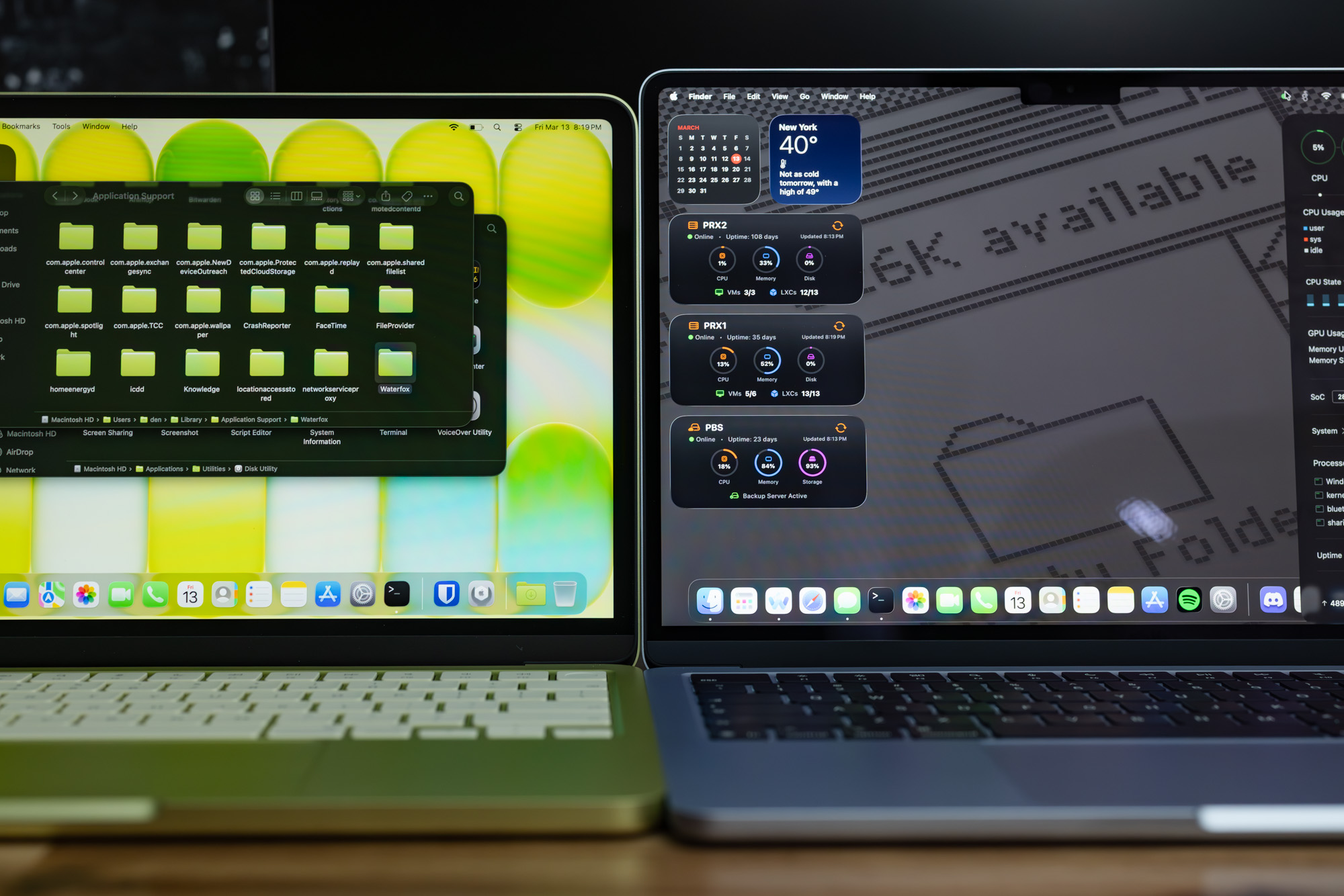
The nifty resource visualization tool in the screenshot is Cluster Manager.
Before the announcement of the death of ESXi, migration was not built into Proxmox. It wasn’t difficult, but it was certainly aiding in my procrastination. On March 27 of this year, Proxmox announced the migration wizard. Around this time, I got my Minisforum BD790i back from RMA. My CWWK fanless box seemed the best choice for my low power system.
The migration wizard ended up being so simple that instead of a simple test, I ended up migrating both of my ESXi nodes in 1 day. The way it works is you add your ESXi hosts as storage in the “datacenter” section, the fire up the wizard. The wizard guesstimates the approximate settings, then you tweak them as needed and sit back while it does the rest. Do make sure to double check your settings as it assumed I wanted multiple sockets instead of multiple threads.
One of the things that annoyed me about homelabbing ESXi was the lack of insight into hardware. With Proxmox, since it’s Debian, you have that info one shell away. Luckily Proxmox isn’t locked down when it comes to customization, so I used this handy mod to add CPU and NVMe temps to the summary page of my PVE dashboard.
Another special shoutout to Proxmox VE Helper-Scripts I’m sure everyone knows about these by now, but what a time saver.
Further Optimizations
Ever since I’ve gotten into dockerizing things (around 2019-20), I’ve done so in a chonky VM. With the move to Proxmox, I want to optimize as much as possible since I’m changing things anyway. I setup two Debian LXCs. One for low resource items, the other for containers that are a bit more demanding. That said, the N305 is quite a little beast. It runs most of my sites, including this forum. I have stuff like PeerTube on the beefier system so it can chew through transcoding.
Experimentation
I have plans to move VERY far away from Windows. I am tired of the data mining, advertising, AI BS, random app installs (HP Smart installs itself every few months despite me not owning a printer or HP product the entire time I’ve been in this house), and want my main OS to be MINE. While I’ve used GNU/Linux every day for many years, I still need to daily drive Windows for a few things. While I transition away from these things, I want to be able to access Windows for the things I can’t do in Linux (or MacOS, where I have moved my Adobe operations).
The other thing keeping me on Windows is remote desktop. I’ve said it many times, but I will say it again. Nothing comes close to it. The goal here was build a GPU accelerated VM that I could use for RDP purposes, and eventually for the rest of my Windows needs. Thanks to the openness of Proxmox and the brilliant members of the homelab community, someone already did the hard work and shared it with us.
For this experiment, I used one of my retired ESXi nodes, the Beelink GRT7 Pro. I had a bit of a hiccup since c8:00.1 seemed like what I needed to pass through from reading the guide, but it was actually c8:00.5. Without doing this, the Proxmox host would reboot. I just realized I should probably be saying “PVE Host” for clarity, but it’s too late… I’m almost done rambling.
c8:00.0 VGA compatible controller: Advanced Micro Devices, Inc. [AMD/ATI] Phoenix1 (rev c2)
c8:00.1 Audio device: Advanced Micro Devices, Inc. [AMD/ATI] Rembrandt Radeon High Definition Audio Controller
c8:00.2 Encryption controller: Advanced Micro Devices, Inc. [AMD] Family 19h (Model 74h) CCP/PSP 3.0 Device
c8:00.3 USB controller: Advanced Micro Devices, Inc. [AMD] Device 15b9
c8:00.4 USB controller: Advanced Micro Devices, Inc. [AMD] Device 15ba
c8:00.5 Multimedia controller: Advanced Micro Devices, Inc. [AMD] ACP/ACP3X/ACP6x Audio Coprocessor (rev 63)
With that all sorted out, I installed Windows, installed the VirtIO drivers and software, and then unleashed the 780M. I use Parsec when I want to get it from my Linux PC, and RDP when I want to get in from my PC at the office or my laptops.
Both 3D acceleration and video playback are smooth. In fact, RDP works a bit better with video playback than my bare metal Windows PC. I suspect that has more to do with my Nvidia GPU. My eventual goal is phase out the GTR7 Pro and pass through the 610M on my BD790i. That will save me about 30 watts from running the GTR7 Pro. I don’t need all of the horsepower the 780M packs.
Backup
While I was running ESXi, I backed up with Veaam. Veeam is rock-solid, and I was a bit bummed losing it. Veaam is working on Promox integration, but I already committed to switching to PBS. Since Veeam is strangely reliant on Windows, it was the path I felt more aligned with my new setup. Rather than on bare metal, I am running PBS in a TrueNAS VM with an NFS share to my storage. This likely isn’t ideal, but I’ve seen wackier setups.
I’ve setup Proxmox backup a number of times. Setup is getting better, but there are still a few things it does that seem like a nightmare to handle in production. There is PLENTY of documentation, but I still believe the relationships between data retention, garbage collection, pruning, and verification could be better explained in the GUI. A wizard at the time of datastore creation would be immensely helpful here to new users. The more pressing issue is that if your math is wrong and your drive fills, you can’t backup. You also cannot clear more space because you need to run prune and garbage collection jobs, but these things require space to run. To recover from this, you need to move chunks around, which throws errors, and in general is a huge mess. It would be more beneficial if Proxmox created a buffer that pauses backups until more space is made.
For off-site backups, I use Backblaze B2. For now, I have a separate share for image dumps, but I’ve seen a few guides on setting it up with PBS, but I want to wait for something a bit more stable/officially supported. Online object storage built into PBS would be an amazing add. I also see options like Tuxis cloud PBS. I may give that a go if they get some servers stateside. Having all of my data on a server in the Netherlands when I’m in the US is something I’m not sure about at the moment.
What’s Next?
While I’m done with large-scale tinkering for a while, I do plan to experiment with clustering and high-availability for my low power node. That one actually has the majority of my “production level” services. It would be nice to have some sort of redundancy should something happen to the relatively questionable CWWK hardware.
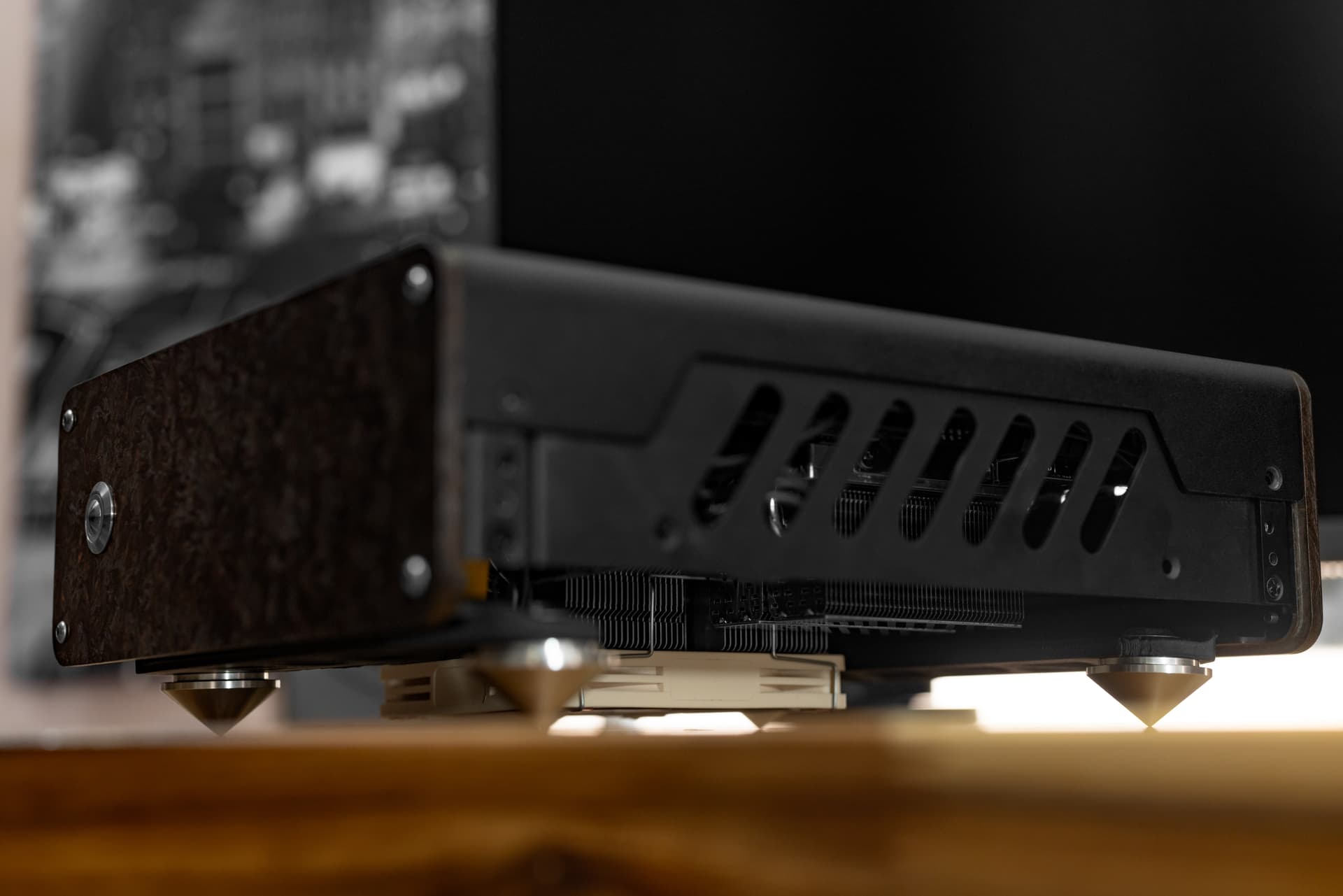
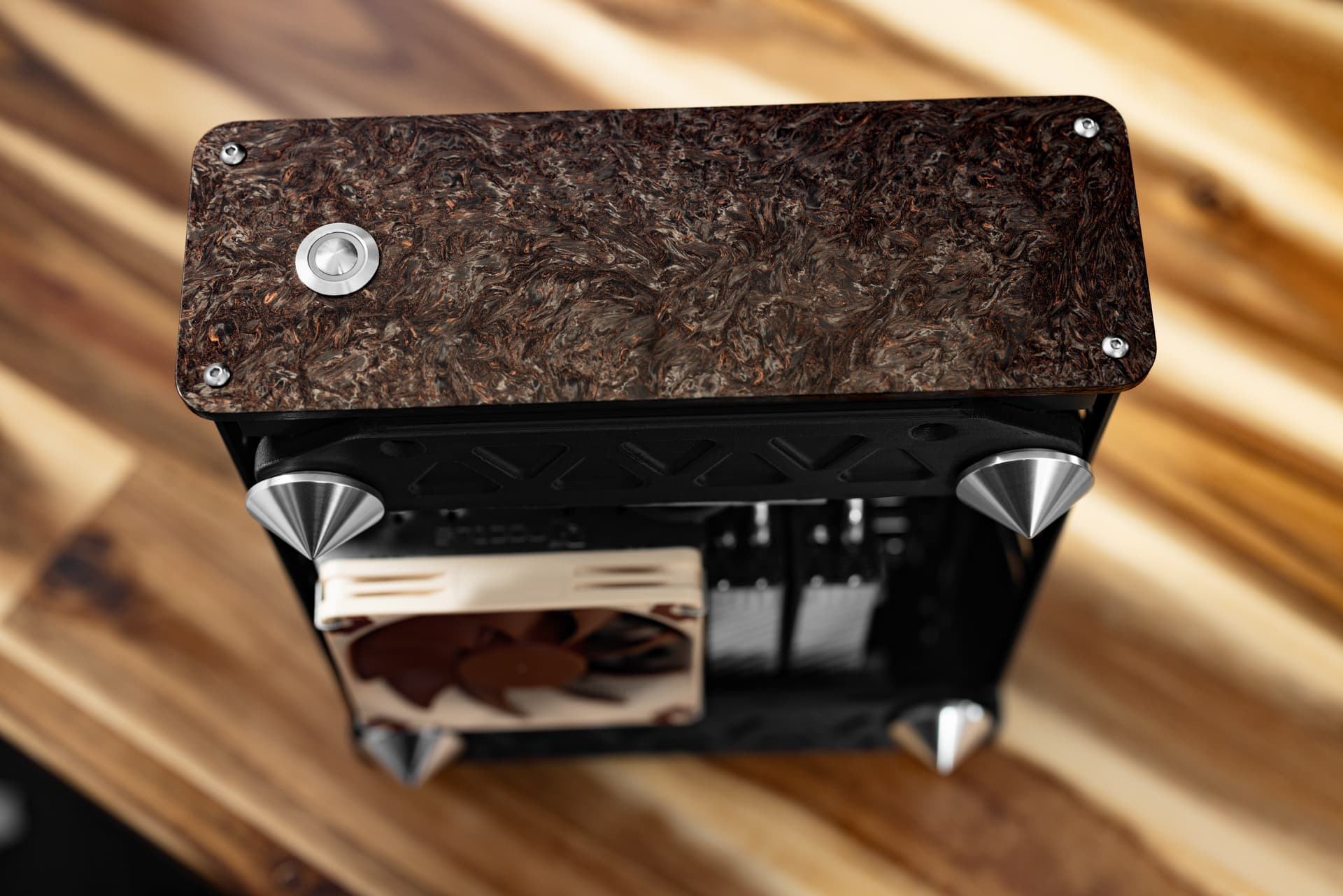
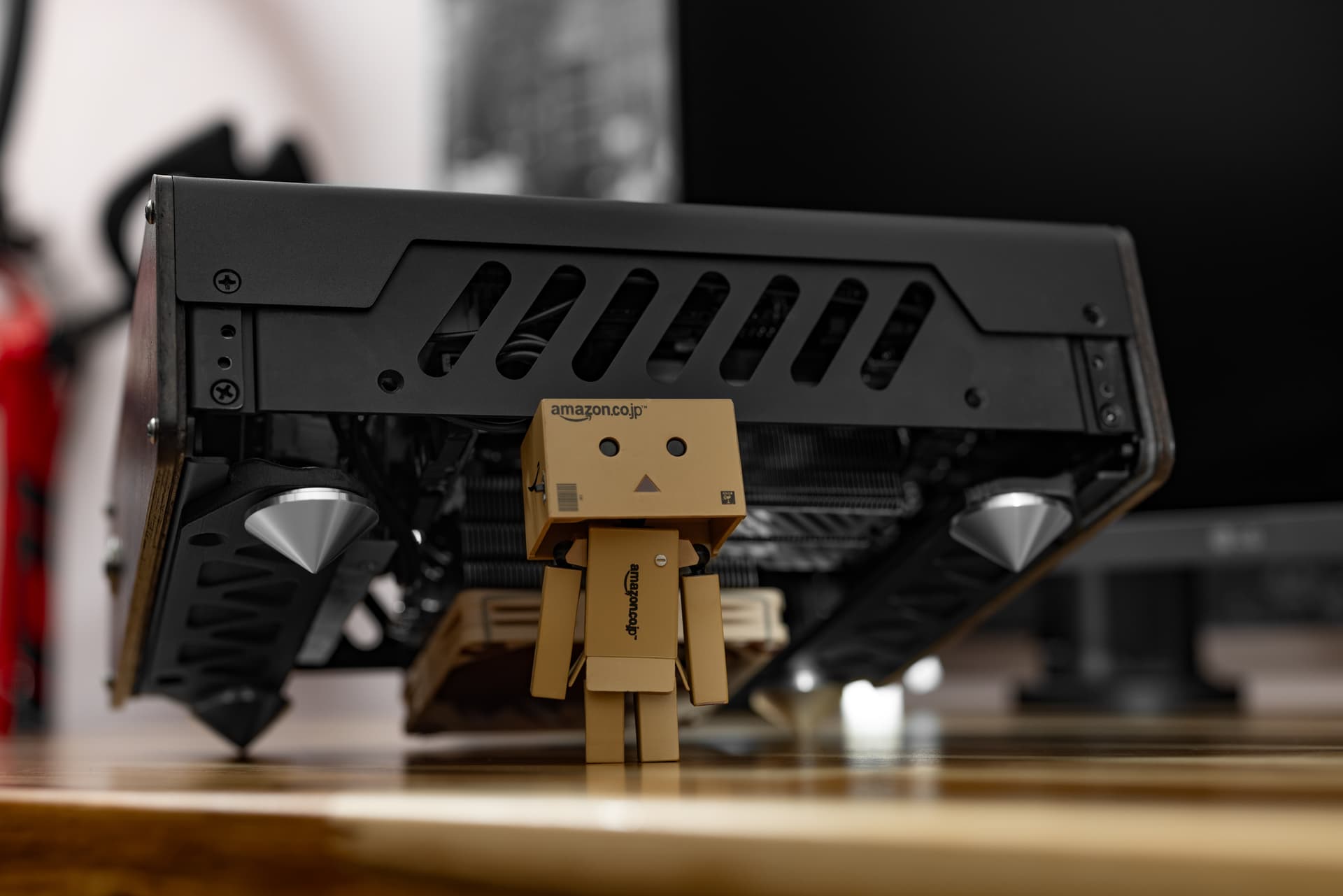
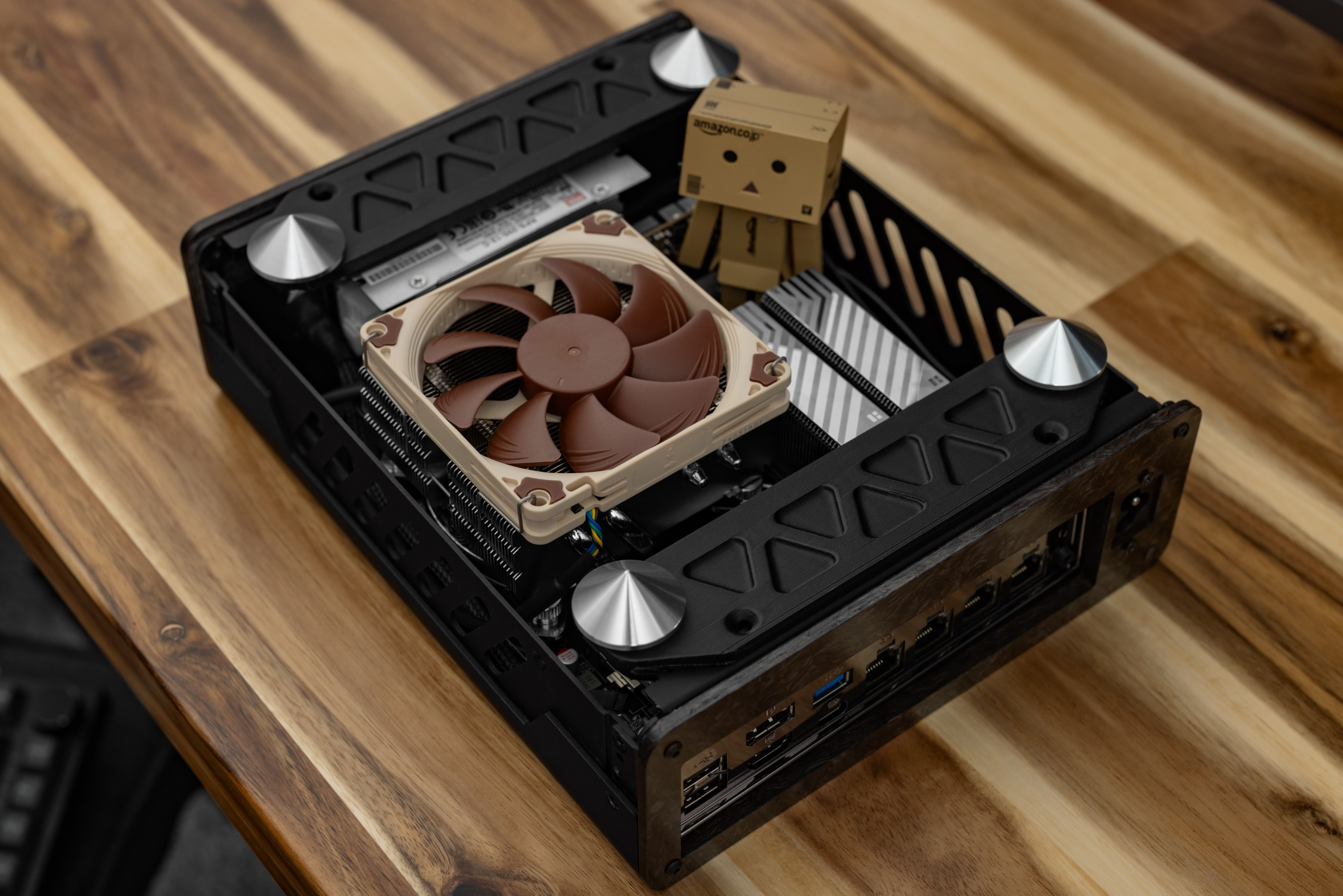
I’ve taken the storage and half the memory from a former ESXi node and paired them with my S4 Tiny to make quite the OP cooled low power box. Josh from NFC sent over some 3D printed adapters and feet so that his S4T design can be used with a taller cooler, kind of like an underside hot rod.
In that same spirit, I paired the Noctua NH-L9x65 with some absolutely massive Thermalright HR10s. The result is a build that could be run completely passively.
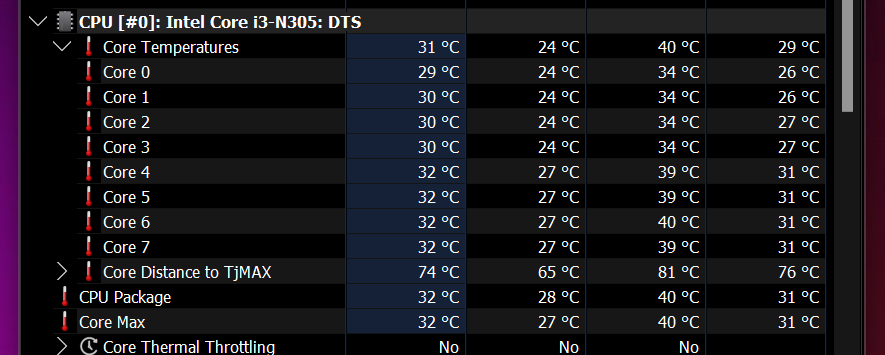
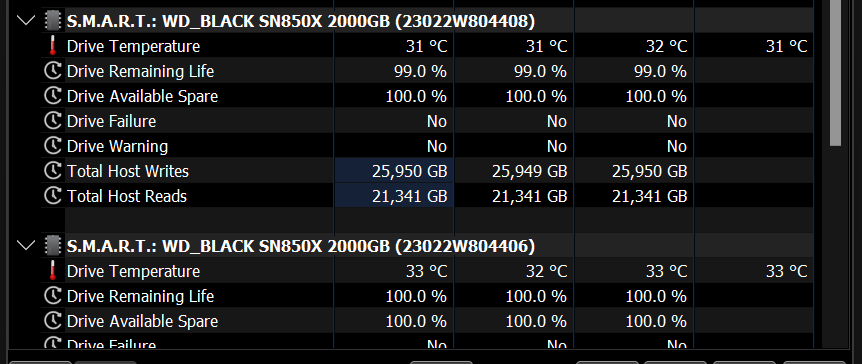
The temps are what you’d expect from a low power unit with lots of cooling. I have yet to see temps on the CPU go over 45C under my heaviest load. The NVMe drives are in the low 30s, the one next to the CPU heatsink is a few degrees cooler when a fan is attached to the cooler.
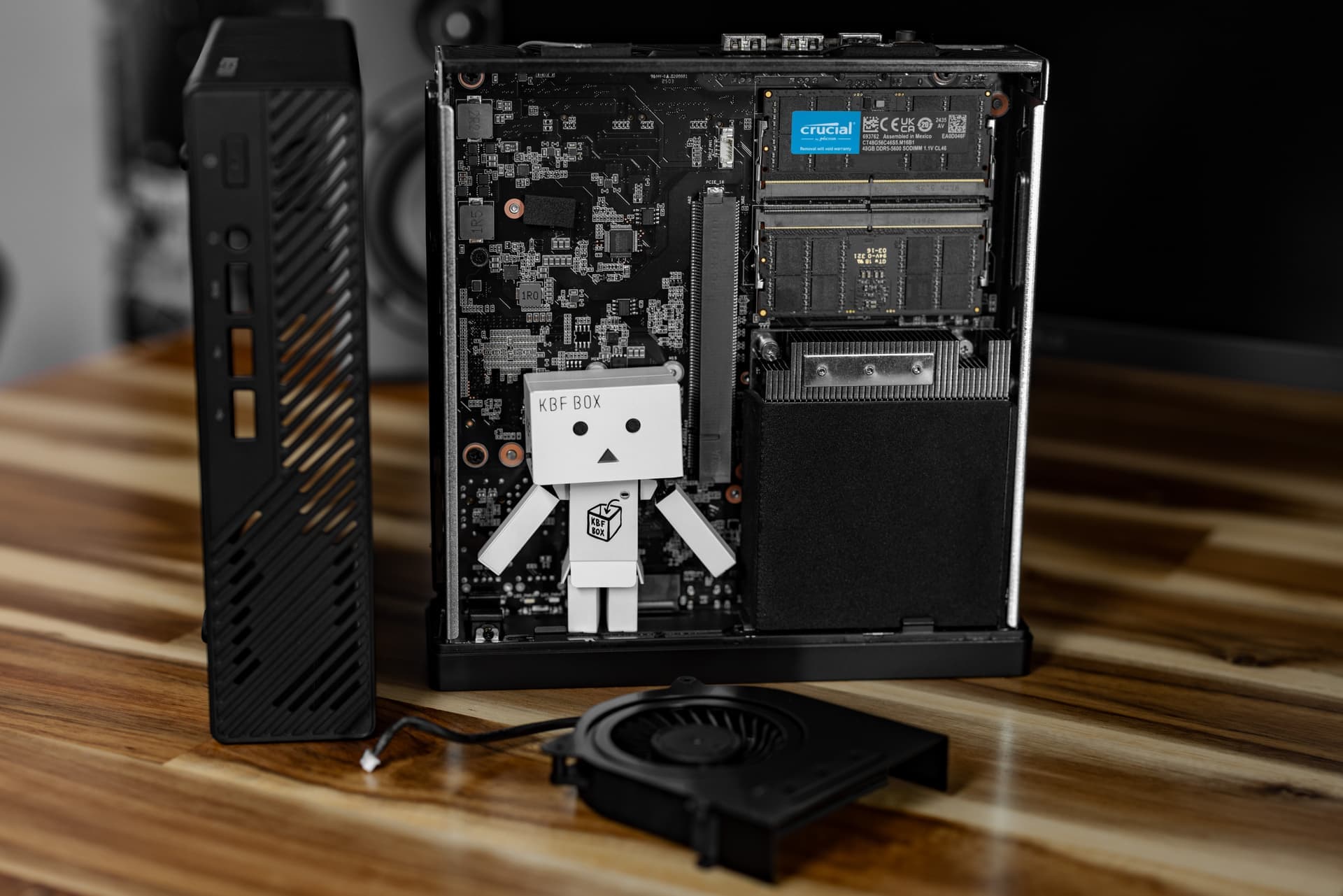
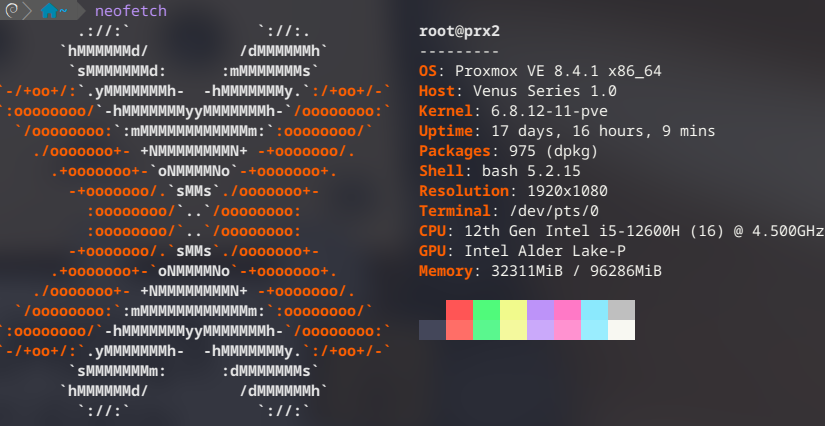
Replaced with: System - Minisforum MS-01 CPU - Intel Core i5 12600H 12 Core RAM - Crucial 96GB (2x48GB) DDR5 5600 Storage - 2x Crucial P5 Plus 2TB NVMe SSD NIC - 4x Intel i226-V
I’ve been a Minisforum enjoyer since day 1. Long before the liquid metal debacle that kinda put them in the spotlight. They’re a smallish group that you can tell loves to push boundaries. That said, sometimes these boundaries cause RMA issues, so I waited a while before putting all of my trust into the MS series. Now a few generations in, I am glad I let them sort out the rough spots.
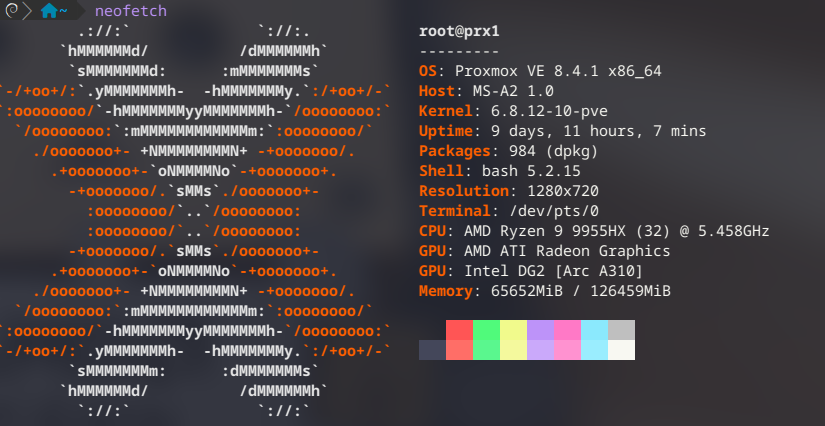
Why did I upgrade PRX1 from a 7945HX to a 9955HX? Shhhhh… never ask a homelabber why.
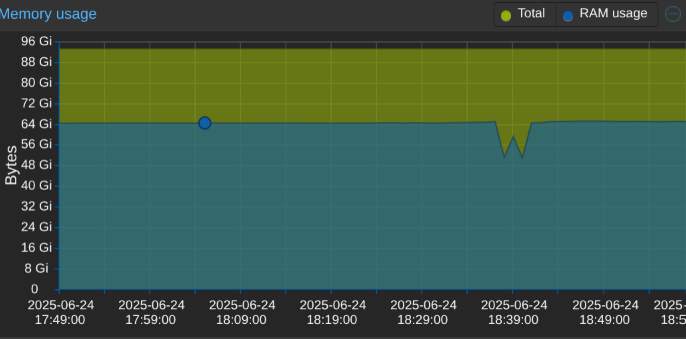
Why did I upgrade PRX2 from an N305 to a 12600H? Ok, I have a good reason for this one, so it’s fine to ask! I have a good chunk of low power services on PRX2. The N305 was doing an absolutely fantastic job. The 48GB of RAM limit? (built before 64GB DIMMs) Not so much. So PRX1 got an upgrade to 128GB and its 96GB kit went into PRX2. Getting a 10 gig upgrade (again) is nice too. I told myself it was fine when I consolidated my lab a few years ago… but I quietly hated it.
The second benefit to upgrading PRX2 was moving my Plex setup. My QNAP TS-877 went into semi-retirement when I moved my Plex storage server to a MUCH larger NAS with 103TB of usable space. I pulled all the drives, but couldn’t shut it down because I didn’t have time to redo my Plex server. Moving my Plex server to PRX2 means I get to shut down the not so efficient Ryzen 2700 and RTX A2000 combo.
Thanks to the lovely folks over at Helper-Scripts, I was able to get an LXC up and running in no time. This allowed for absolutely painless iGPU passthrough to let Intel QuickSync handle Plex transcodes. Mapping my existing shares from the data NAS was also a breeze thanks to someone already having done the work and documenting it. I went the route of making the Plex LXC unprivileged to keep things security-friendly. The biggest challenge in the migration was moving everything over. I very quickly learned I had 100GB of metadata in Plex. All those tiny files took forever.
When I moved my Plex server from Windows to QNAP in 2017, it made a mess. The library nuked itself, then re-added everything, causing quite the jumble. This time I actually followed instructions… I will continue to tell myself this article didn’t exist back then.
Seeing QuickSync’s transcoding superpowers with my own eyes was something else. I knew it was amazing because I use it all the time in Adobe Premier, but seeing an iGPU do something a full size GPU can find challenging is always dope.
The QNAP TS-877 also hosted my Roon server and Tautulli server. I moved Roon to a different QNAP, only needing to move the (thankfully portable) SQLite database. Moving Tautulli was similarly simple, only needing to export and import the databases.
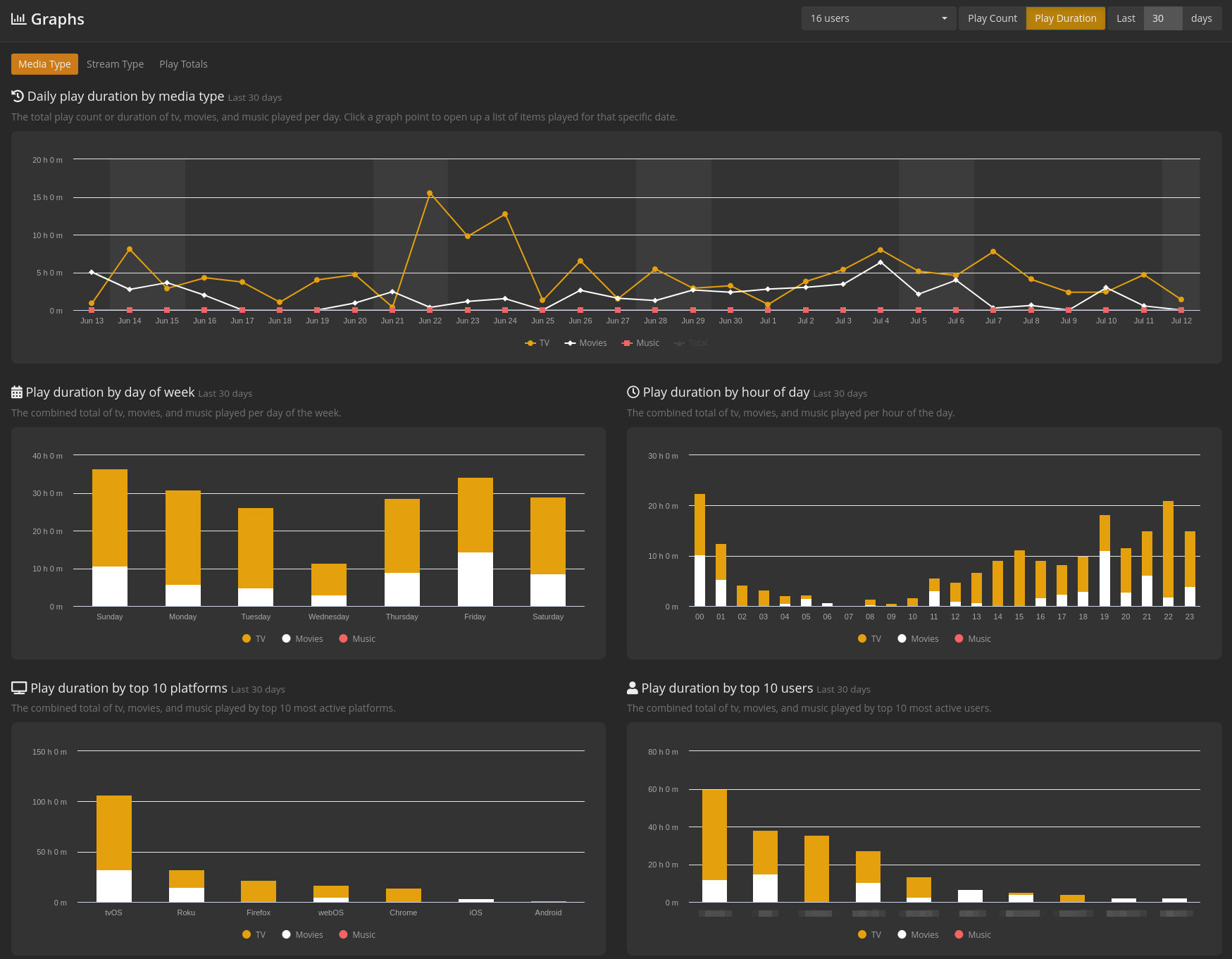
Tautulli is amazing for a stats nerd like myself. It also makes it easy to get rid of things no one is watching anymore, and when best to perform maintenance that would be disruptive.
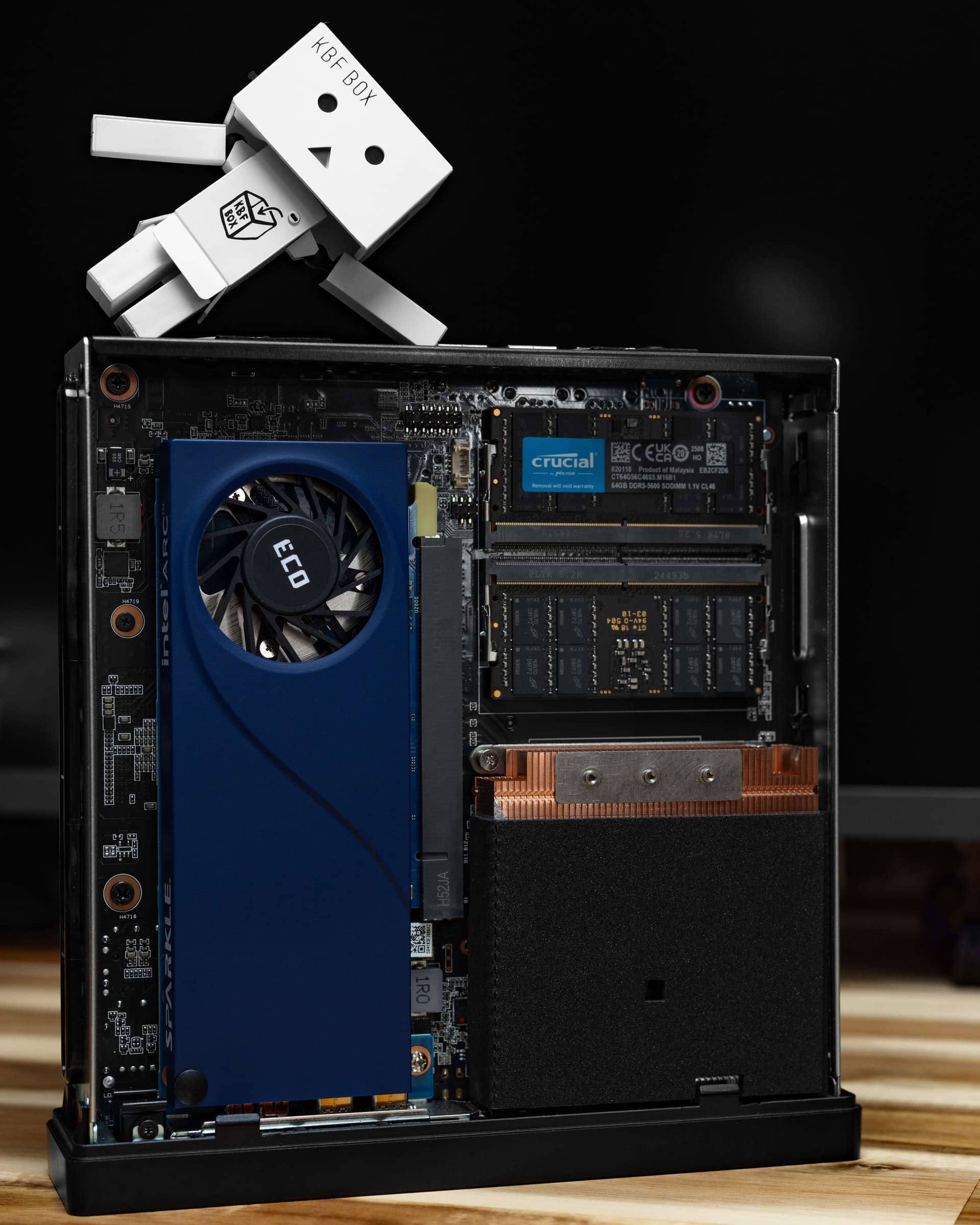
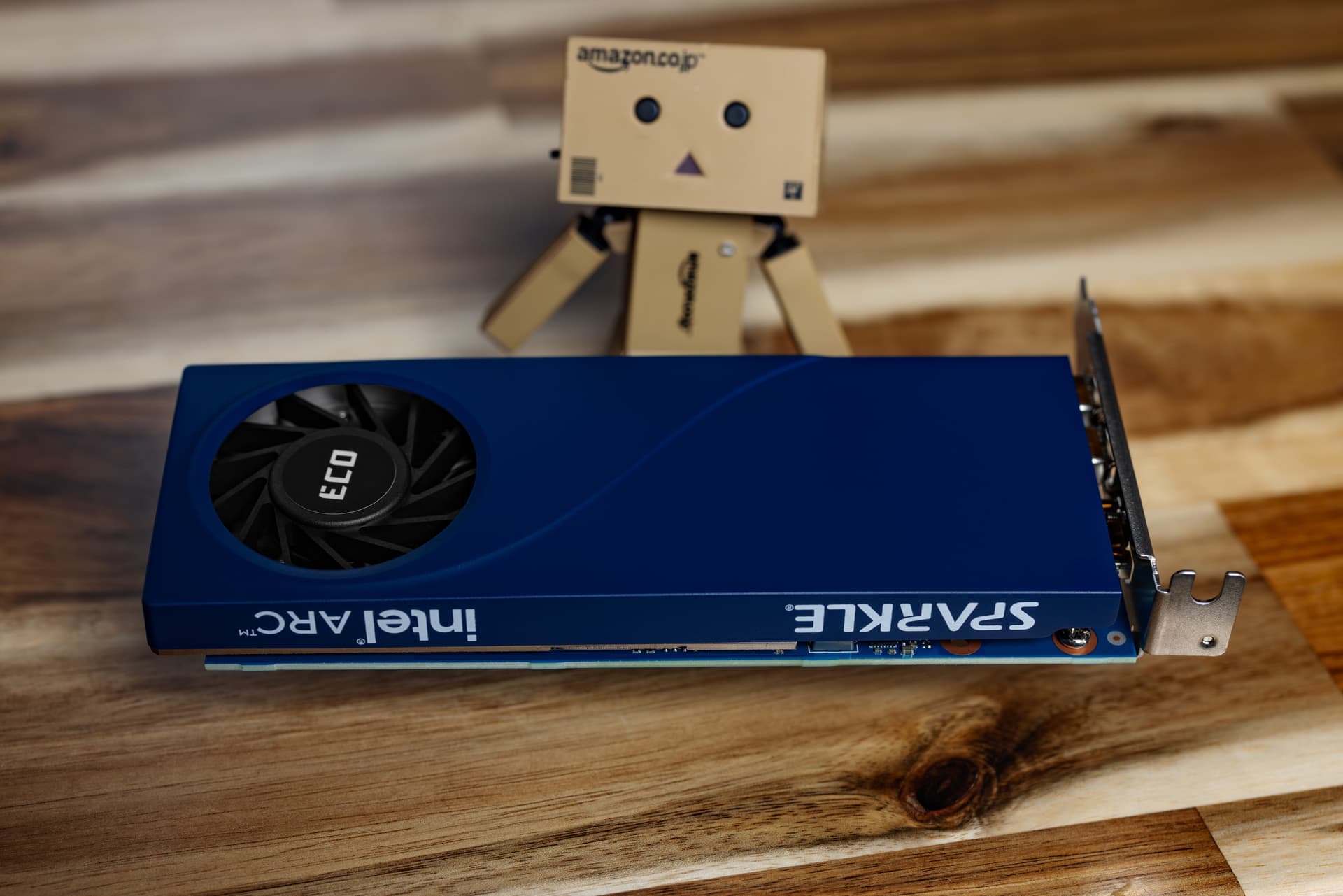
I purchased the Sparkle A310 for 3 reasons. The first reason is because I walked past it at Micro Center and it was adorable. The second is because I didn’t really trust QuickSync before trying it. The third is because I want to give Jellyfin a proper try on PRX1. I could probably run both on the low power, but there’s A LOT more production stuff on there I don’t want to bother.
Unintended Plex rant on why my interest in Jellfyfin is renewed...
Plex has done a LOT of unfavorable things lately. First they killed off Watch Together, something my family used regularly. Shortly after this they raised prices and changed how things work. I perfectly understand why they did this. Plex pricing has not changed the entire time I’ve used it, but the price of resources has. The changes to remote playback were also important to fight abuse of the platform by people reselling datacenter hosted libraries to make money. I have no issues with what they did, just how much is changing over such a short span.
Lastly, the app re-design. It’s buggy. Half the time things freeze between episodes, the timeline now moves when you try to navigate, so watching things in bed is infuriating.. ugh. The new metadata display looks amazing, but what is the point when the UI sucks? We lost watch together for this?!?!?!?
System - ASUS NUC 15 Pro+ CPU - Intel Series 2 Core Ultra 5 255H RAM - Crucial 96GB (2x48GB) DDR5 5600 Storage - 1x Corsair MP600 XT 8TB NVMe SSD NIC - Intel i226-V 2.5GbE
At some point I’ll write a long format piece about why I switched to Linux. Some of it is covered the the build log for Togami, the PC I built to facilitate that transition. That PC replaced Blackhaus and I moved that Windows install into a Beelink GTR7 Pro much like the one further up in this thread.
Moving to the GTR7 Pro for the rare occasions that I needed Windows was working well until it wasn’t. For some reason the power draw was high, even at idle. Somewhere between 40-60 watts. I also ran into constant issues with AMD drivers. Also, I just wanted to give that 7840HS a better role.
My Windows PC contains the last few hold outs. These days I use my M2 Ultra Studio for Adobe things, but it handles iSCSI TERRIBLY and only has a 1TB SSD. This will be fixed pretty soon when my PolySoft 8TB SSD upgrade ships, but the shop that makes them is SWAMPED. For now, anything pre-2023 is on an 18TB iSCSI share via Windows. I also have a few work related programs that require having Windows readily accessible.
I tested iSCSI in a Proxmox VM, and it wasn’t always happy. Earlier in this thread I tried running a VM with GPU passthrough to replace a dedicated PC, but adding it to my high power Proxmox server drove power usage up quite a bit. So… a standalone PC that is very efficient would be a great compromise. I like the idea of it being physically separate more than I like the idea of a VM anyway. It helps justify my Level1Tech 4x PC Dual Monitor KVM.
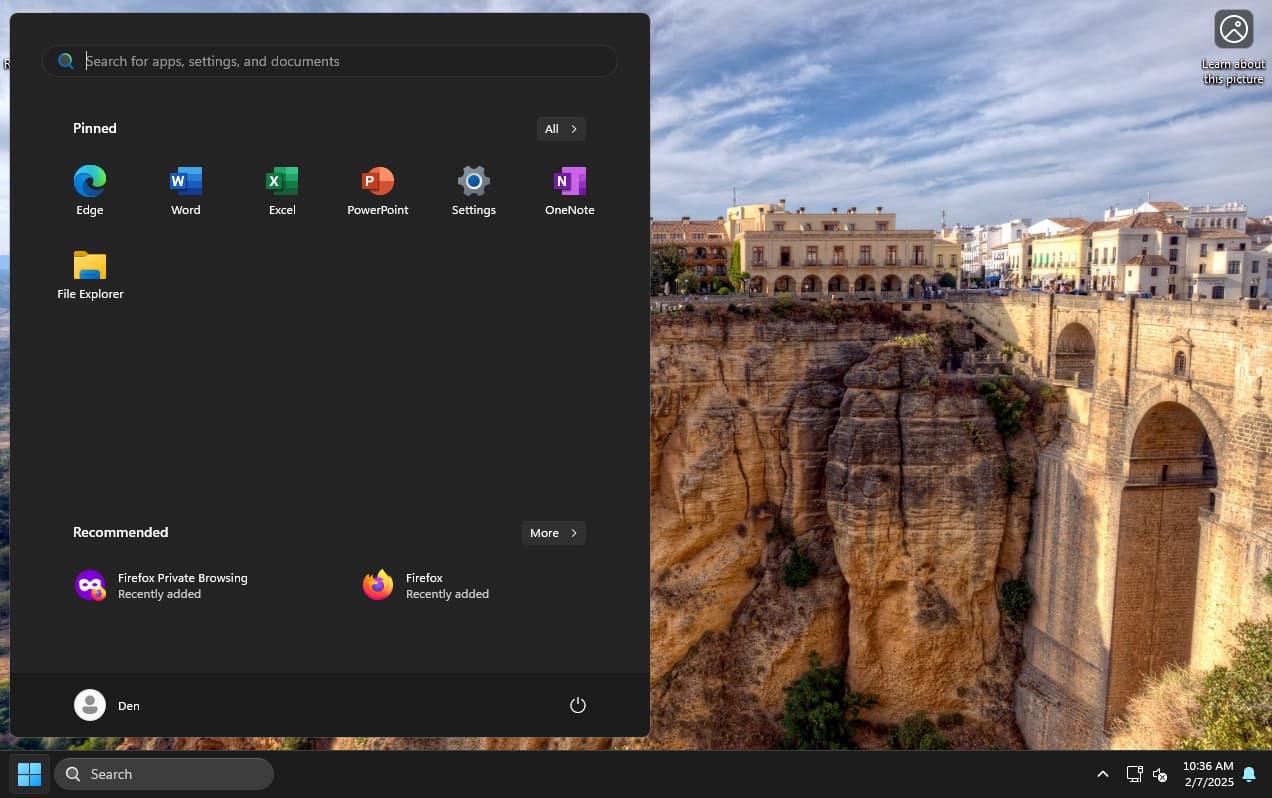
Since I only need the bare minimum of what Windows has to offer, I chose to use the LTSC variant of Windows 11. The only thing you need to eject is “the new Outlook” and you’re good.
It’s so clean and free of botched Microsoft experiments that it almost makes me want to use Windows again lol. They’ll find some way to screw it up though, I know it. I of course had to disable modern standby because it would put the computer to sleep no matter what I did to disable every sleep and hibernation settings. Even disabling monitor shut off is quickly ignored. I do miss dark mode Notepad, but I’ll take being blinded over Copilot Notepad any day.
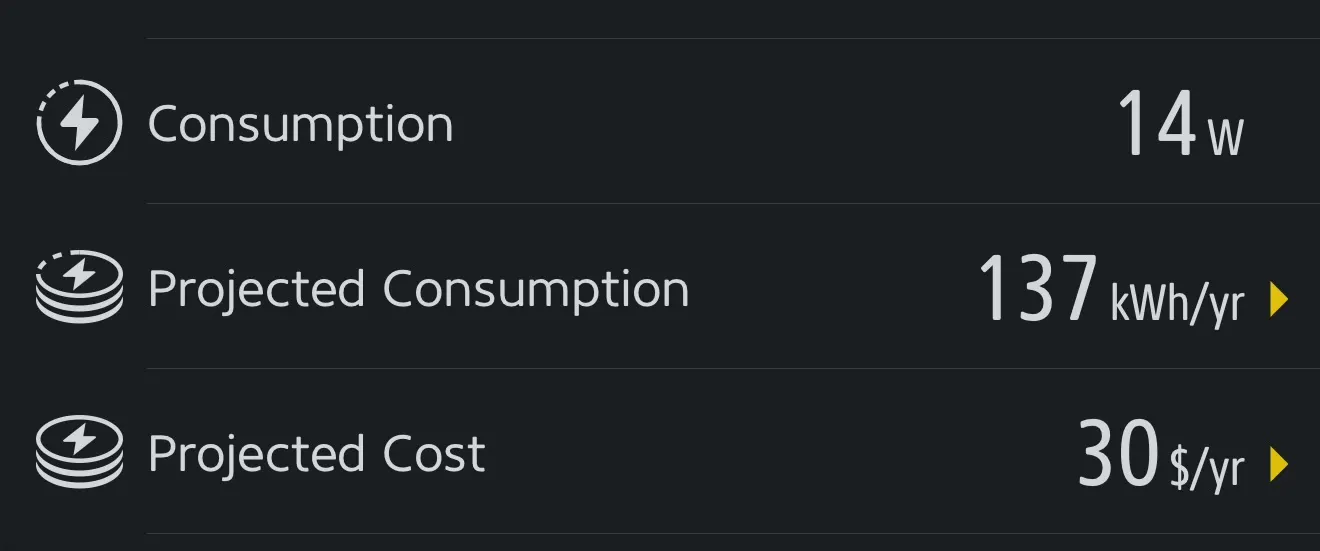
Power draw is just 14-17 watts during normal use, and 4W idle. It’s nice to see ASUS keeping the NUC spirit alive. I’ve had many generations of the NUC over the years and am glad to see it still lives up to being the grandfather of modern mini PCs.
Whew… this chip is SPICY. I was getting 90s because the chips just GOES. It loves being at 5.4GHz. I don’t need high clocks 24/7 for what I’m running here. I did two things to remedy this.
Re-paste with PTM7950. This was relatively easy, because Minisforum made the screw hole in the center accessible. If you look at the MS-01, it is covered. You need to remove the felt to remove the heatsink. This is not a problem with the MS-A2.
Given the massive homelab interest in the MS-XX platform, there is a lot of data on how to get it to not cook itself. I used this guide to determine I want the TJMax to be set to 78C. Doing this chilled the CPU out so much. Now it lives around 4.6GHz, and it sits between 75-78C.
I did it! It’s a long read, but my brain will either output nothing, or everything. I do not have a middle ground. There is a table of contents if you want to skip the “story” behind the switch and get right into the Linux part.
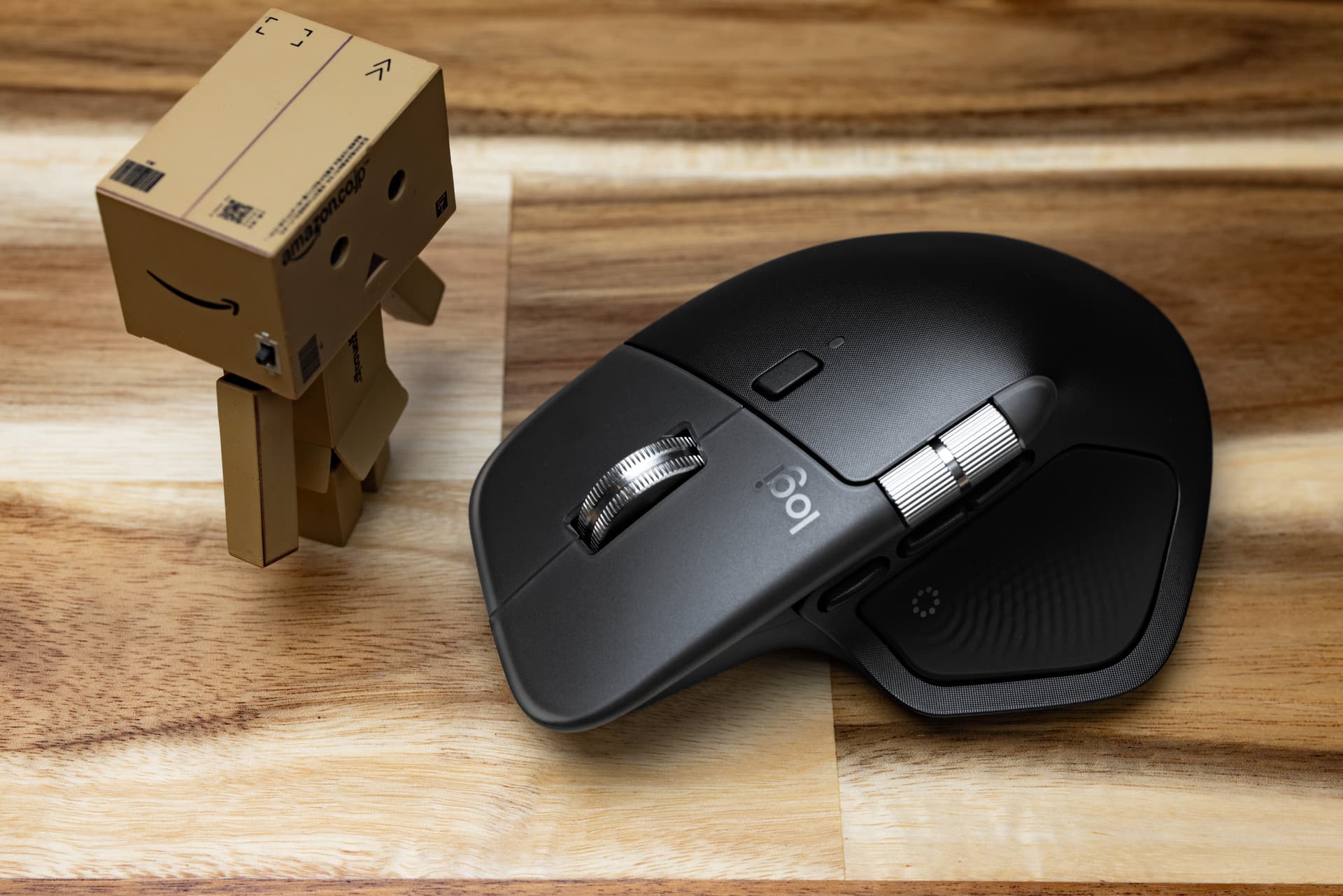
We got some MX Master 4s due to pretty heavy client interest. I took one home to see if I’d pick some up for myself. I’ve had every MX Master since the series began, and it is by FAR my favorite mouse. This one has a lot to live up to.
There are some MAJOR changes this go round, which is terrifying when the product has been so iterative. When something is this iterative, that means there is little to improve upon. It also means there’s a lot to screw up.
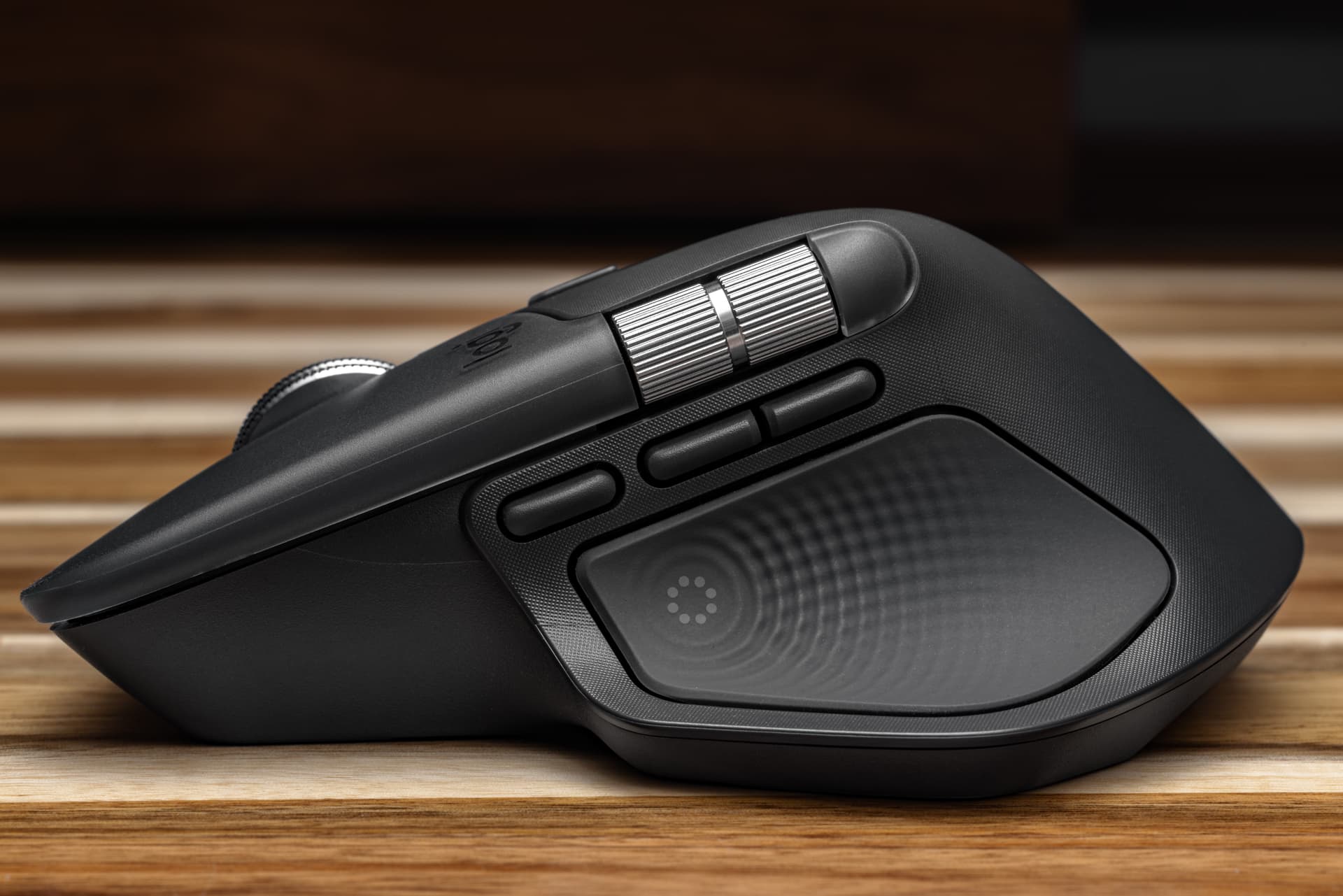
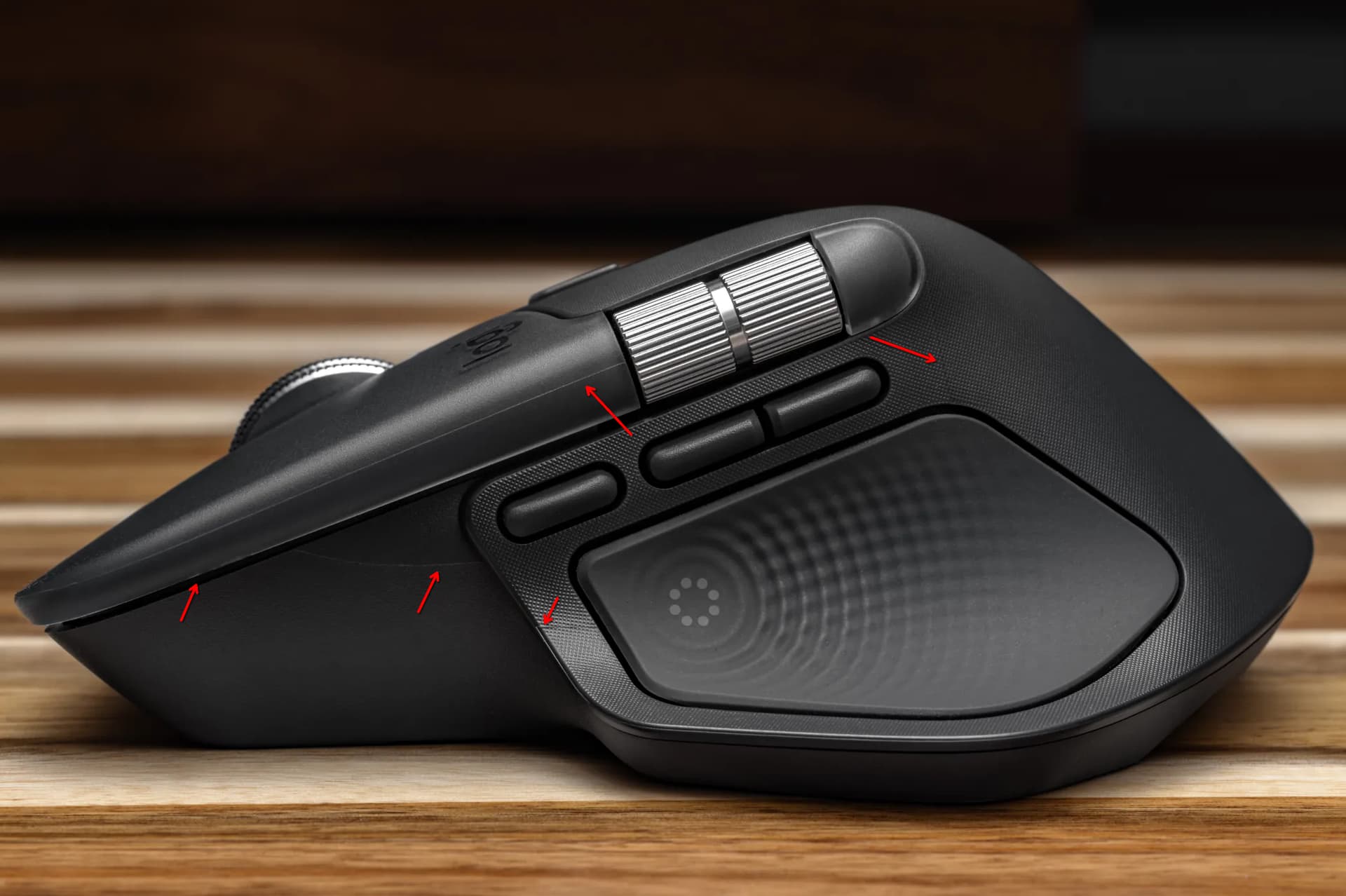
One of the major shifts is the shell itself. The rubberized coating is gone! This is a welcome change, as MX Masters past would rub away or get flaky and gross. Now we have textured plastic for the body, and smooth, frosted plastic for right and left click.
There’s a slight change to the ergonomics. I can’t quite put my finger on it, but my hand sits further back. It’s slightly less comfortable, but I feel like I’ll adjust over time. The new “action” button replaces the thumb button, and I am not the fondest of it. I can’t press downward, I have to squeeze inward a bit to trigger it.
The scroll wheel is no longer recessed, so it sits higher. I don’t find this change too distracting from a muscle memory standpoint. The back and forward buttons have a new friend. This third button compensates for losing the thumb button, except it doesn’t. It’s nowhere near, adds hesitation while you figure out if you’re pressing the correct button, and–never mind, I got used to that in 2 days. I’m not thrilled, but it’s less offensive than it was on day 1.
After a few days of use, the new shell plastics and texture coating grew on me. The haptic area uses a more solid rubber, as does the opposite side where your fingers rest. It’s comfortable and feels like it will last a while.
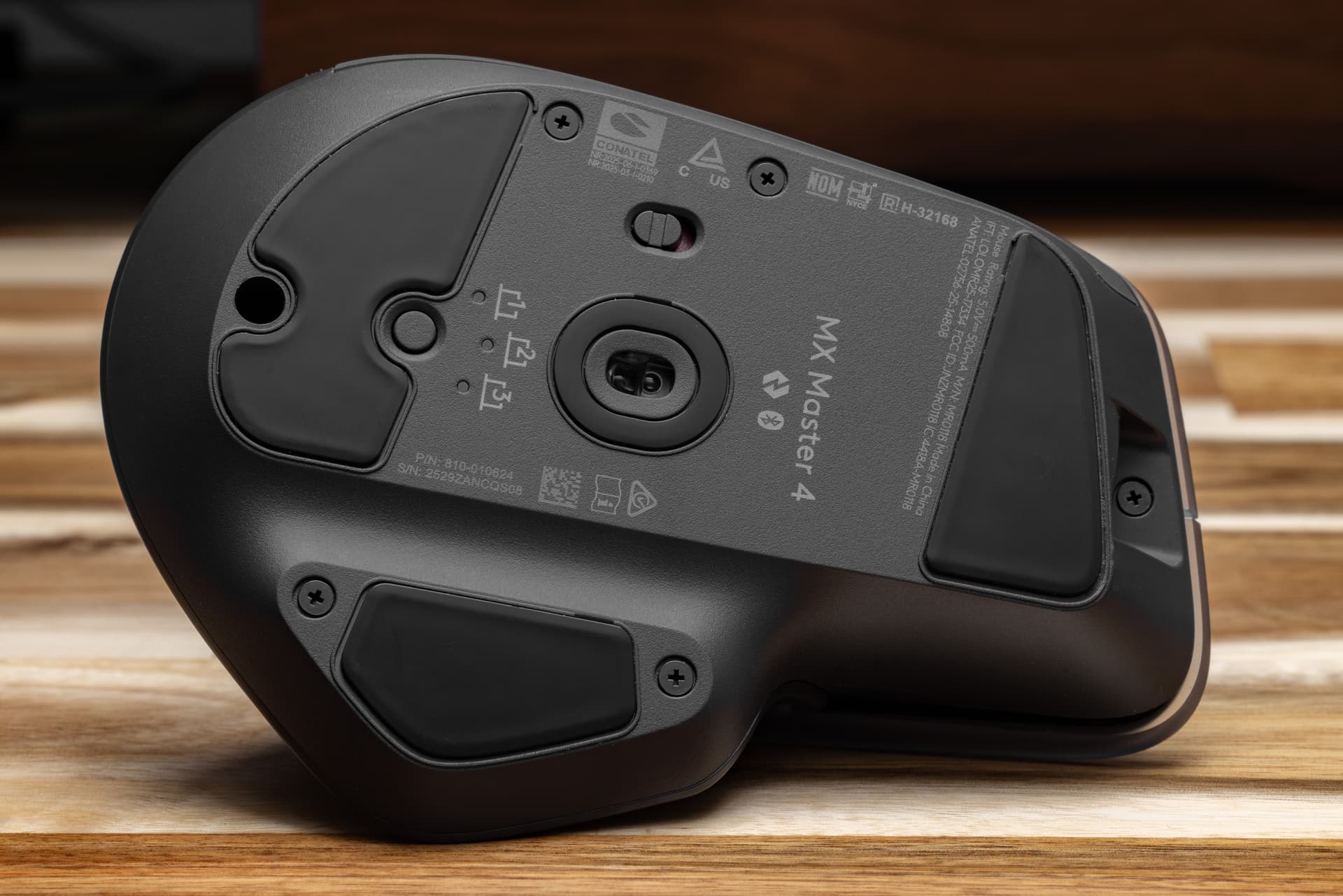
One the bottom of the mouse, an unexpected upgrade! Nothing is hidden beneath the glide pads. If you’ve ever tried to clean an MX Master series mouse before, you know it was an awful experience. I have not torn the mouse apart, but hopefully the easier access is a good sign. While I initially was happy to see the Phillips screws, those are easy to strip out and may become a downgrade quite quickly.
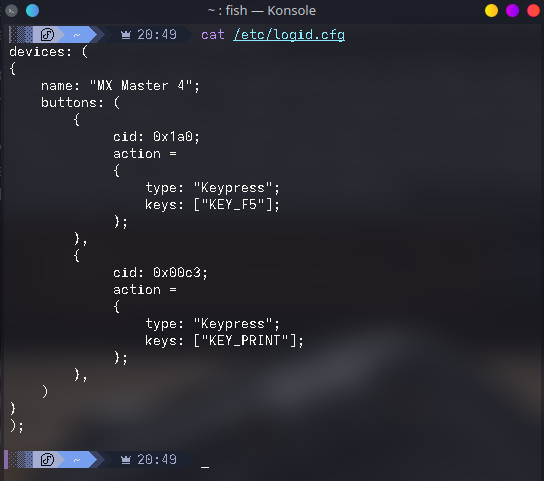
The haptics and new “action” features are entirely lost on me. I use Fedora, so there is no Logi Options+ for me. Even if there was… no thanks. I am uninterested in using proprietary software to do something you used to be able to hold in memory on the mouse. I don’t want to create an account to sync my settings, and I don’t want the software being deeply involved in my workflow. Instead, I use LogiOps to map the buttons. I have the “action” button mapped to F5 and the new/old gesture button mapped to print screen. The extra button works out nicely for me.
There is something that bothers me immensely with the newly more expensive MX Master 4. All the seams are on display. The previous MX Masters are all well polished. The MX Master 4 has VERY visible seams and plastics imperfections. You don’t see them in official photos, but they are jarring to look at in person. When you charge $20 more, fit and finish becomes a little more than a nitpick.
Am I going to keep the mouse? Yeah. The rubber is disintegrating on one of my old MX Master 3 mice, so I will. It will be great to never deal with that again. It sucks to not be 100% pleased with my upgrade, but it’s 2025. I’m used to it.
Edit: March 4th
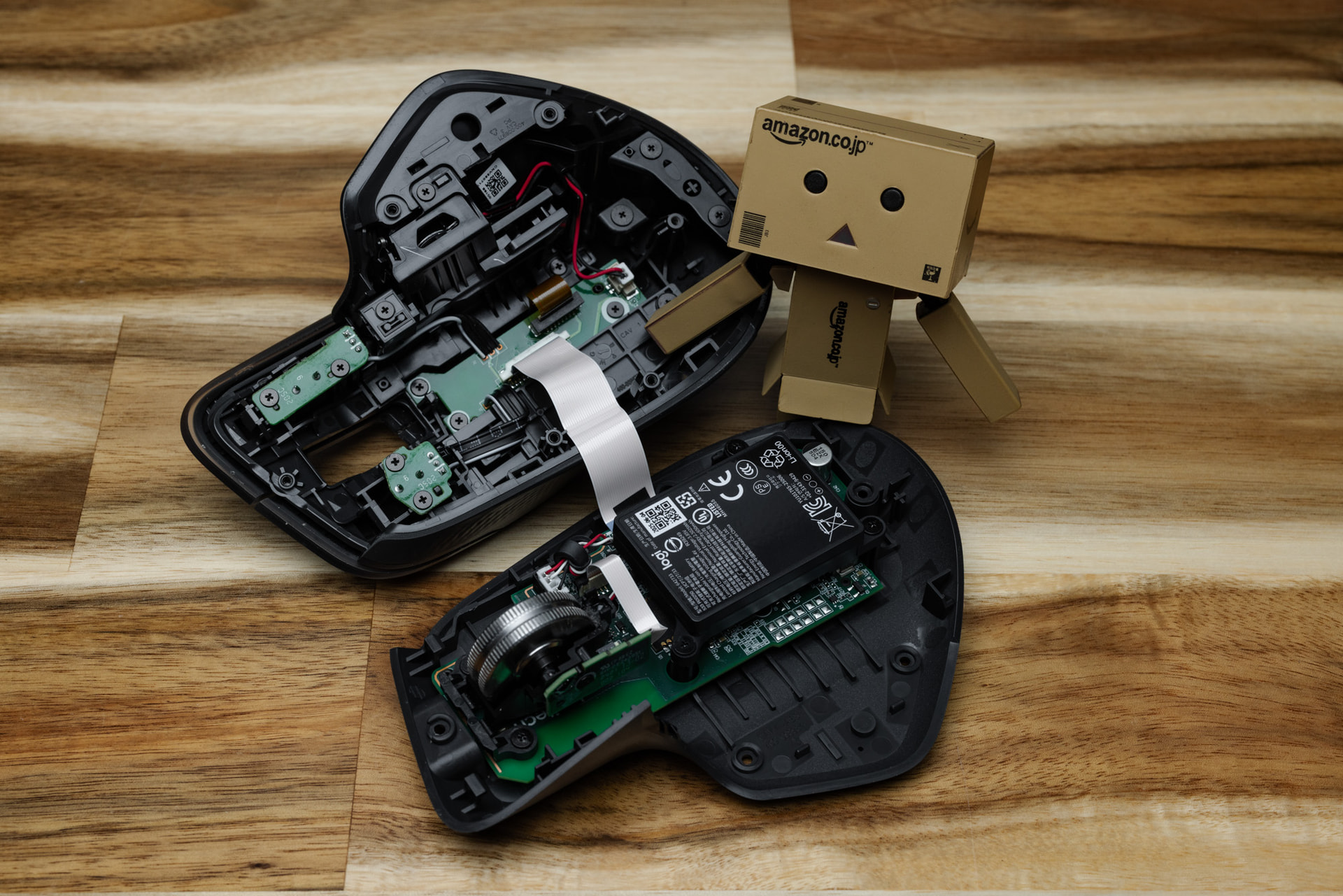
Had to take apart the MX Master 4 today.
It was absolutely painless compared to having to replace the skates on the older gens just to get to the screws. After dislodging a piece of dust, we’re back in business in under 4 mins.
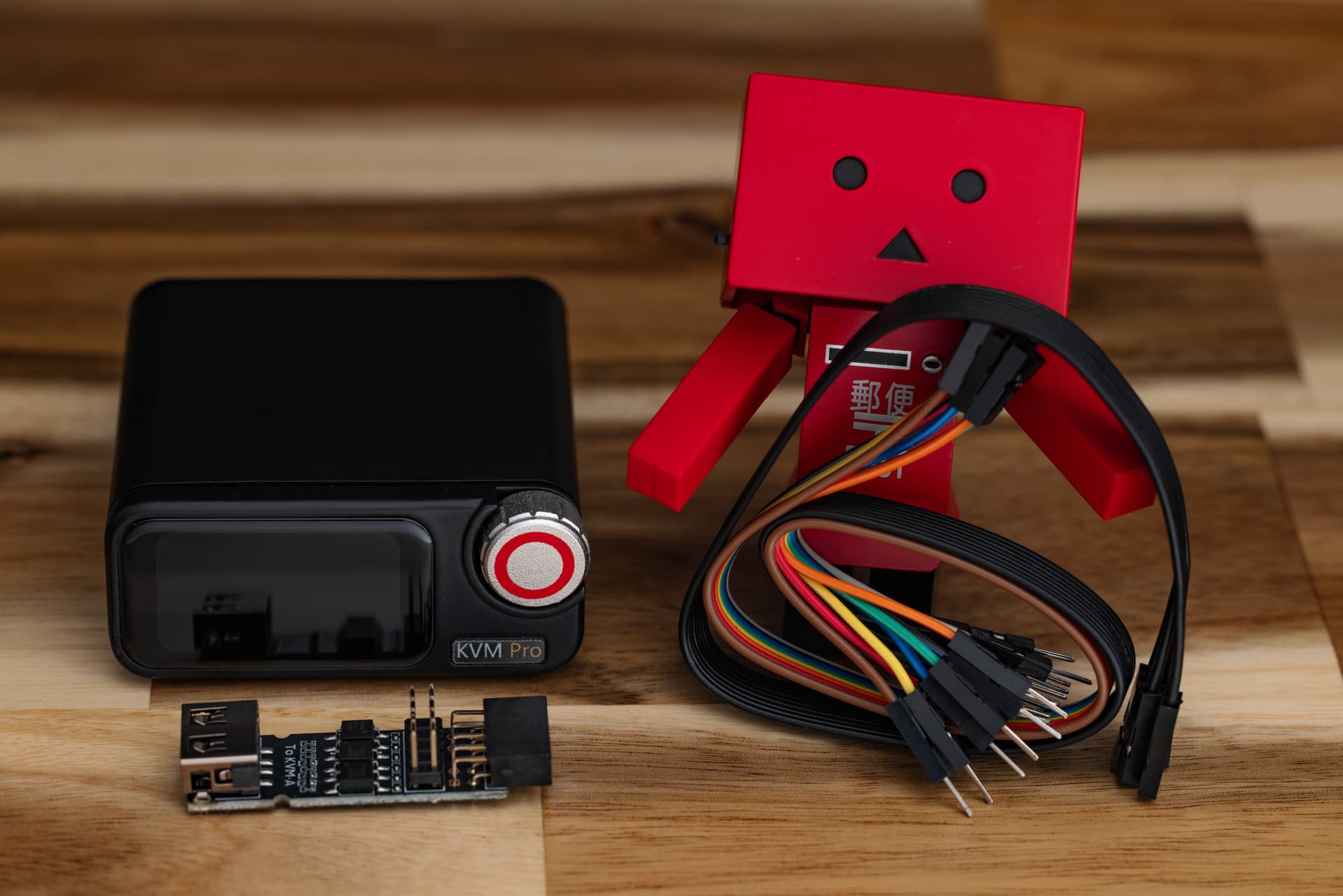
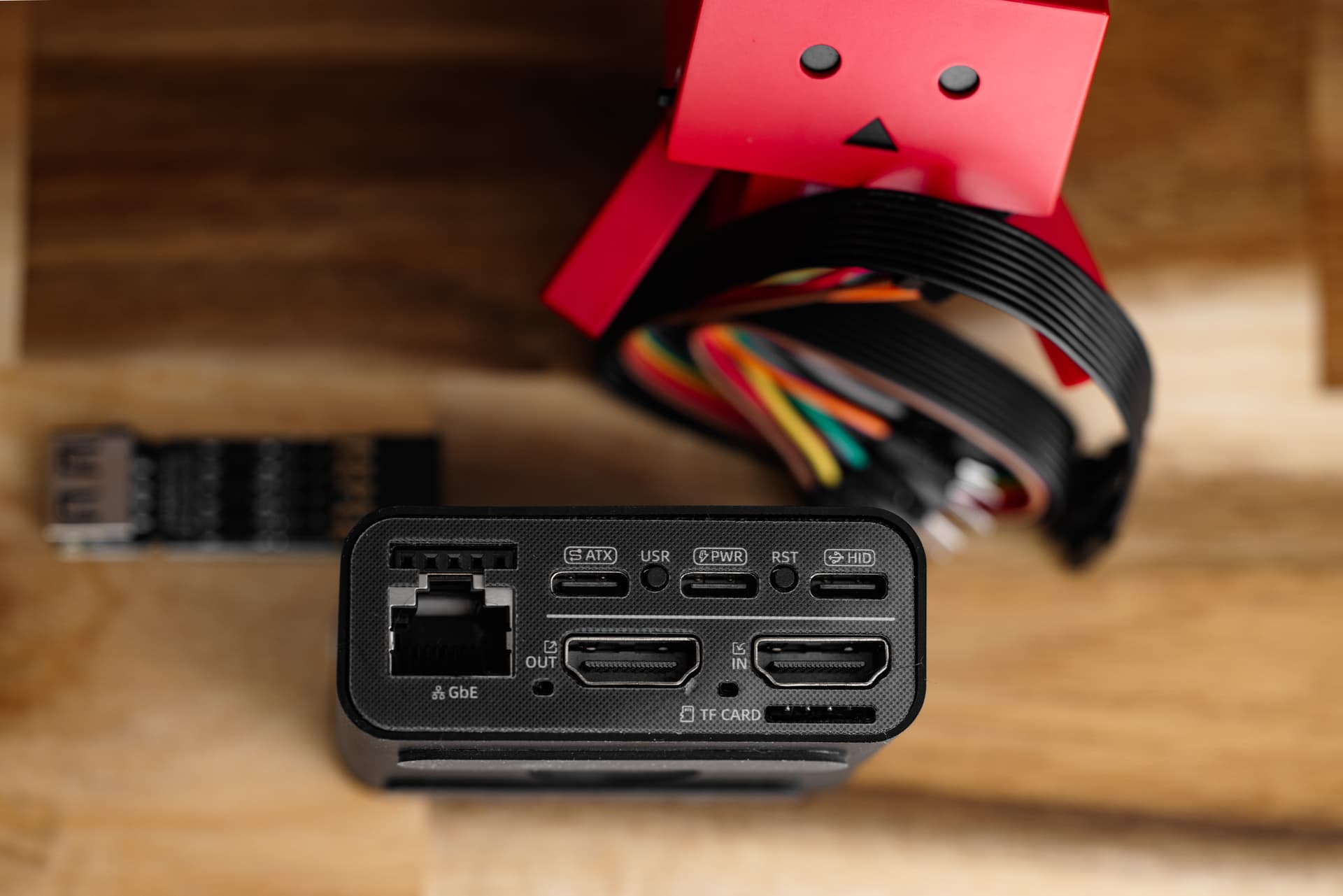
Unlike the previous RISC-V versions, the Desk version uses an ARM CPU. Thankfully this means gigabit to load ISOs and not 10/100. I also love the ATX control using a header style connector instead of the cables and pins. Front panel connectors are a pain, so this is VERY welcome. Esp since most of my builds are mITX. (Cable is supplied in case oddball header config).
This saga started in September of 2024. Having moved entirely to the M2 Ultra for creative work, I was burning through the meager 1TB of storage rather quickly. I have plenty of NAS storage, but I really don’t like splitting up my library and shuffling data around.
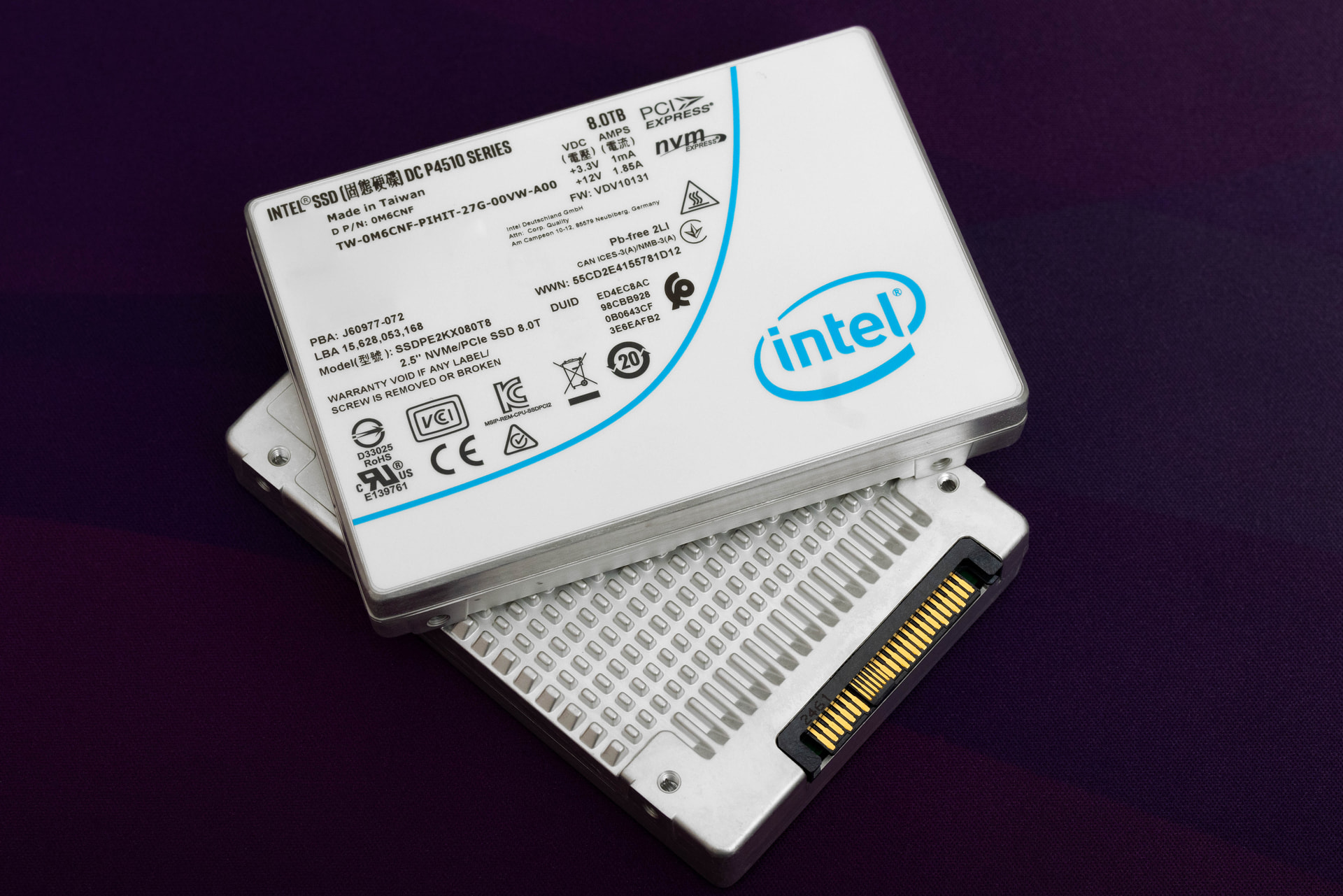
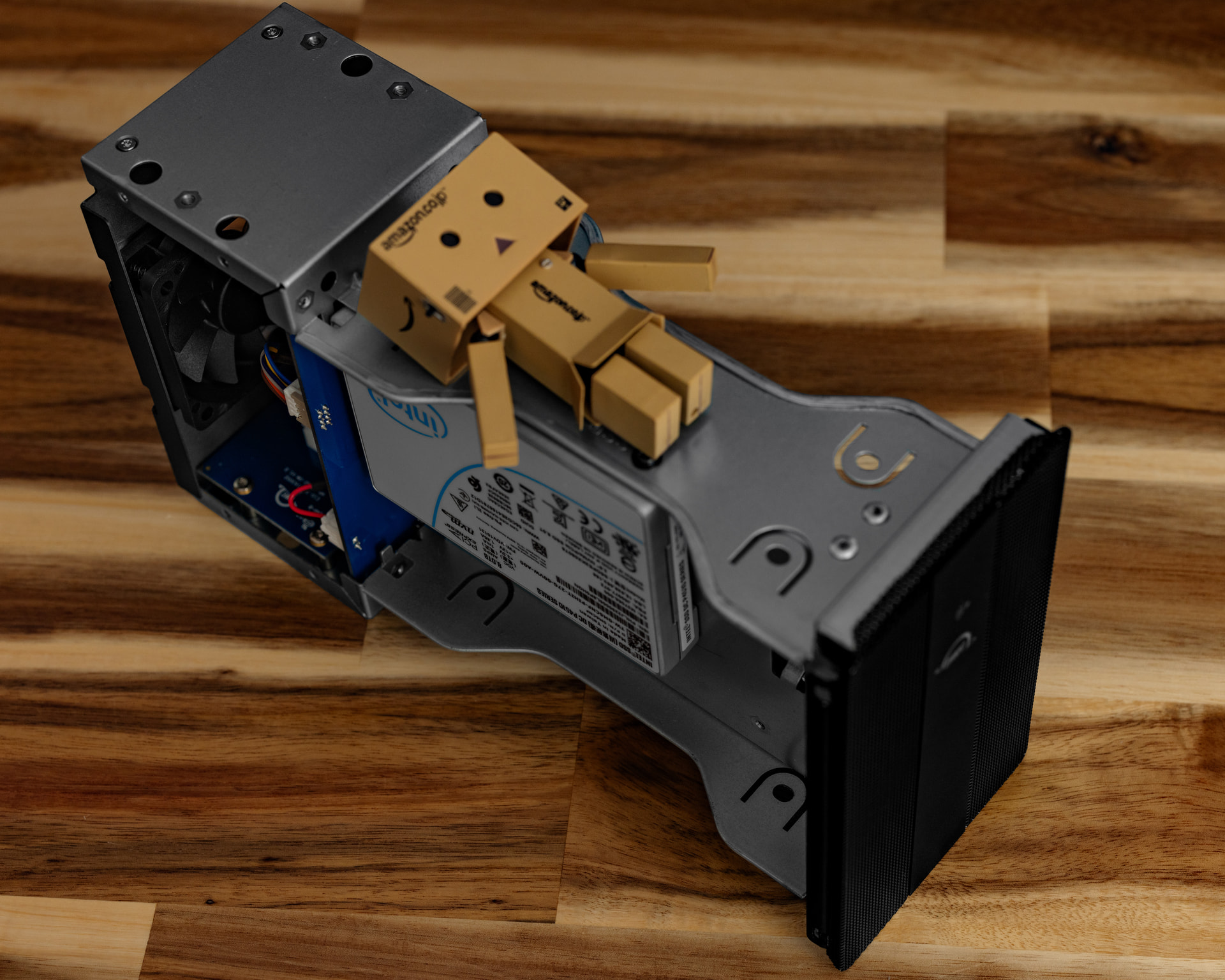
I had these Intel P4510 drives I got for a great price. I used them in my QNAP, but the plan I had for them didn’t work out. I found a used OWC Mercury Pro Thunderbolt Dual U.2 enclosure for cheap at Adorama, and figured I could use that for fast, redundant storage.
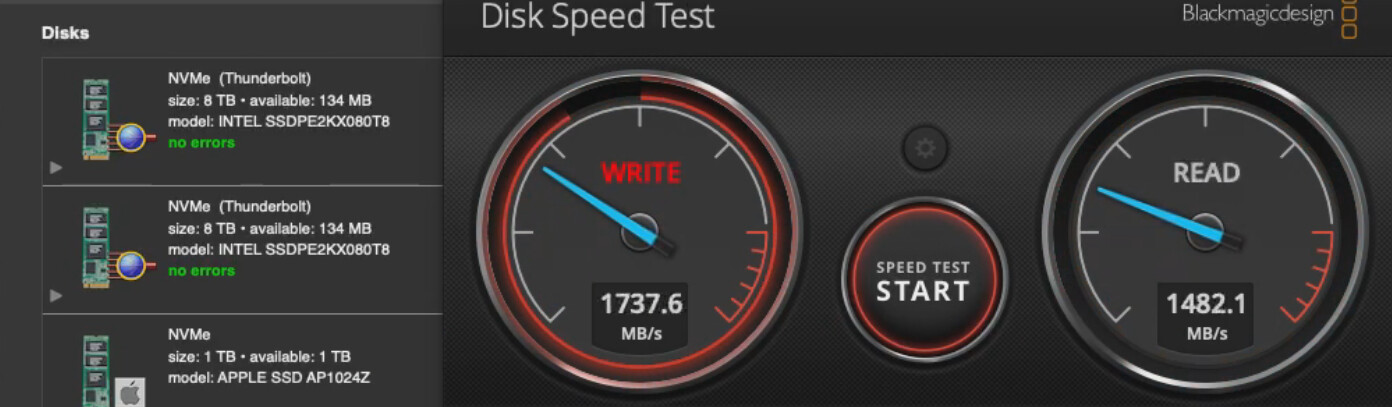
While the idea worked in a literal sense, I was getting mixed results with Apple’s built in mirroring. Sometimes it would be around 900MB/s. SoftRAID was better, but using it felt clunky. I didn’t want to trust this as a daily driver solution.
Shortly after shelving that idea, I came across Polysoft’s Kickstarter for aftermarket, fully compatible storage. It was a lot of money to throw at a Kickstarter, so I sat and waited patiently to see if the project ever delivered. It did, and the results were OVERWHELMINGLY positive. Life got busy and I back-burnered the idea of ordering one.
Uh oh… I happened to glance at my storage one day and uhhh… yeah.
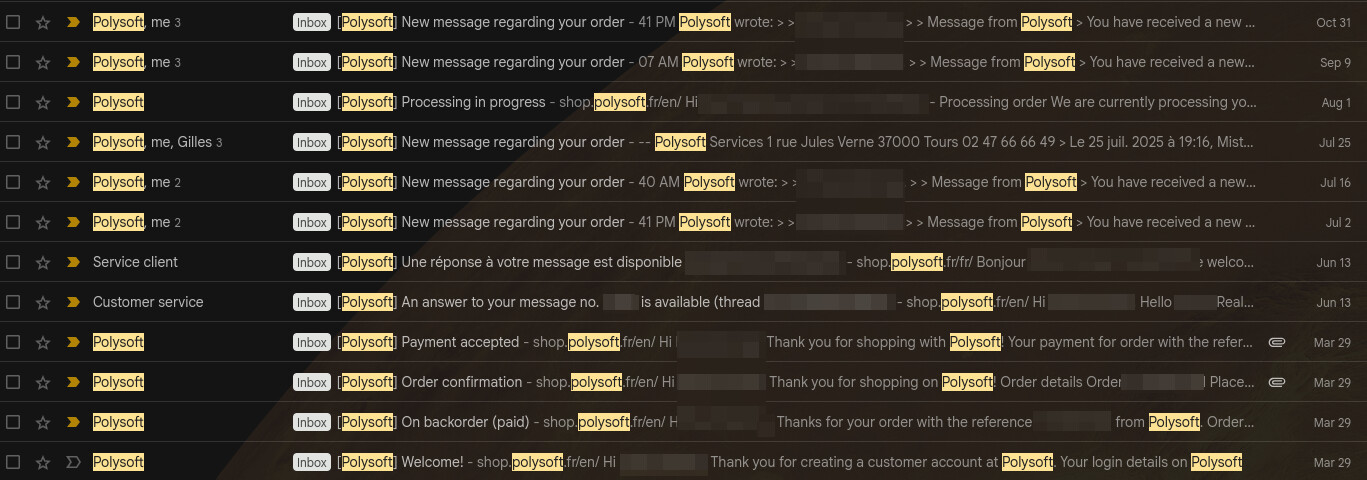
After successfully upgrading an M4 Mini w/ a different aftermarket solution, I headed over to Polysoft and placed my order since they were the only proven game in town. I patiently waited… It was a backorder, so I quickly moved on to other things with the hopes that I would get it in a few months. I know the project blew up and he was very busy. I checked in regularly and was getting updates and ETAs, but that transitioned to excuses, then silence.
After October, Giles went radio silence. I poked around on Reddit to see if anyone else was having trouble. From there I found other frustrated customers and eventually tracked down his own thread on Macrumors where people were discussing chargebacks. This was terrible news. I cared about the nearly $1K I spent, but I cared more about just getting the drive. There are no other options… until…
In the Macrumors thread, a few users posted success stories from AliExpress. I was super nervous about this, especially being $899 in the hole, but I was up to 940GB used on the M2 Ultra and something had to be done.
The kit arrived and I was very excited. After finishing a batch of photos, I did a full time machine backup to a fresh Samsung T7, and… there’s no documentation… ok, so problem. I found a vid on YouTube with instructions on how to disassemble and install the drive. Ironically, it was someone demonstrating with their Polysoft kit.
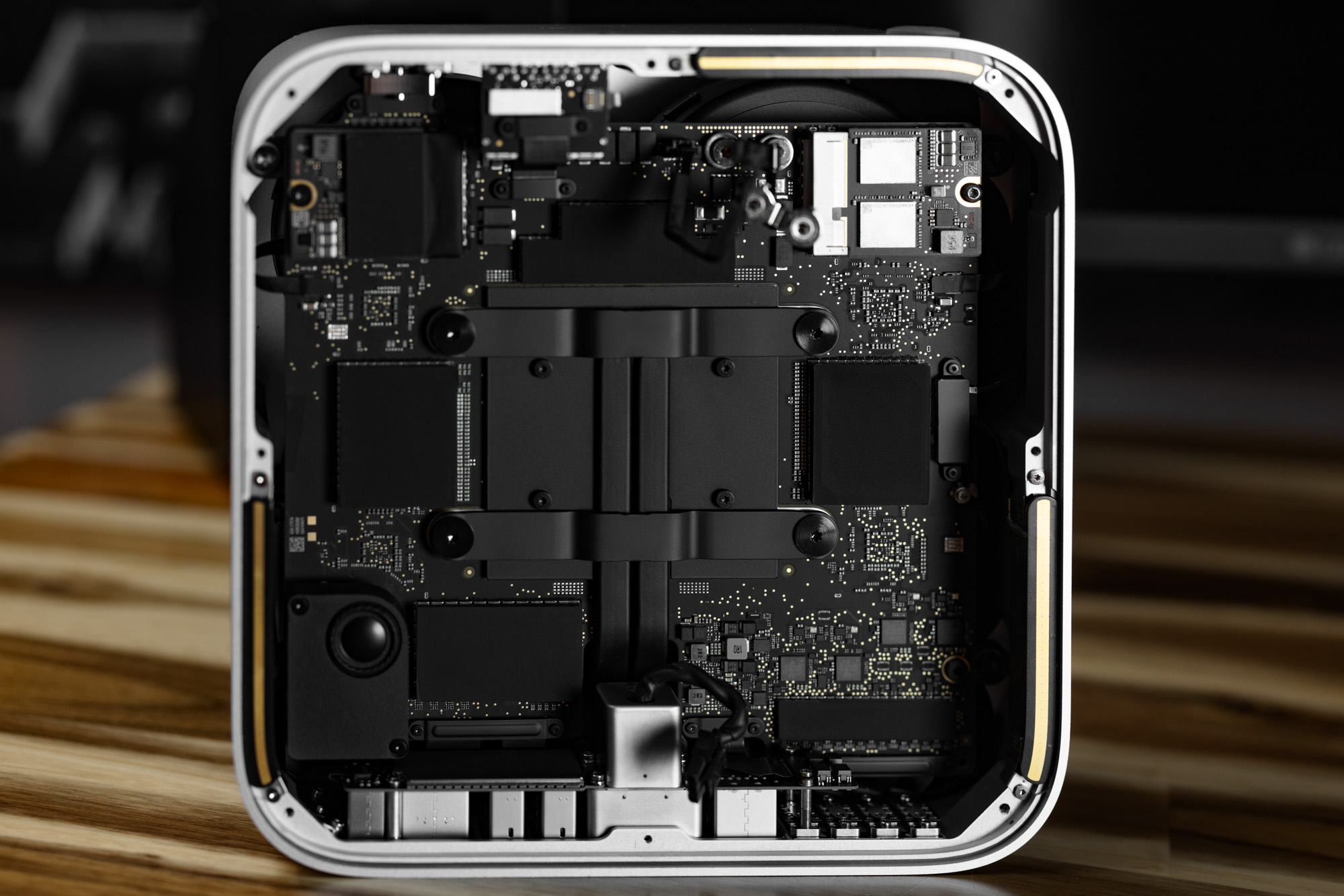
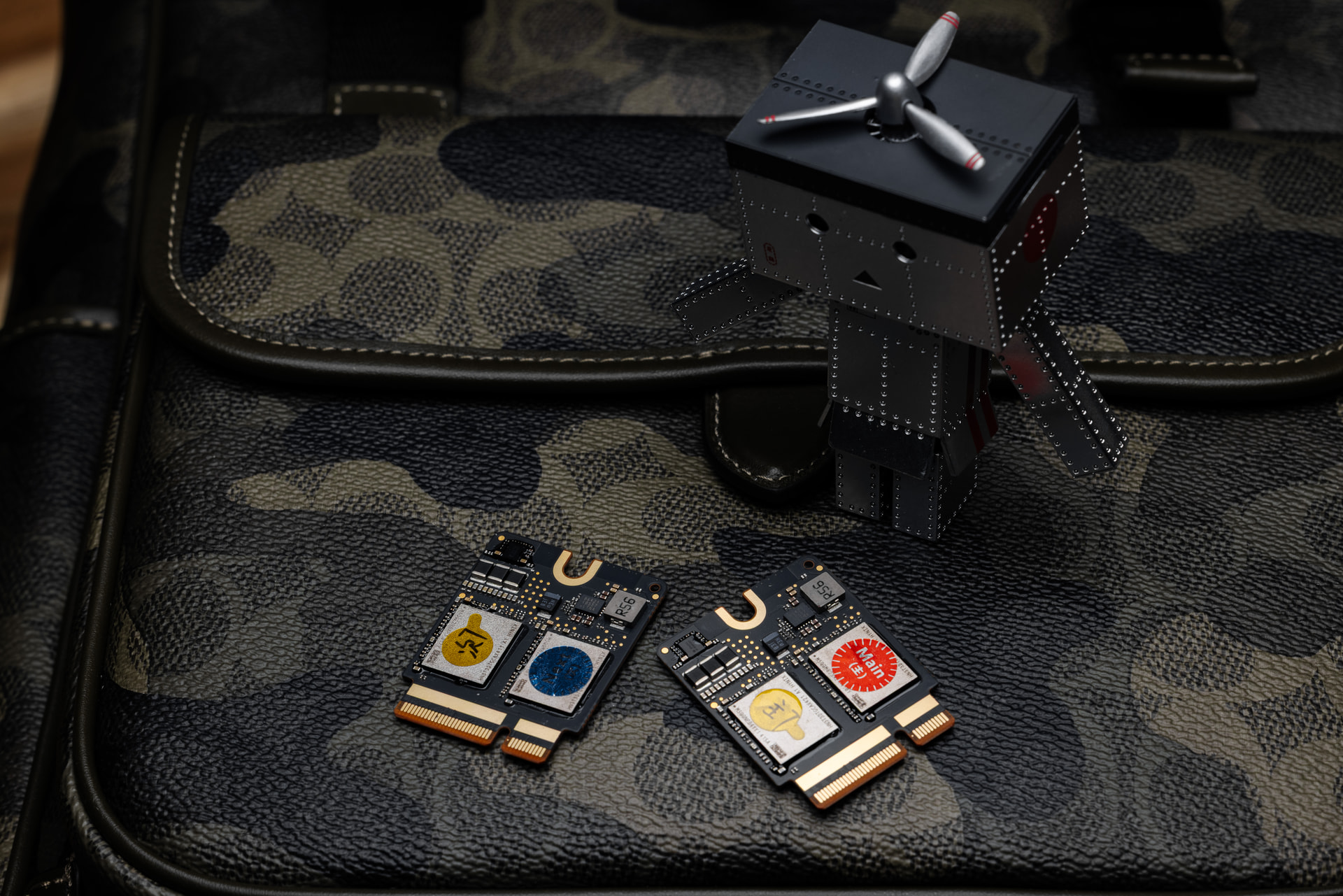
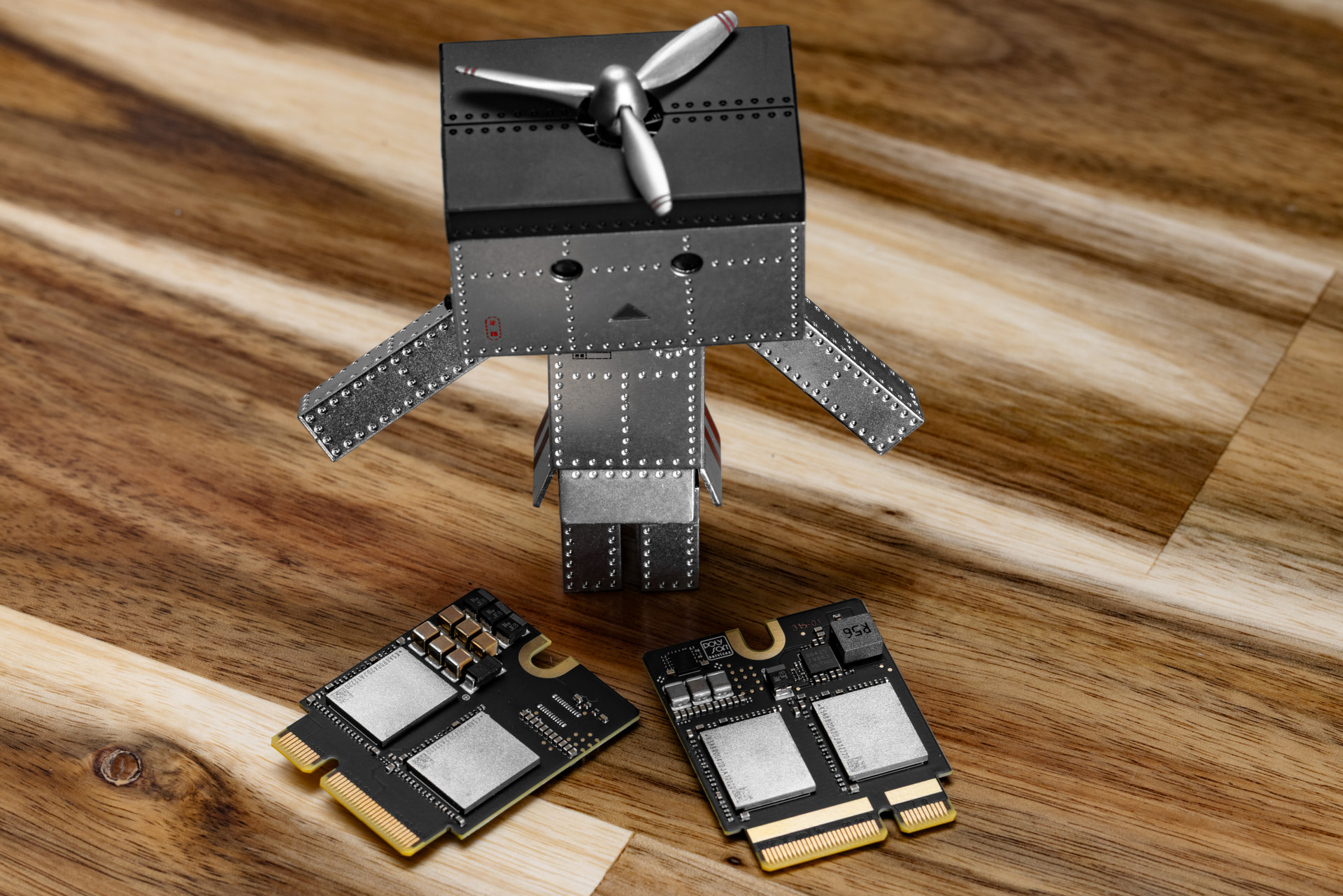
I got the drive installed, taking special care to put the modules in the right order. This is important because once they are initialized, they will ONLY work in this order. Since they had to be to verify that they were operational, they must go in order. Note the stickers in the photo.
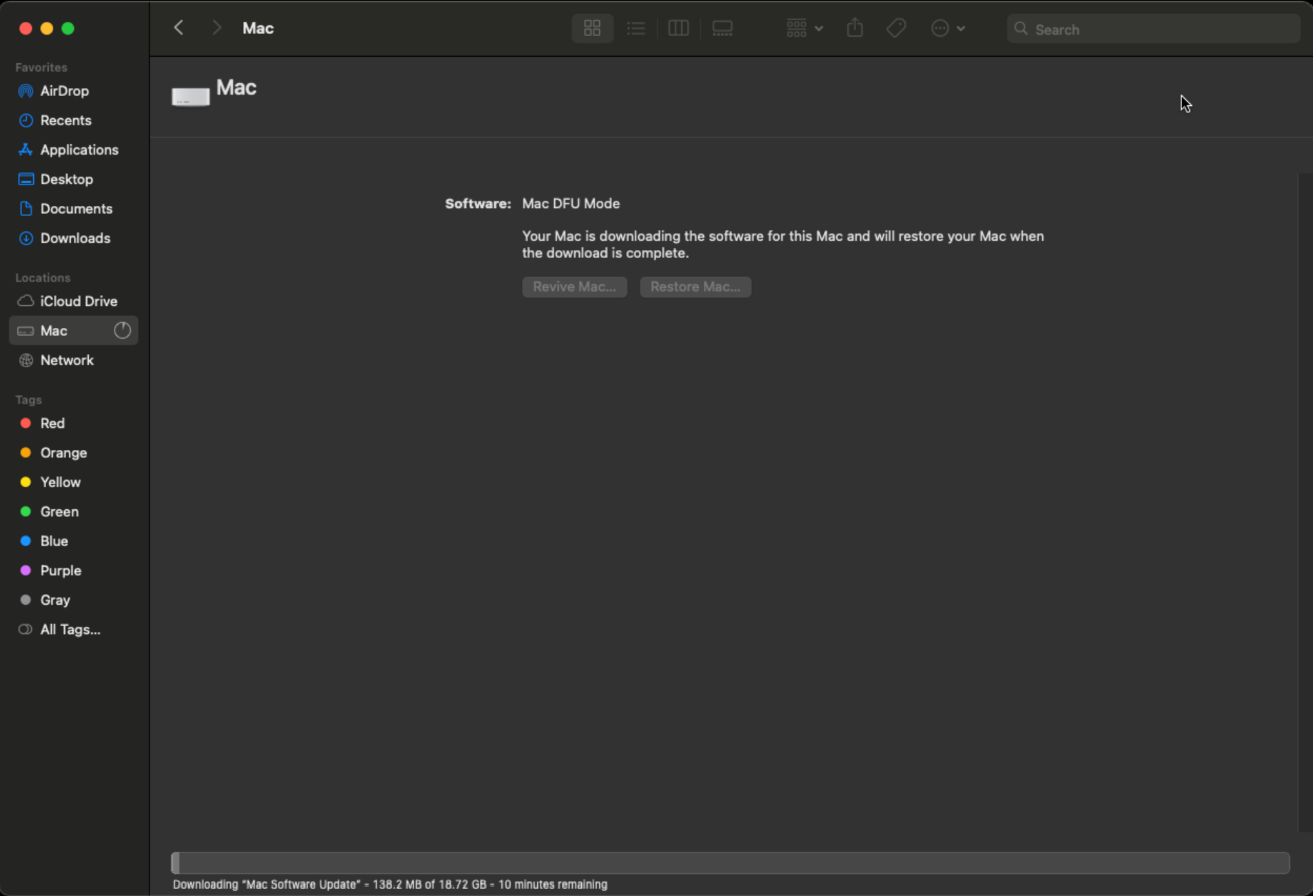
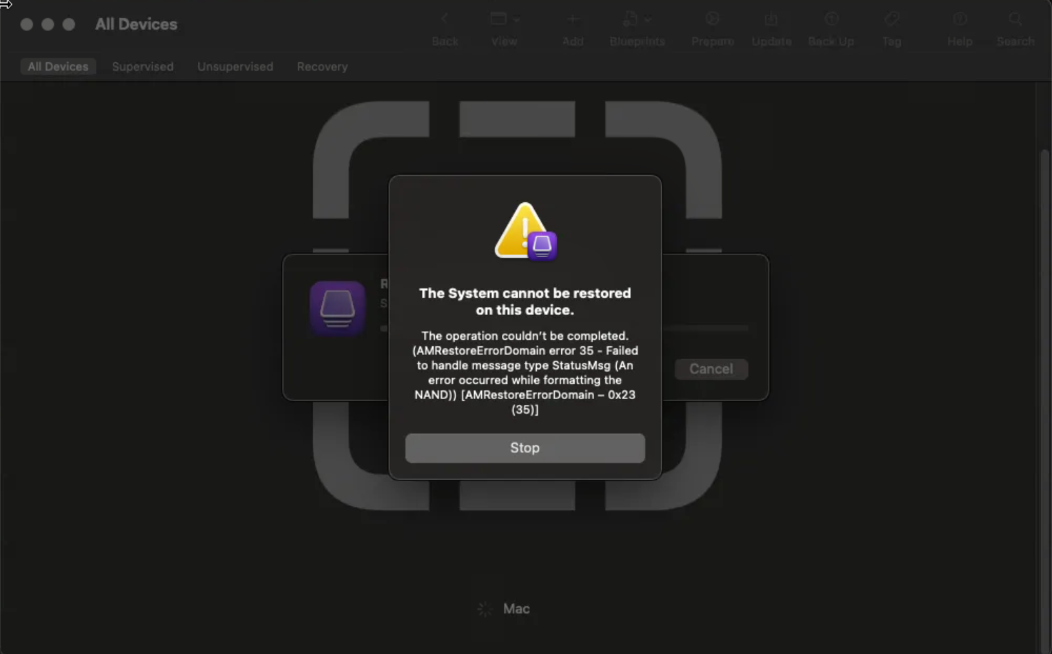
After this, I grabbed my Mac Mini and booted the studio into DFU mode and followed the procedures to get it restored. Annnnnnnnnnnnd it didn’t work… I tried many different things under the direction of the AliExpress seller, but it just wasn’t working. My theory is that I got two mismatched modules. Though bummed, I sent them back and am awaiting a refund. The seller was very helpful and I was going to reorder from him, but…
The Polysoft package shipped out of the blue… Giles updated the support ticket stating that he had an issue with an employee and apologized for the delay. That first day, I was still a bit skeptical. There was every chance that he input a fake tracking number to stifle the onslaught of chargebacks… but that Thursday, it showed up! Along with some lovely chocolates that a certain someone obliterated before I could get them into the photo.
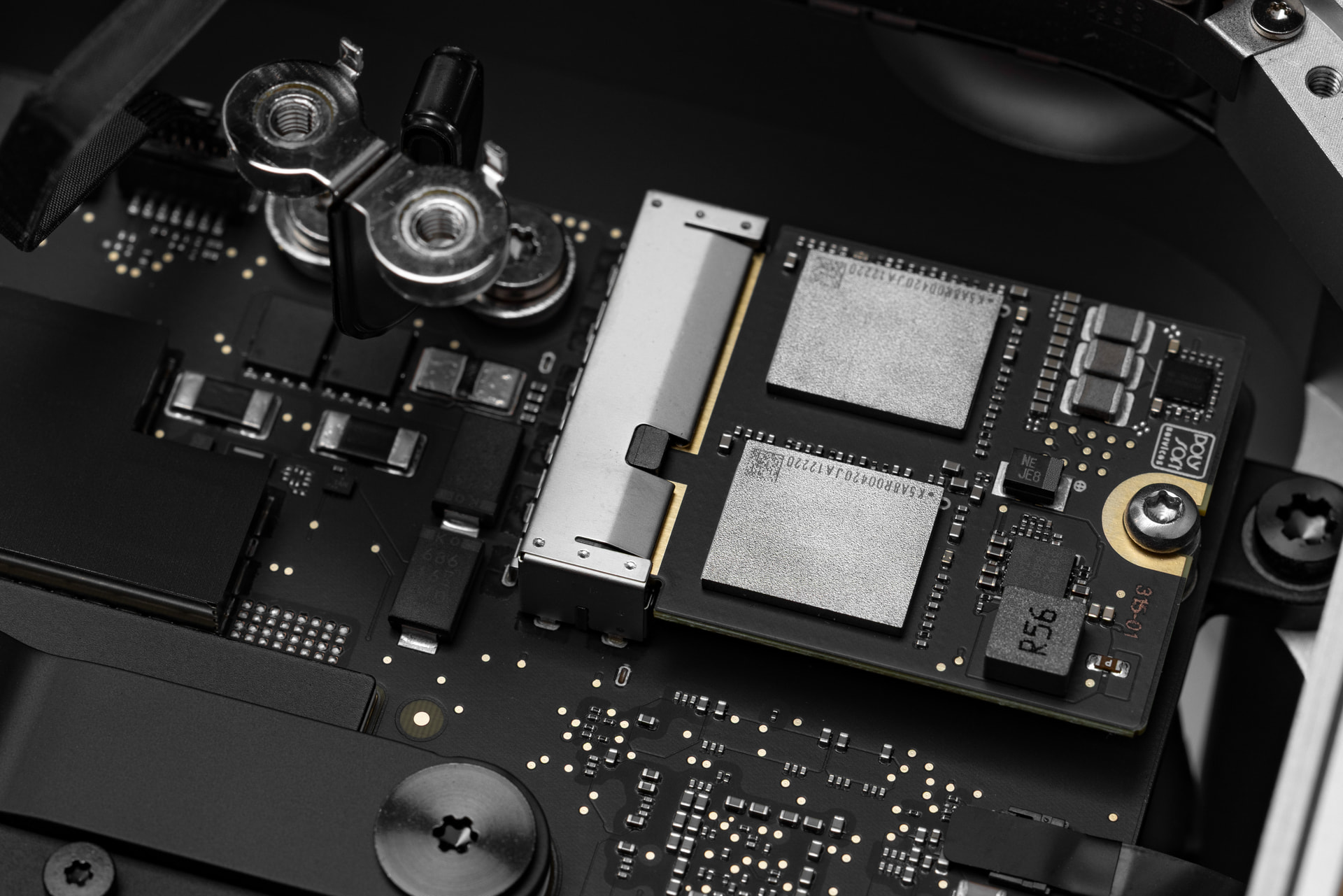
I again created a fresh backup, tore the Mac Studio apart, and installed the drive. Given I’ve done this like 5 times now, this took less than a few minutes. I am still amazed at how dust free the internals were. The chamber isolation is incredible. Once I started the restore… I got a failure message. At the same time though, I heard the famous Apple C Major cord. I swapped the Type-C cable over and… success!
For some reason, I couldn’t restore the time machine backup and it insisted that I just use Migration Assistant. This worked and I was back into a functional OS in under an hour from start to finish.
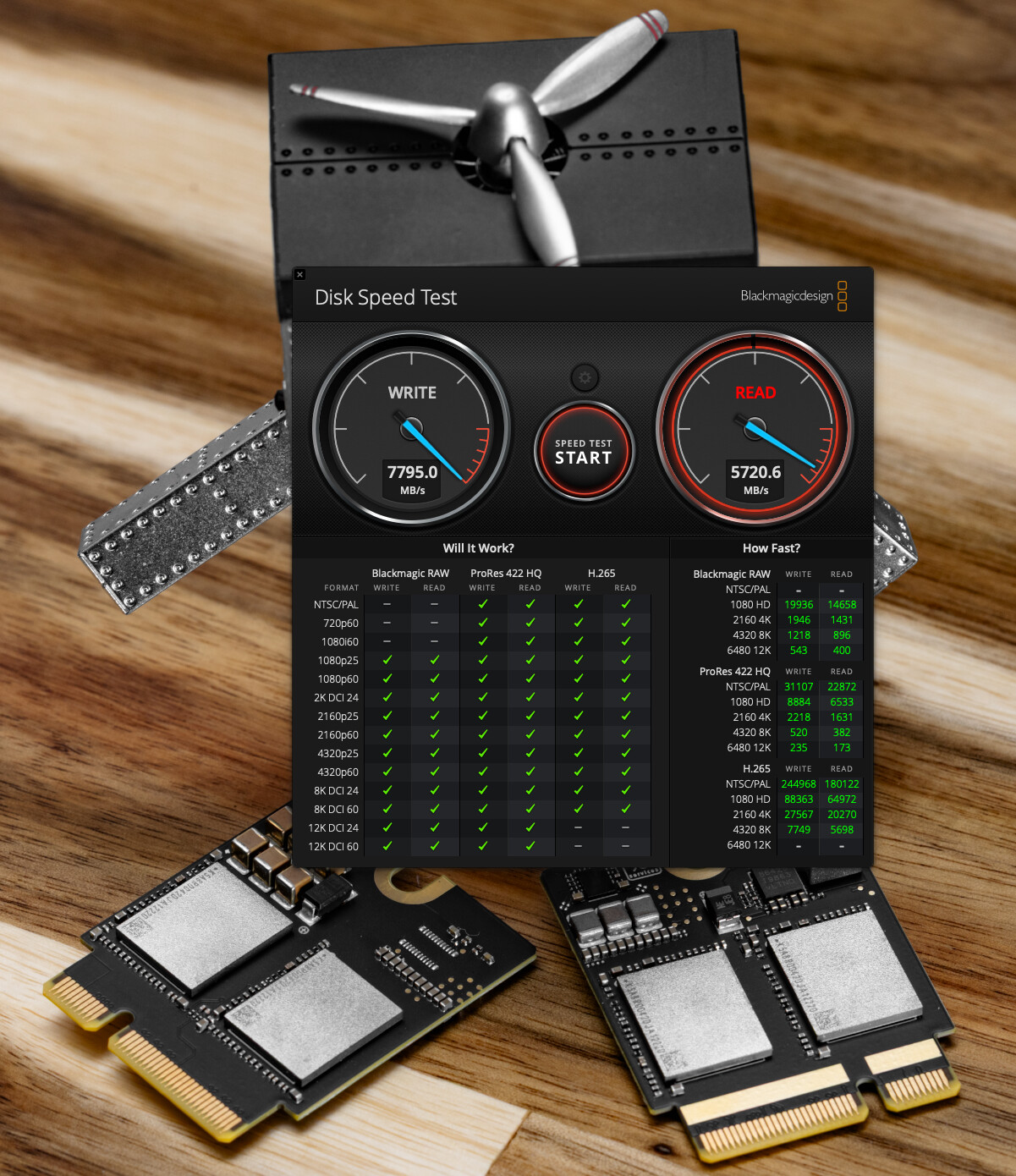
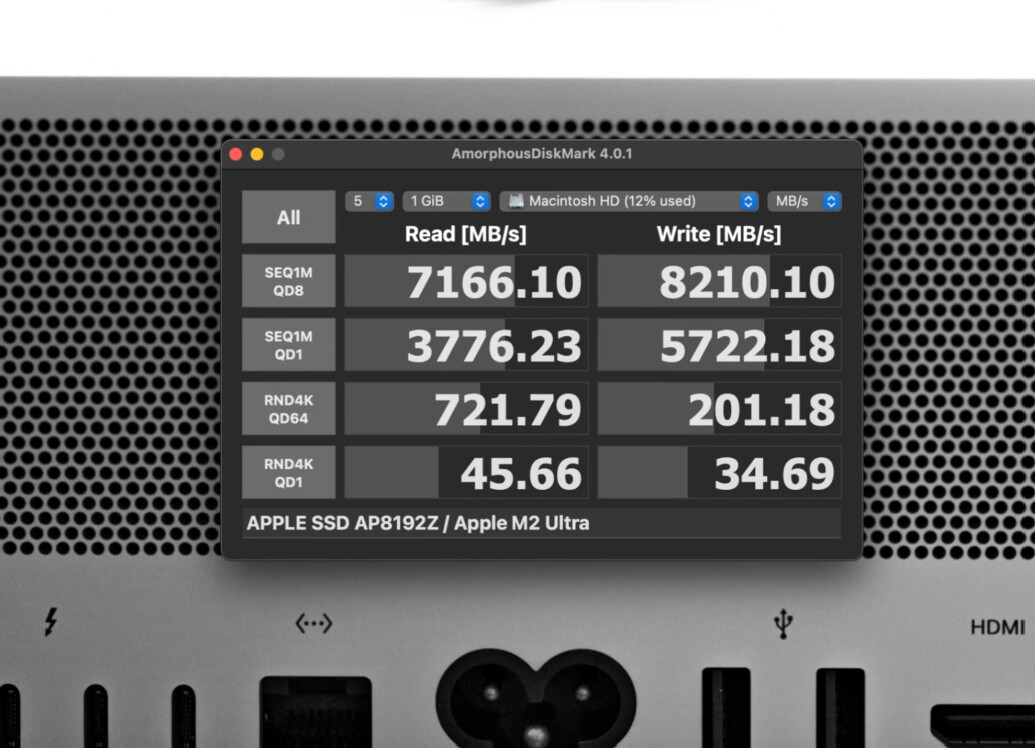
It’s installed, and it’s fast! The 1TB drive was about 5400/4800.
FINALLY. The 9 months of annoyance are over. My AliExpress refund is still pending, but I think that will be fine. I wish Polysoft didn’t just drop off the map, but what’s done is done.
Sadly, I cannot recommend ordering from him until he does A LOT with making things right. There are still many unfulfilled orders from what I see in the MacRumors thread. The end product does seem flawless and he did not rush it out the door. I am not the least bit concerned about craftsmanship. Hopefully this lasts me many years to come. I’m also glad I didn’t have to eat tariffs and dodged the great flash inflation.
Had to take apart the MX Master 4 today.
It was absolutely painless compared to having to replace the skates on the older gens just to get to the screws. After dislodging a piece of dust, we’re back in business in under 4 mins.
It’s nice.
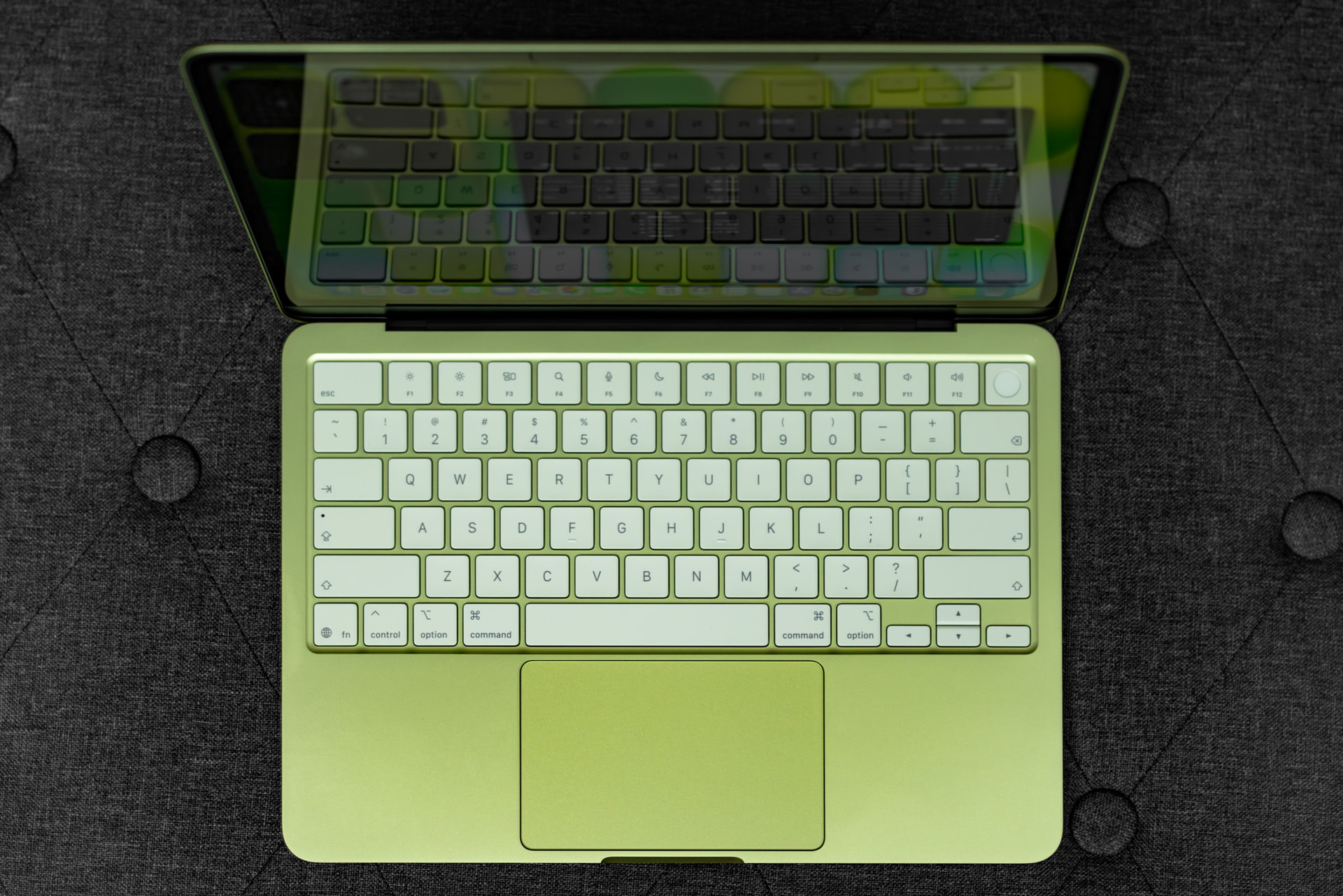
Since the experience was only EVER meant to be “nice,” they made it nice in lots of little ways. The colored theme accents go further to tie it all together than I thought it would. You REALLY see the “citrus” in your peripheral vision when you’re using it, so leaning into the colors was nifty.
The trackpad is nice. It can be confidently pressed from any area like their force touch ones, but it’s mechanical. It’s large enough and responsive enough to do anything I’d use this for.
The keyboard is nice. It’s not backlit, but I can’t think of the last time I used the backlit keyboard on any of my laptops. The lighter color of the keys means residual screen light is enough to make the keys visible if needed. Key travel is just a touch more shallow than normal MacBooks, but nothing I find distracting.
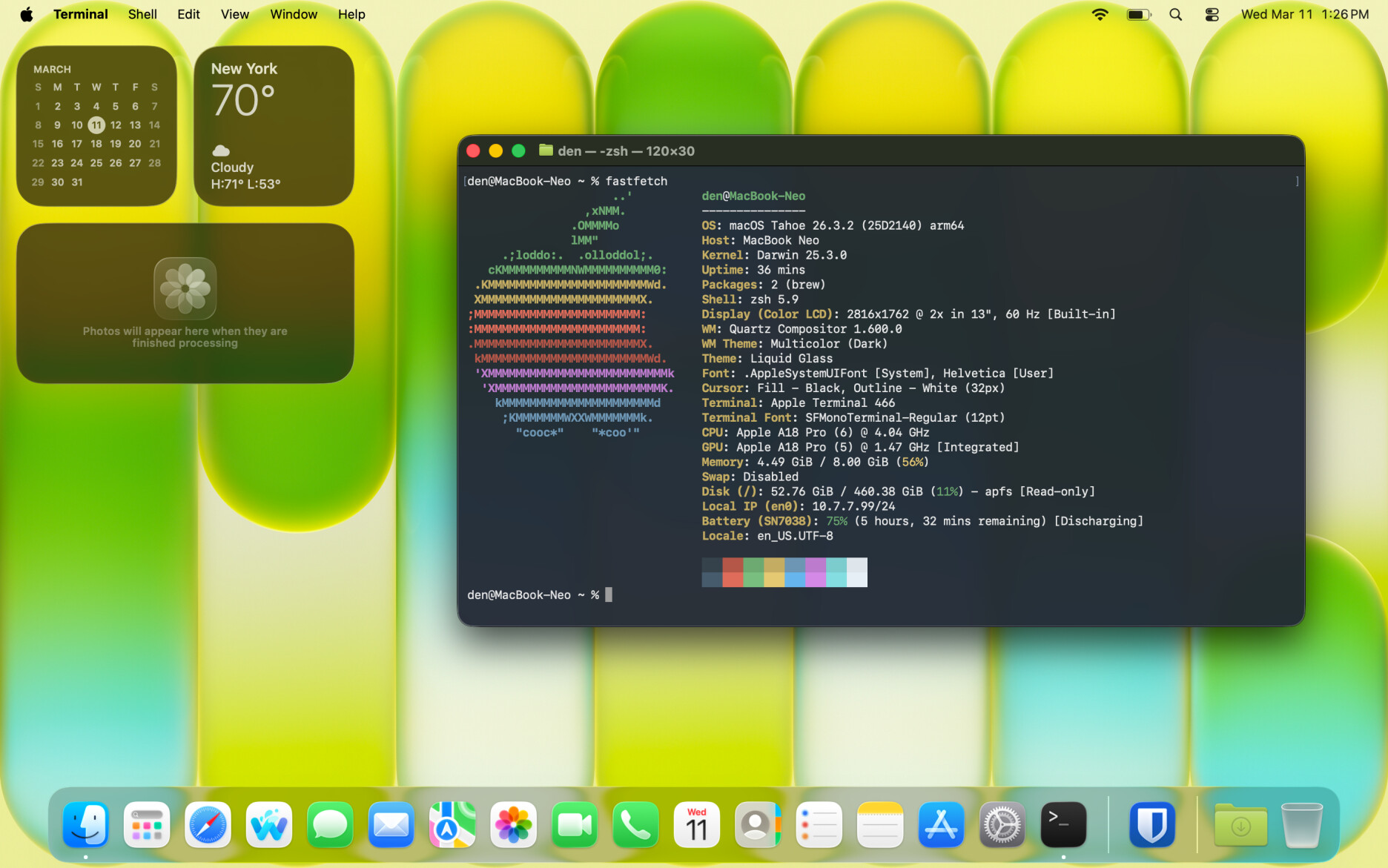
The screen is nice. 500 nits is PLENTY for the conditions I’ll be using the Neo in. Color is natural and reviewing photography on it isn’t any different than my more expensive laptops. It is the best kind of above average. 2408-by-1506 is great for this size screen. While the bezels are thicker than other newer MacBooks, at least there’s no notch.
The camera is nice. It’ll be one of the better looking images in whatever meeting or class you use this for, but it won’t wow anyone. It is simply nice for this class of laptop.
The speakers are nice. They’re loud enough for personal use, and the mids are very nice for any content with speaking. Dialog comes across very clearly. The music listening experience is where you can hear and feel the compromises. You’re missing most of the lower end of the more expensive Macbooks. That said, it still beats more Windows laptops in most price ranges, hands down. The microphone is on the nicer end of fine, especially the voice isolation.
The build quality is excellent. It is part of the reason this laptop is disruptive. It has the care and consideration you simply do not get in this price class. The hinge is a true 1-finger lift, there’s no flex or give in the chassis, and the surface finish is smooth. There are compromises in the specs, but you can’t feel them in the chassis. The weight, at 2.7lbs, is not the lightest 13 inch laptop, but still light enough for most people.
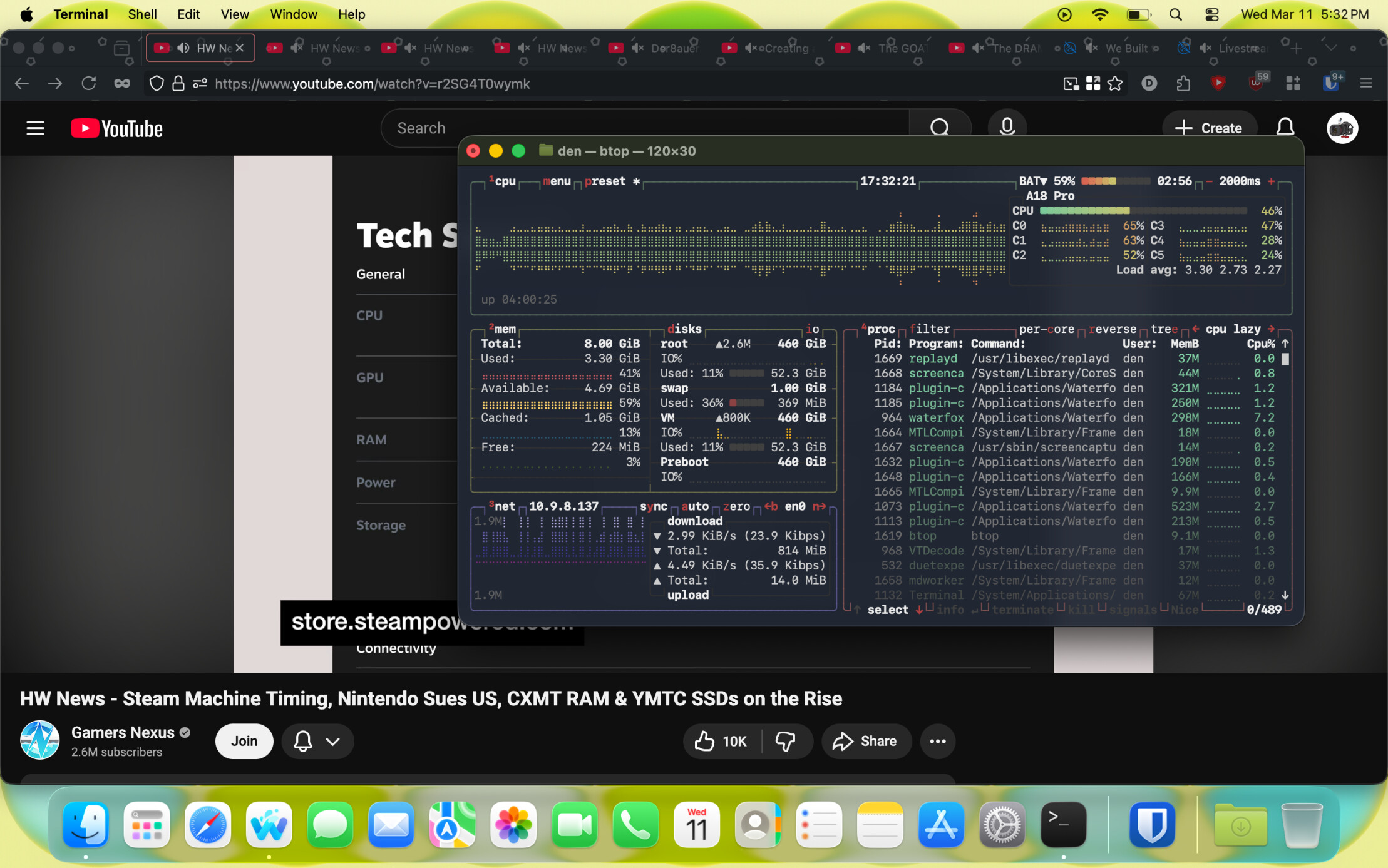
When we’re talking about compromises, if any of these are problems for you, then this laptop was not built with you in mind. This doesn’t mean we ignore them though. The Neo has 8GB of RAM. There’s no getting around the fact that this is sparse for a laptop sold in 2026. I have no doubt that will be felt even more as it ages. That said, I threw Lightroom on here and edited a few photos. It was a nice experience. Would I batch edit 300 photos on here? No. Though if I take this laptop with me on a trip to visit family, it will do that without breaking a sweat.
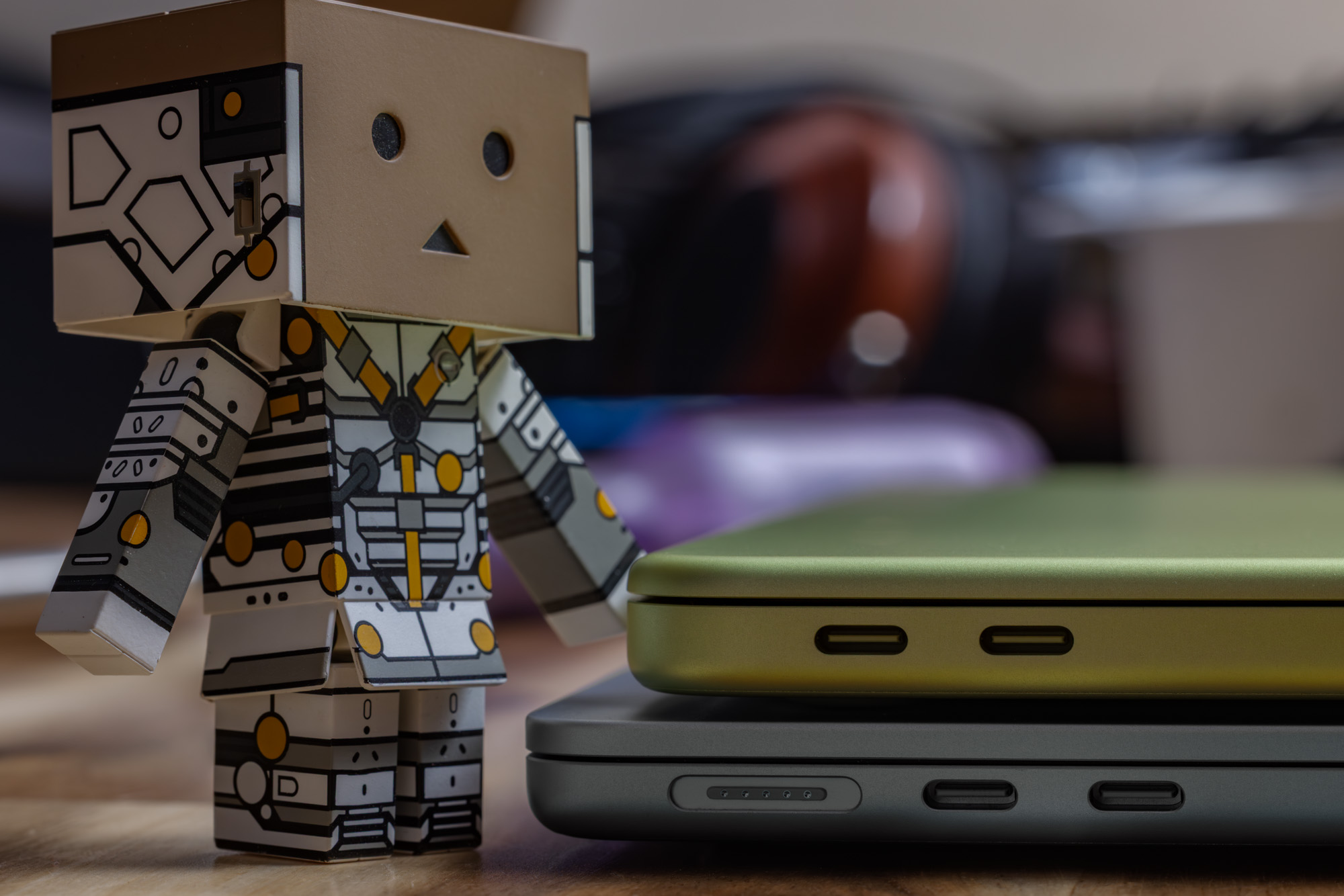
More compromises come with connectivity. You get 2 USB Type-C ports. One is 10Gb/s USB 3, while the other is a far slower USB 2 480Mb/s port. That and a headphone jack are all you get, but as I said before, if you need more, this laptop is not for you. The Neo includes Wi-Fi 6E and Bluetooth 6. I don’t know many people with as many Wi-Fi 7 devices (and infrastructure) as me, so I doubt this is a problem for the intended audience.
Someone asked me how many times I could open at once, so I opened 10 tabs and played 10x 1080p videos from 2 different sources at the same time. Something no one would ever do for any good reason. It was no problem. Going from tab to tab, there wasn’t a single hitch in video playback. Adding Spotify and Discord into the mix didn’t present any challenges either. As a leisure laptop, I won’t be doing much more than this, but if you want to try something, feel free to ask.
It’s important to me to NOT bring my workhorse (a FW13 Ryzen HX370) when I need to feel like I’m away from work. From the complete change in style, OS, and overall feel, it’s the change of pace I need and would not find in almost anything else at this price.
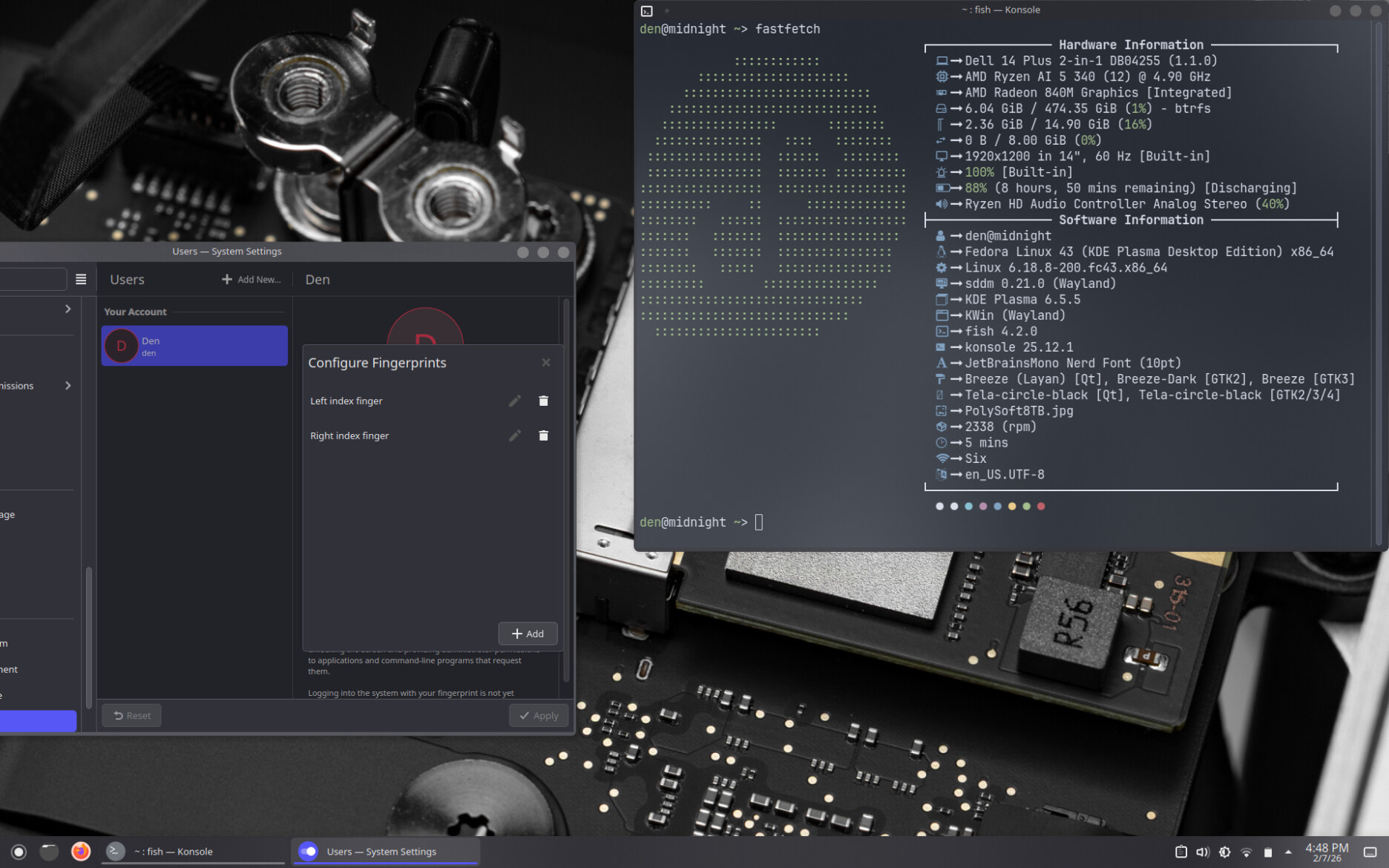
I say almost because I’m a deal hunter. I KNOW I can find something nice right now for $500. And I did… This Dell Plus (why did they make their names so soulless now???) has a Ryzen 340 CPU, 16GB of RAM, and 512GB SSD. The CPU handily beats the A18 pro overall, the iGPU is better, it has twice as much RAM, the SSD is many times faster, and it’s a 2-in-1 with a touchscreen.
It takes Fedora 43 VERY nicely. Everything works just fine, including the fingerprint reader. Oh yeah, it has a fingerprint reader! It also has faster, more capable type-C ports, HDMI, and USB-A. For connectivity, you have Wi-Fi 7. I have yet to see much improvement over 6E in day to day scenarios, but hey… it’s there for the future.
If you find any of what the MacBook Neo offers to be a compromise, I doubt you would feel the same about the Dell. It’s not without its problems though. The battery is shorter than the Neo, especially on Linux. They claim 19 hours, but the asterisk there is massive. In normal use, I got about 8-10. It’s almost a full pound heavier thanks in part to the touch screen layer. The speakers are… the kind of laptops speakers that gave Windows PCs a bad reputation for having bad speakers. That legacy lives on here. Most things are hard to listen to above mid level volume.
Build quality is not as nice as the MacBook Neo. The trackpad is a little under average, worsened by poor chassis rigidity. The keyboard is okay in the center, but ruined on the sides by the flexy chassis. The webcam is a potato, a 1080p with a little butter and salt, but still a potato. The top lid and bottom are metal, but the palmrest and bezel are plastic. That plastic manifests as deck flex and overall mush. This makes the typing experience suffer. The screen is worse than the Neo. It’s lower resolution, only 300 nits, and I don’t think I would edit on it, even in a pinch.
All that said, sadly, the Dell is not on sale anymore and with the way RAM and storage are going, it may never be again. The cheapest I can find it is $669 at the time of writing. A decent price, but keep looking if you don’t NEED a 2-in-1.
So, if it was a choice between the MacBook Neo and the Dell Plus 14, it would be the Neo. It’s a nicer experience, even if it is less powerful. I have a STRONG feeling that this is the MacBook that will take market share from PCs and Chromebooks alike. This is good for everyone. Standards have needed to increase along with the prices we are paying for PC laptops for a LONG time. With how much Microsoft is advertising to us, then PC vendors adding to the pile with AV trials… we deserve something “nice.”
Edit:
Just wanted to tack on iFixit’s teardown. While “only” earning a 6/10 (mainly because of the RAM and storage being part of the SoC), it still manages to be the most repairable MacBook in 14 years.
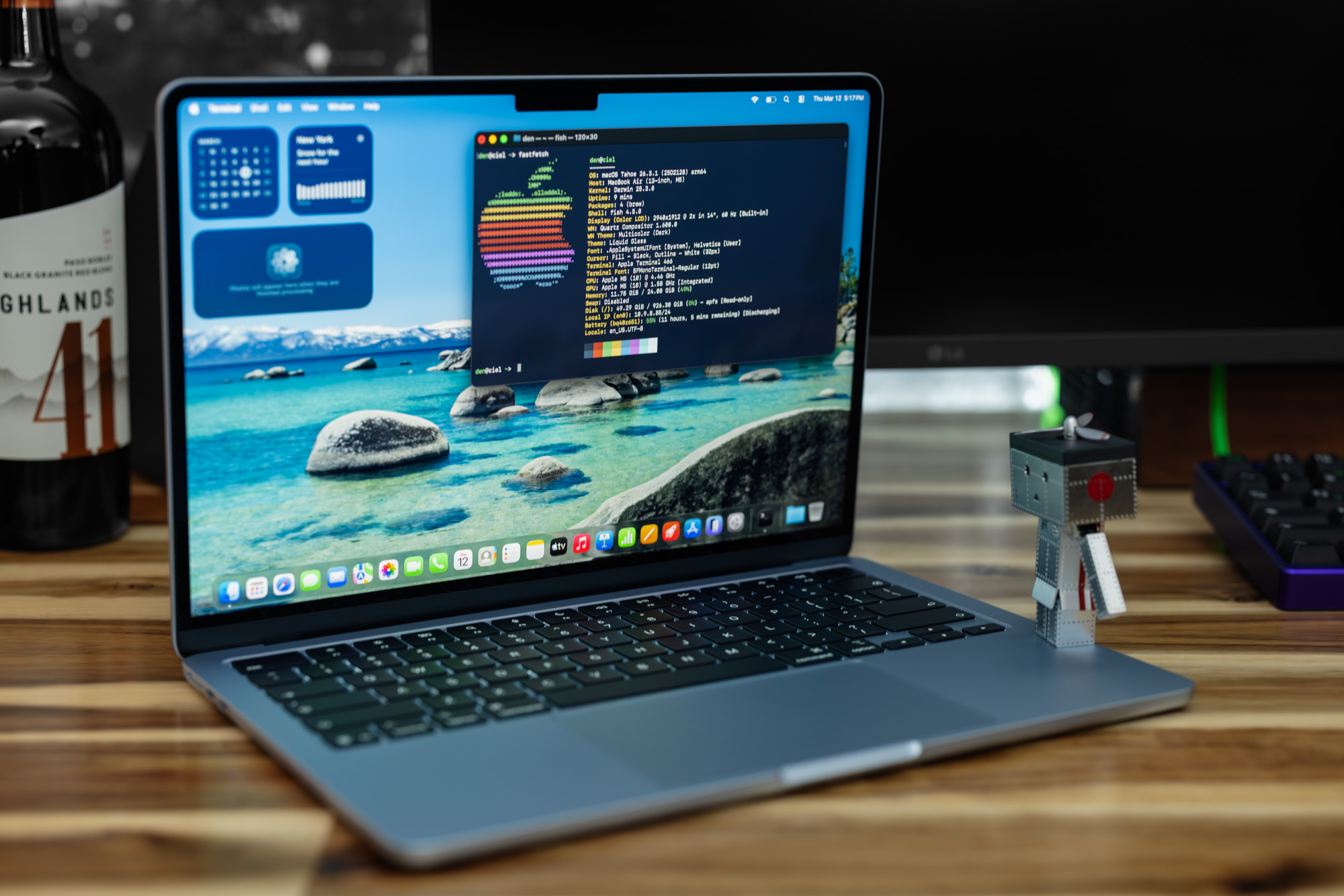
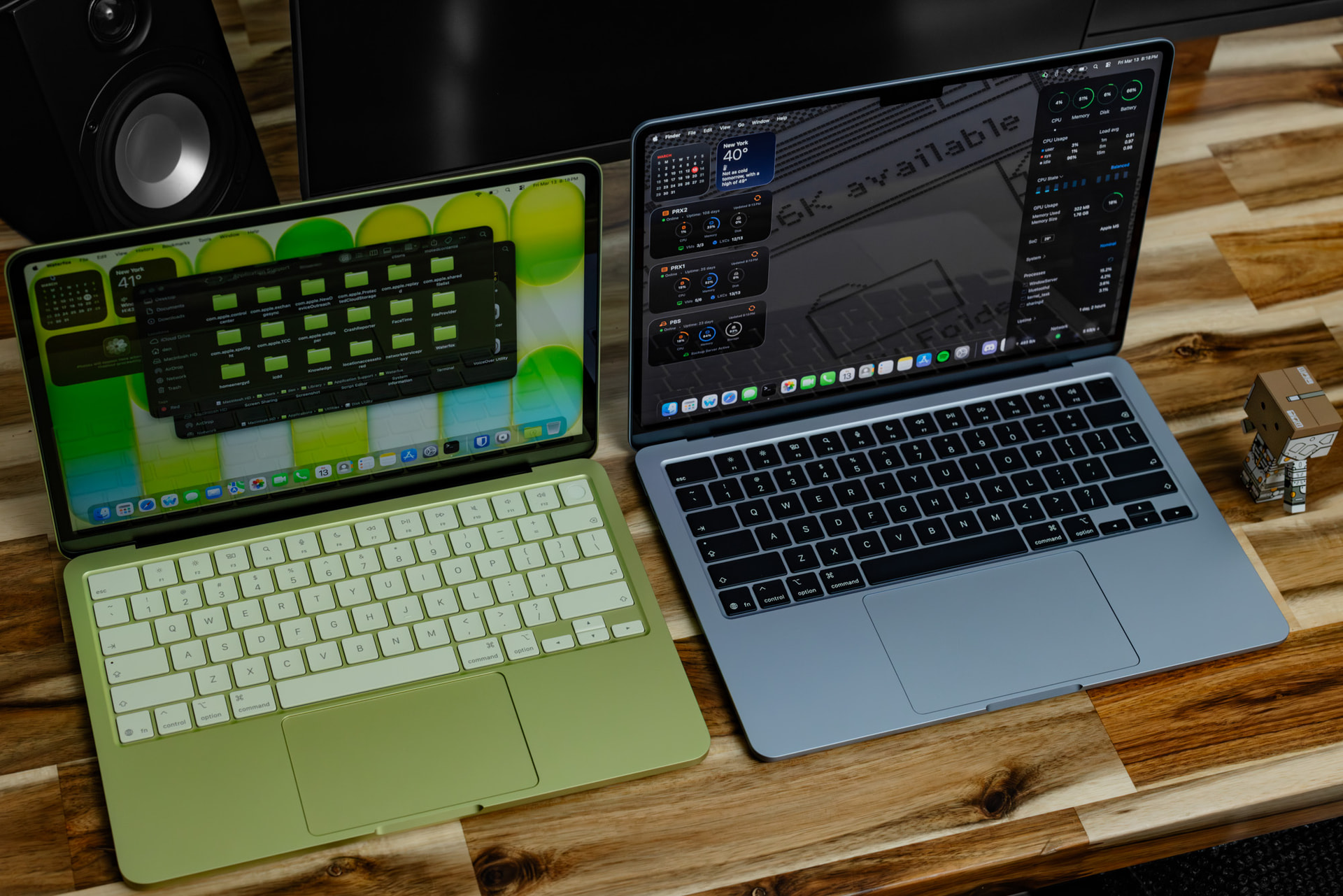
Due to a miscommunication, I now have a MacBook Air M5. This does afford me the opportunity to compare the Air to the Neo, even if it’s an unfair fight. From a chassis perspective, they are more similar than they are different. This is what gives the Neo its chance to turn the PC laptop industry on its head. If you’ve ever handled a modern aluminum MacBook, you know that feeling of “yup, this is a MacBook.” Apple has an unmistakable quality to its aluminum finish that the Neo does not lack. One of the areas the Air is a little too similar is the port selection. While the Type-C ports are more capable, there are only two, both being on one side. I would have a much easier time dealing with the lack of ports if I didn’t have to think about which side of the laptop I can use for charging.
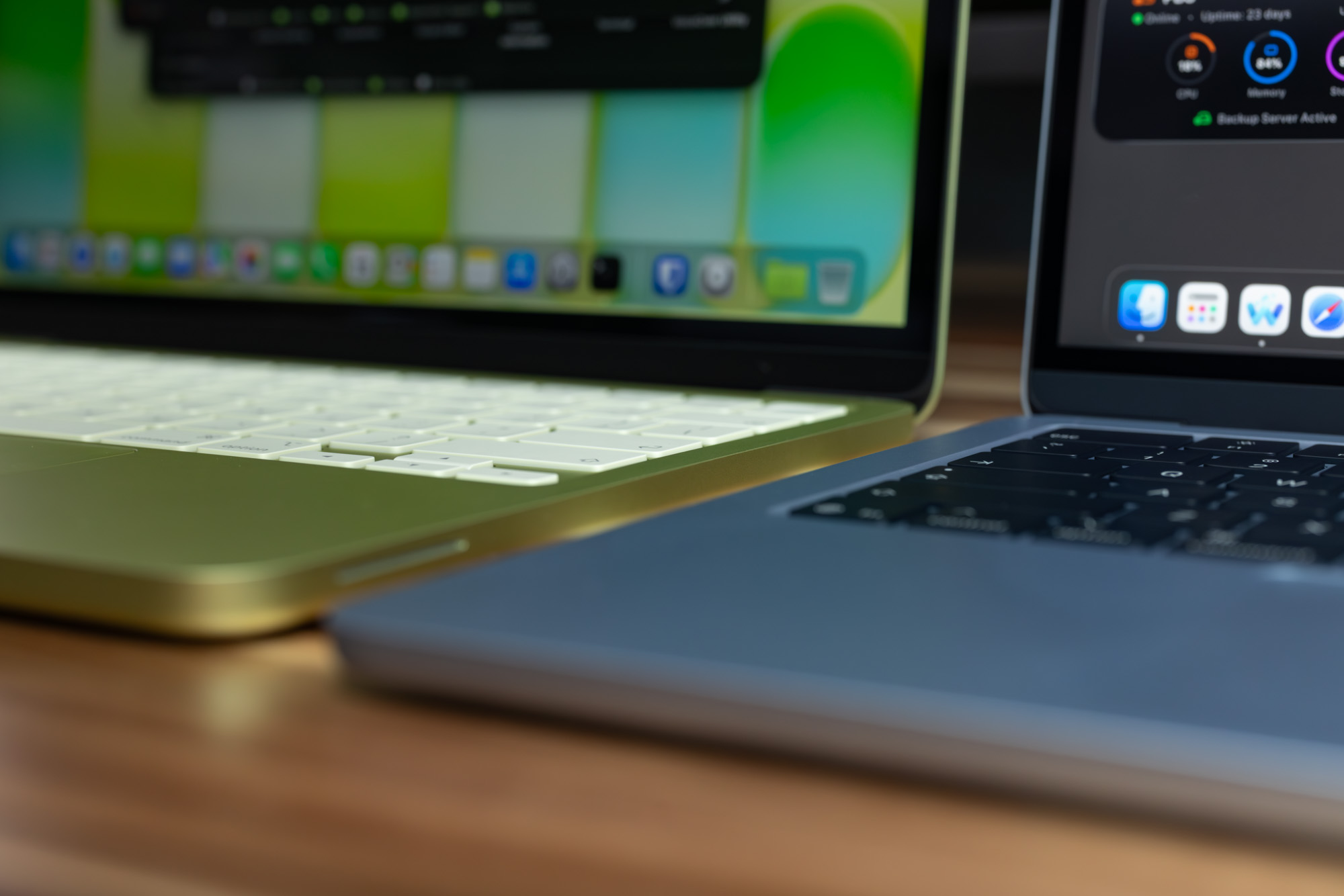
In terms of differences, the immediate one for me is the extra height afforded by the Air’s aspect ratio. I found myself full-screening everything on the Neo, where I did not feel the need to on the Air. This makes sense as I expect most people to use the Neo for content consumption. The second most obvious is thinness. I had the M1 Air and M1 Pro, back in 2020-2021. The Air back then had its signature teardrop shape, so it felt silly to compare them, but Apple later unified the design language. This means the Neo, Air, and Pro have the same general shape. It’s much easier to see and feel how slim the Air is when it’s not doing the tear drop taper trick.
The notch. I don’t think it has a place on laptop screens. It looked ridiculous on the M1 Pro, and now even more so years later on the Air. The Neo may have thicker bezels, but I really did not feel that was a negative when compared with the notch. It’s a bit hypocritical, I know, given I just said I enjoyed the extra screen real estate of the Air. That said, I am unwilling to give it a pass because I know Apple can get rid of it, but they chose to make it part of the identity of the lineup for reasons I will never understand.
Aspect ratio aside and notch aside, having the two laptops side by side shows that numbers on paper don’t always translate. The two screens have similar specs, but the Air is clearly brighter and has better range than the Neo. The highlights stood out more clearly when comparing my photos on the screens. However, the Neo is still a great screen for its price and class.
The keyboard and trackpad areas are generally the same, with the Air trackpad being larger, but I do feel a difference with the keys. The Neo keycaps are either slightly taller, or don’t sit as low in the body as the Air’s. When I fully depress a key, it is slightly proud of the chassis on the Neo, where it is nearly flush with the Air.
The final thing to compare, and maybe most important, is personality. The Neo’s color offerings make a VERY large impact both online, and in person. The Air (and Pros) play it safe. My Air is blue, but in most light, I don’t see that. In fact, when the light catches just right and it actually looks Sky Blue, it catches me by surprise. Add in the extra effort Apple put in to color match the theme, and you can see just how hard they are trying to grab a fresh audience. It makes the Air feel almost neglected. It doesn’t have the flashiness of the Neos, nor does it have the attention grabbing power of the Pros.
In the end, it doesn’t even matter I am sticking with the Air. It is a boring and safe choice, but what won me over is the more usable aspect ratio. My Framework 13 has me VERY used to taller screens, and not needing to full-screen everything just feels better to me. It wasn’t the better screen, the extra RAM, the lighter weight, the thinness, or anything else that won me over. The Neo is really almost as good in my specific application for it.
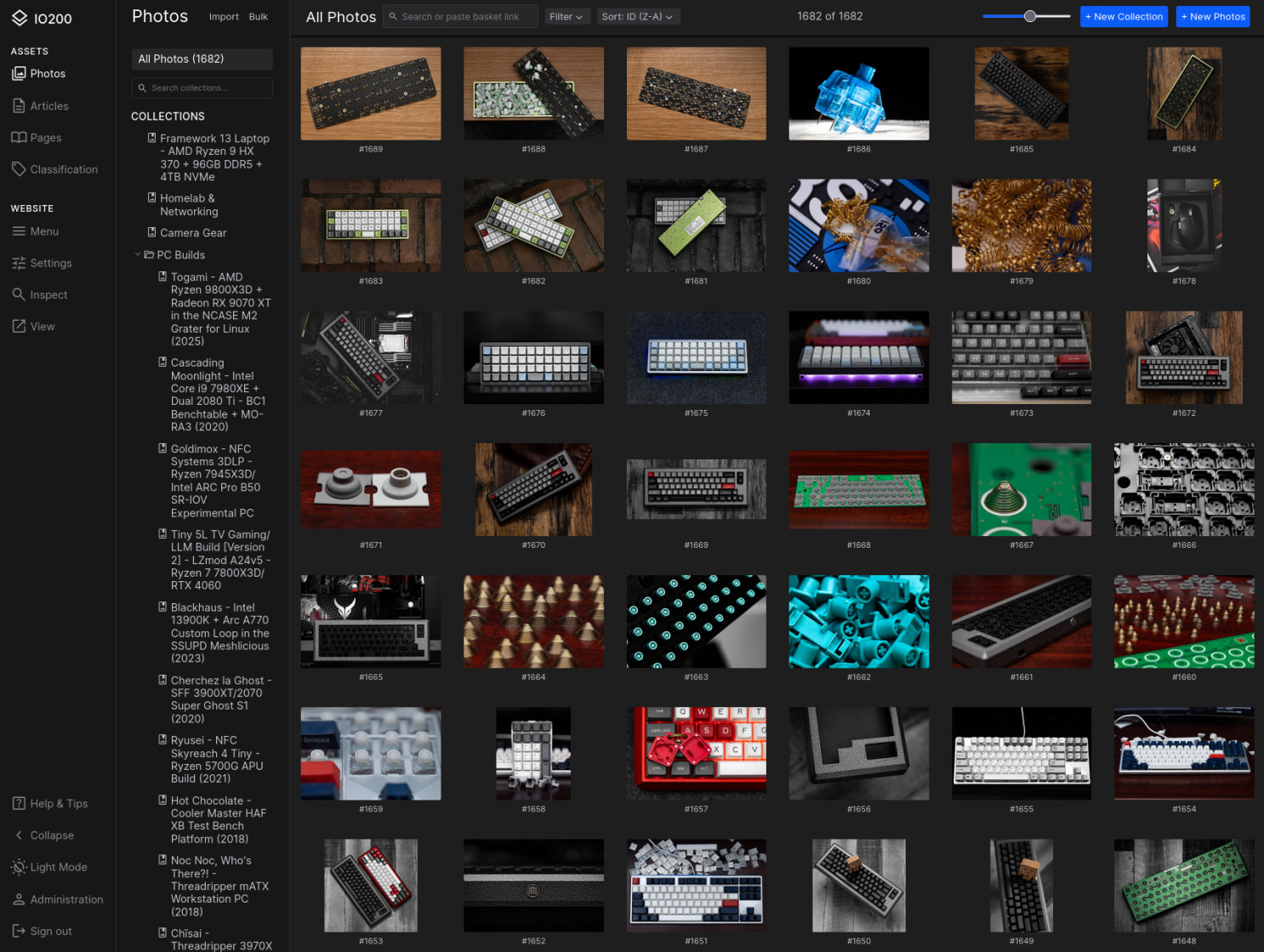
Purchased a license to IO200. A strangely nondescript name, but it replaces Koken. A photography CMS I’ve missed DEARLY since it was sold and left for dead. While it replicates 90% of the functionality, I do miss the Lightroom plugin. Koken was truly advanced for what it was. It would probably still be around if they monetized it sooner. Here’s hoping IO200 lasts!
Both are self-hosted and Koken never stopped working, but it had too many security vulnerabilities to risk running it.
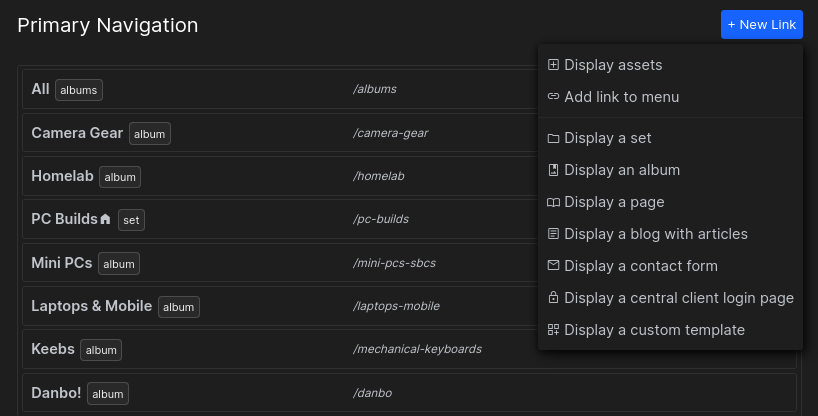
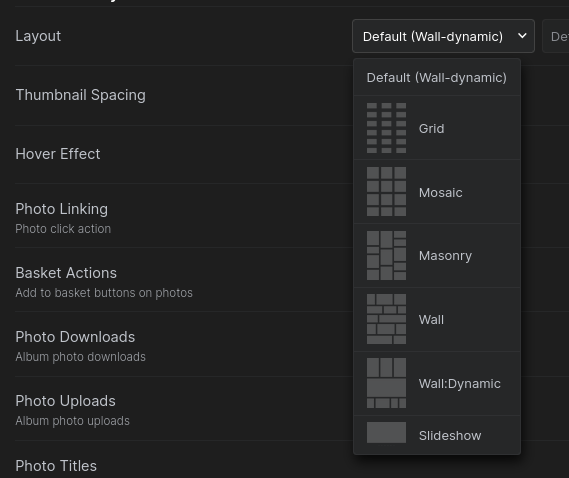
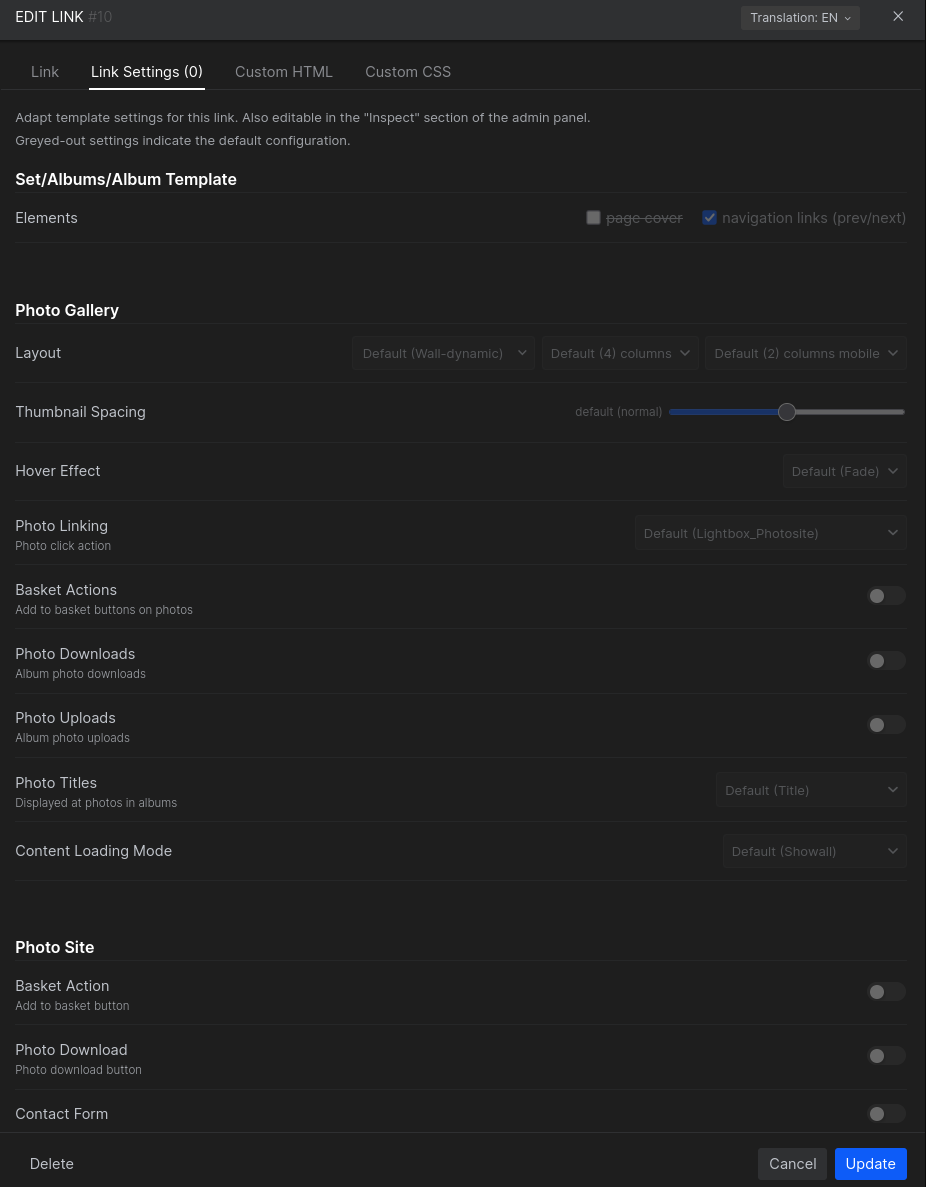
The interface is very similar, so it was super quick to get acclimated. Establishing the navigation was a bit tricky. You make the gallery, but it’s where you link it that sets the details like page layout. I thought that was strange, but now that I’ve done it a few times it makes sense.
The result is a very clean looking gallery. I was considering using a static site generator, but I would never update it if I was left to manage it to that degree.